
In this guide, you will learn how to set up and configure WireGuard, a fast and modern VPN protocol that offers both security and simplicity.
Download and Install the App
To get started with WireGuard on your Mac device, follow these steps:
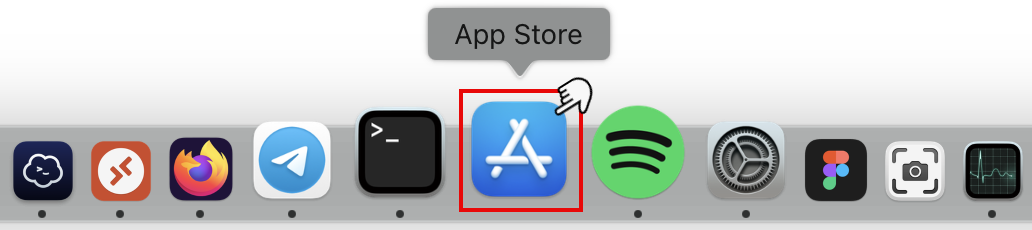
1. Click on the App Store and open the app.
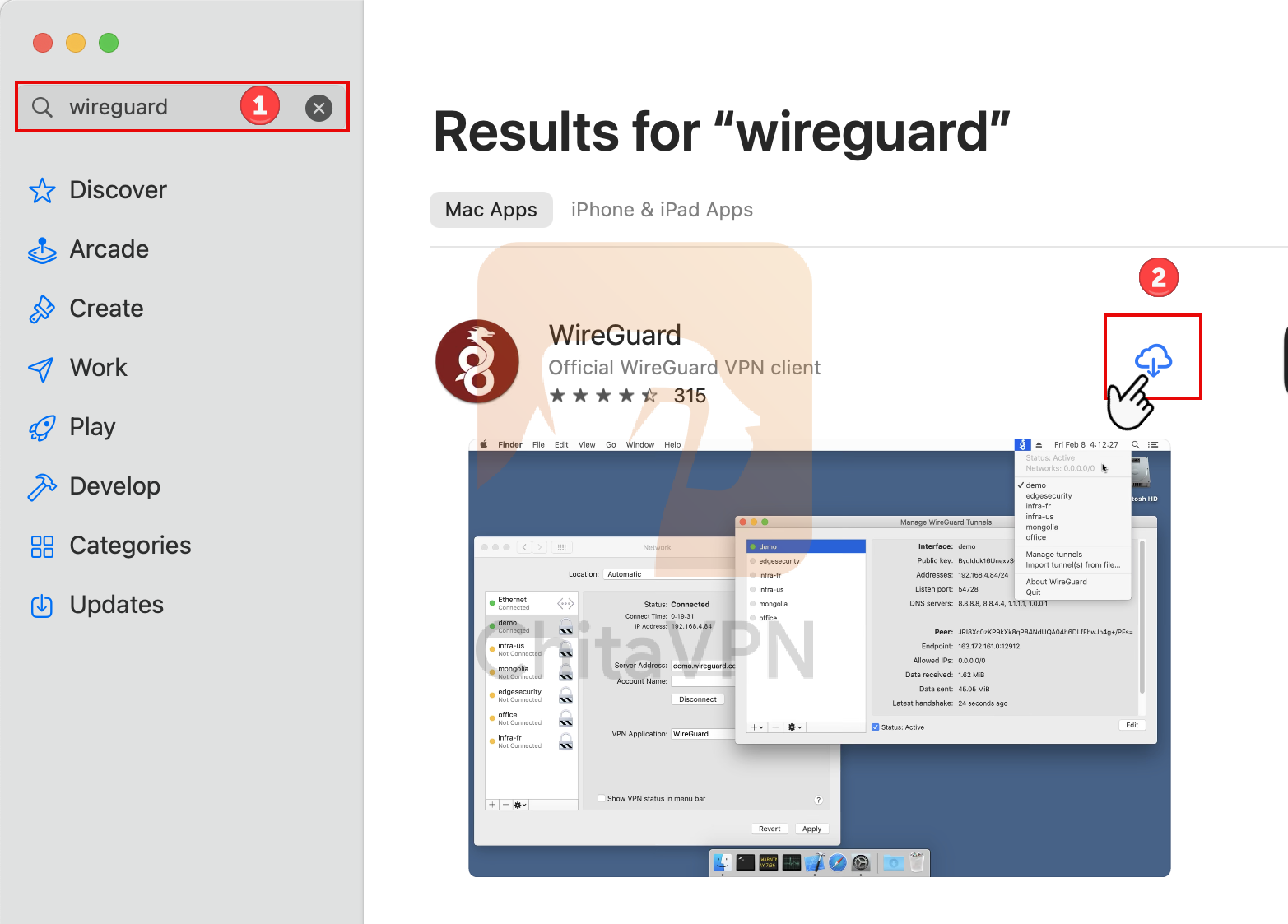
2. Click on the search bar, type "WireGuard" to search for the app, then click the "Download" button and wait for the installation to complete. Afterward, open the app.
Add VPN Configuration file and Connect
To use WireGuard, you must have a ChitaVPN subscription. If you don’t have one yet, sign up now!
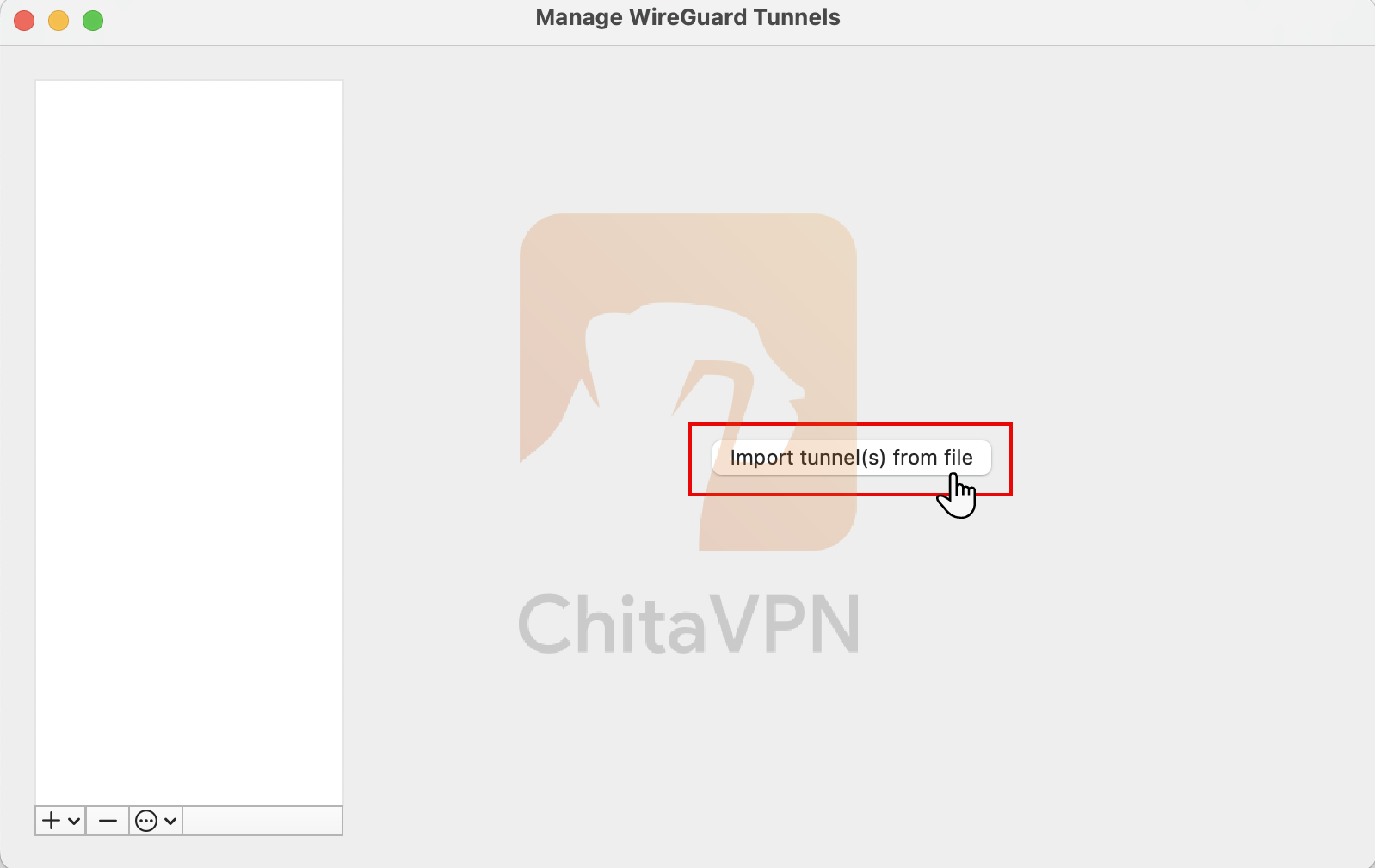
1. After launching the app, click on "Import tunnel from file" to import ChitaVPN configuration file.
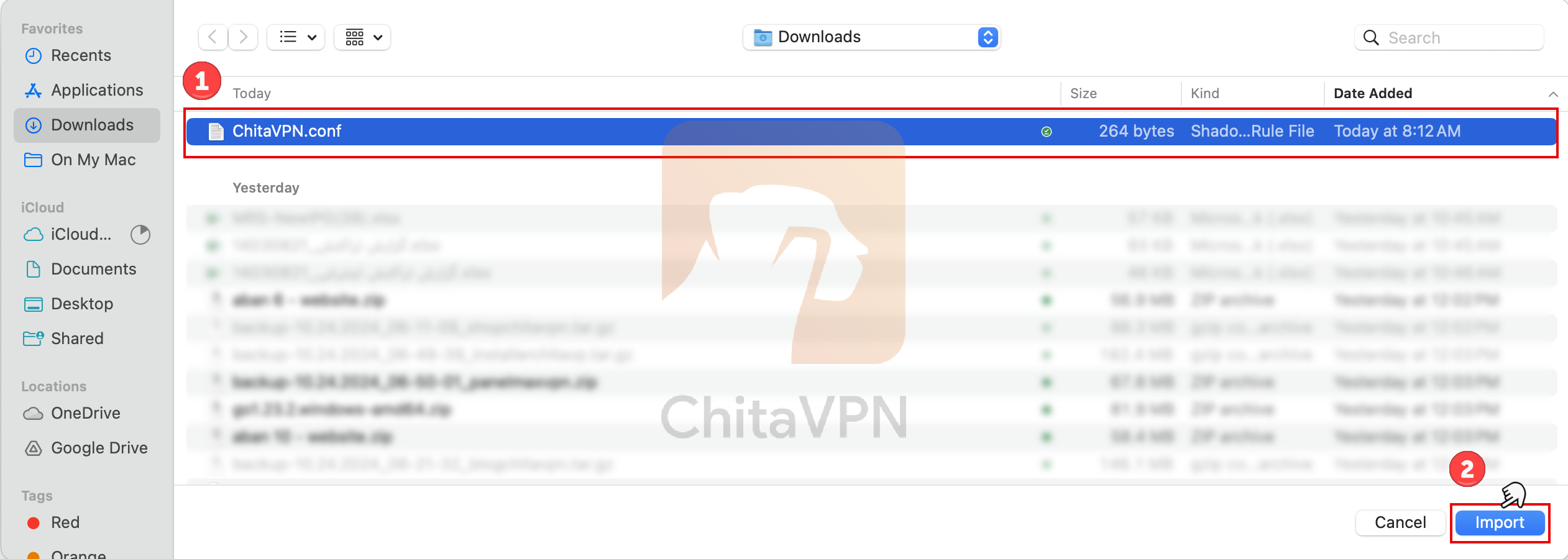
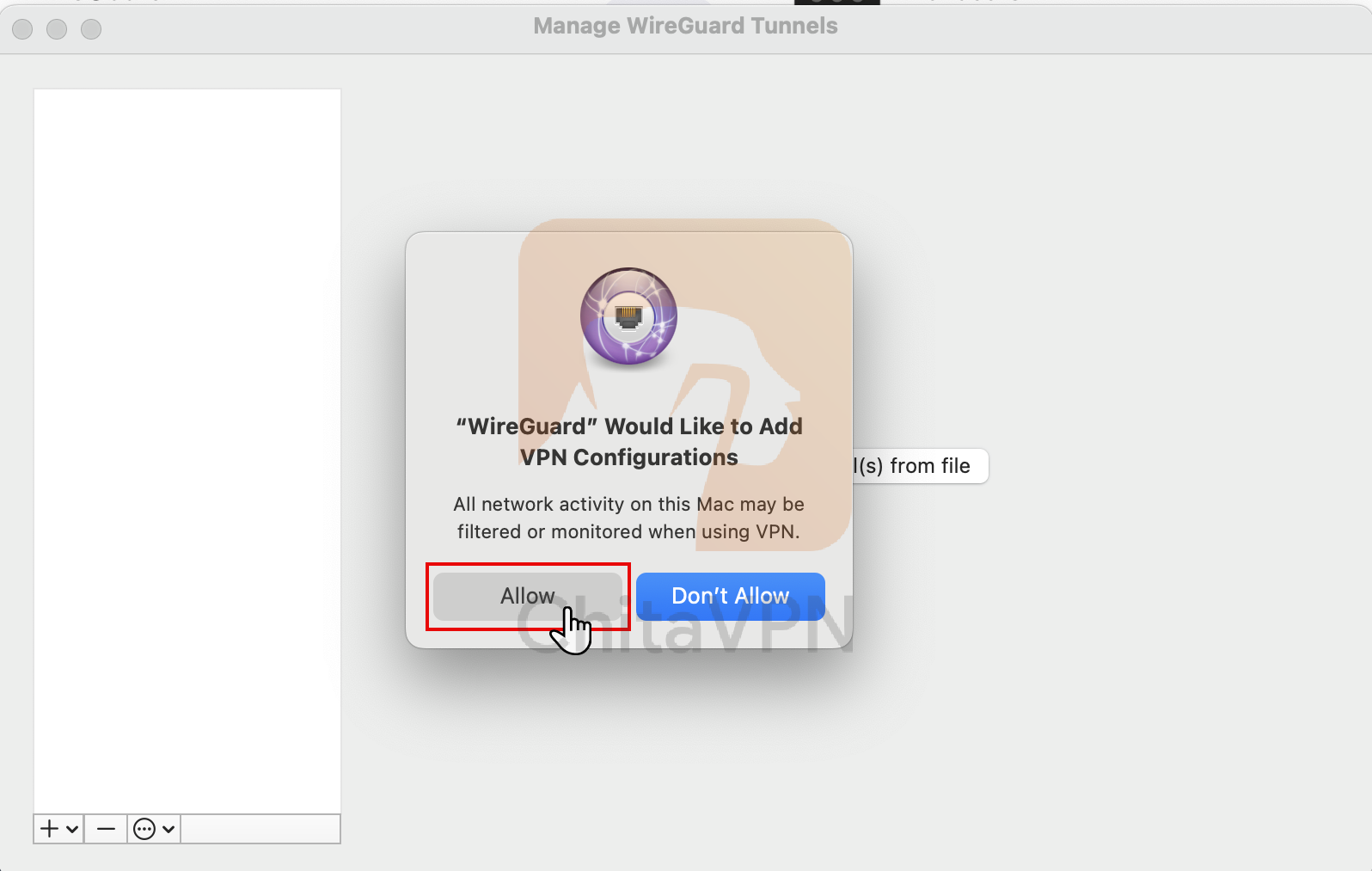
2. Select the ChitaVPN configuration file you downloaded and click "import" button, then click on the "Allow" button to grant permission to add the VPN configuration.
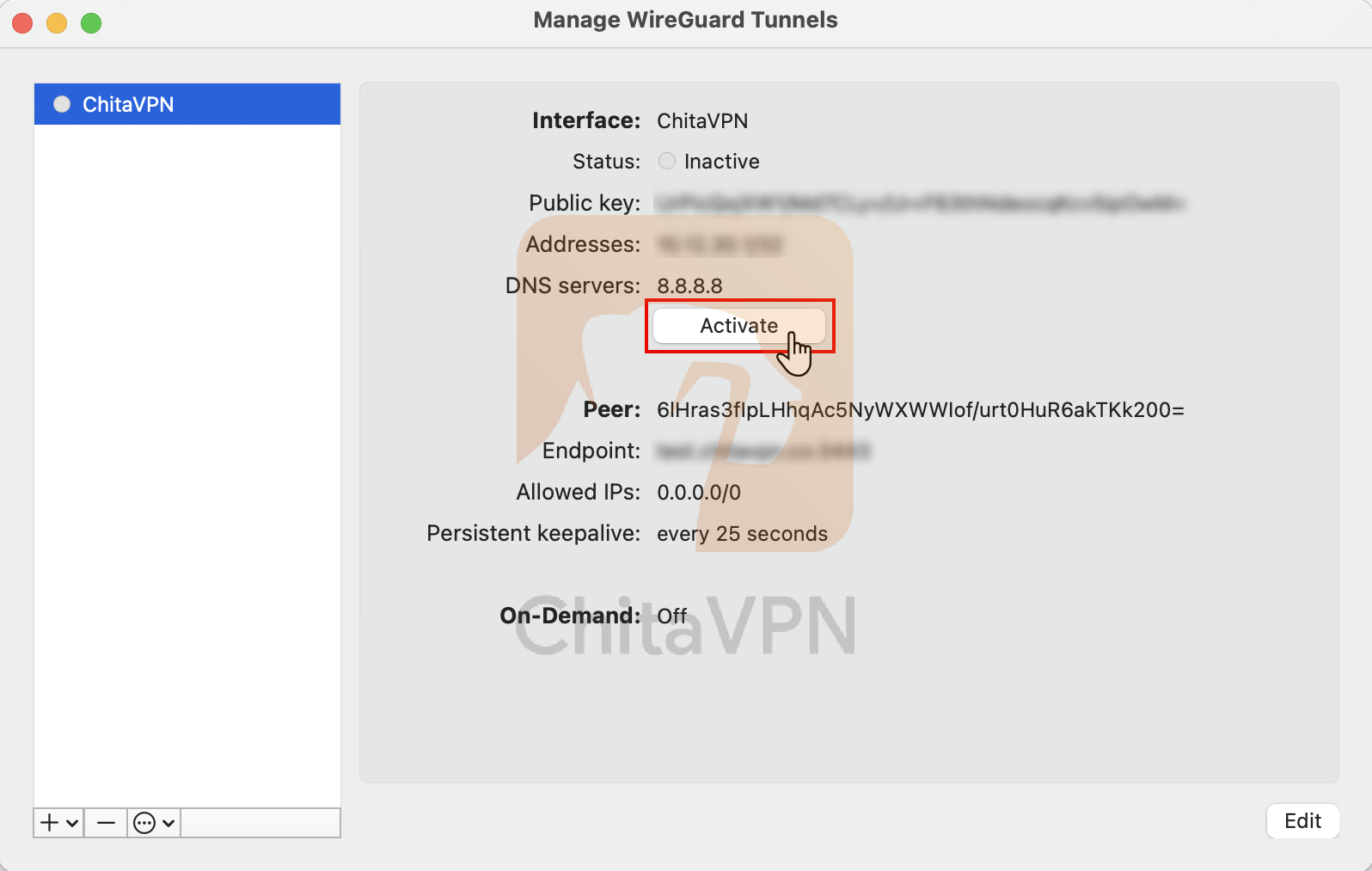
3. Now, click on the "Activate" button to turn on the VPN connection.
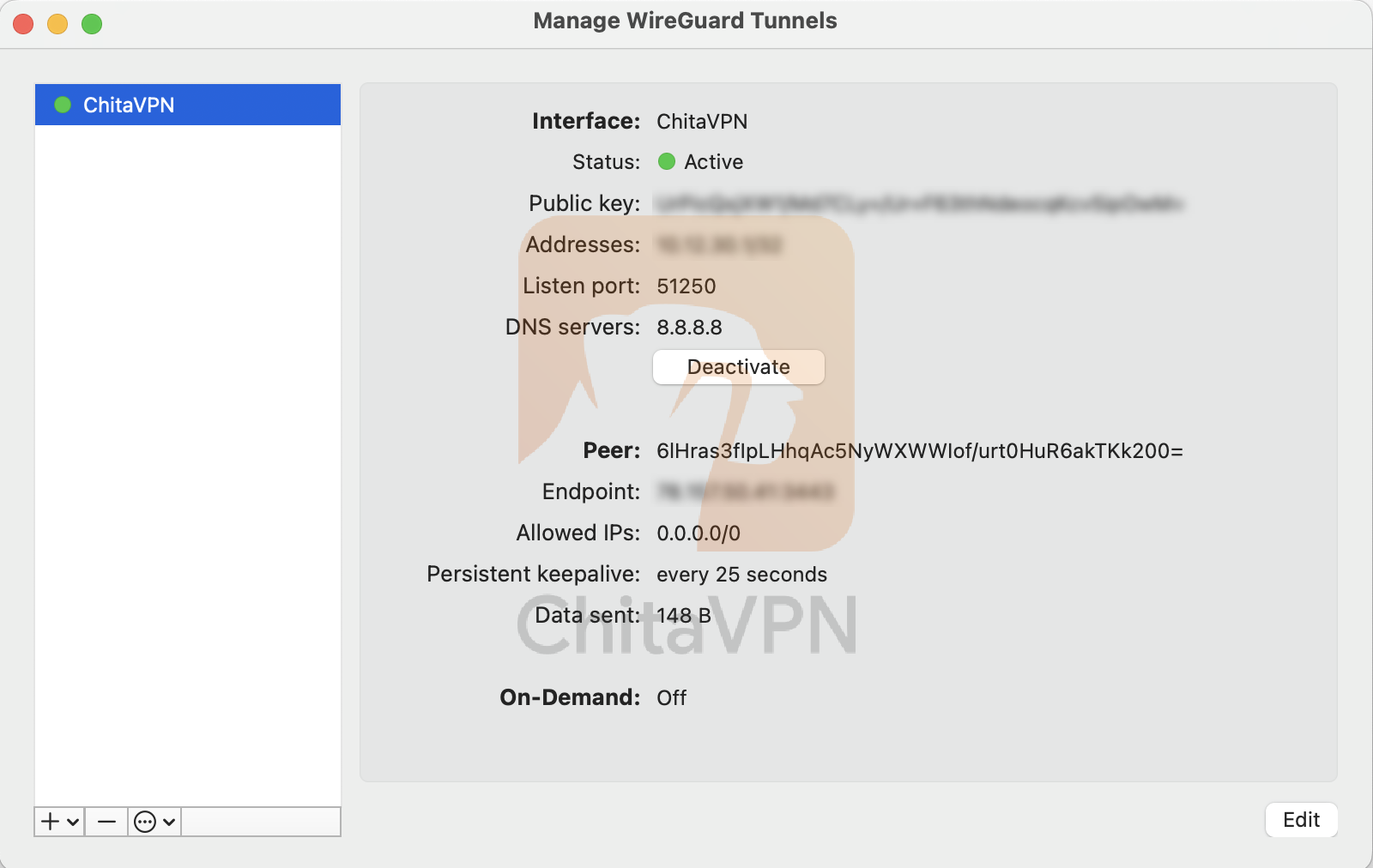
4. When you see this connection status on your screen, it means that you are connected to the ChitaVPN servers.
You're All Set!
Congratulations, you’ve successfully imported your configuration file and connected to your VPN using the WireGuard app!
Visit our website to learn more about our plans, and start securing your online presence with ease. Your privacy matter ? let us protect it!
