
This tutorial guide helps you secure your online activities with ChitaVPN,
Download and Install the App
Follow these steps to download and install the Cisco AnyConnect app on your iOS device:
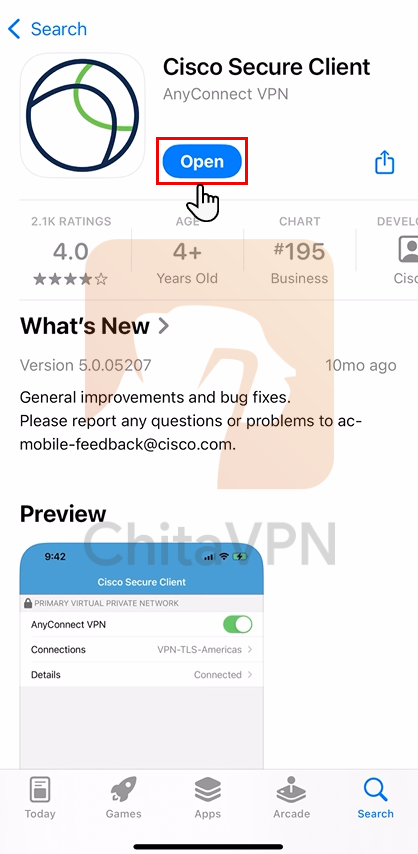
1. Open your device's app store, search for "Cisco AnyConnect", and tap "Download" to begin installing the app on your device. after that Click on the "Open" button to start setting up the app.

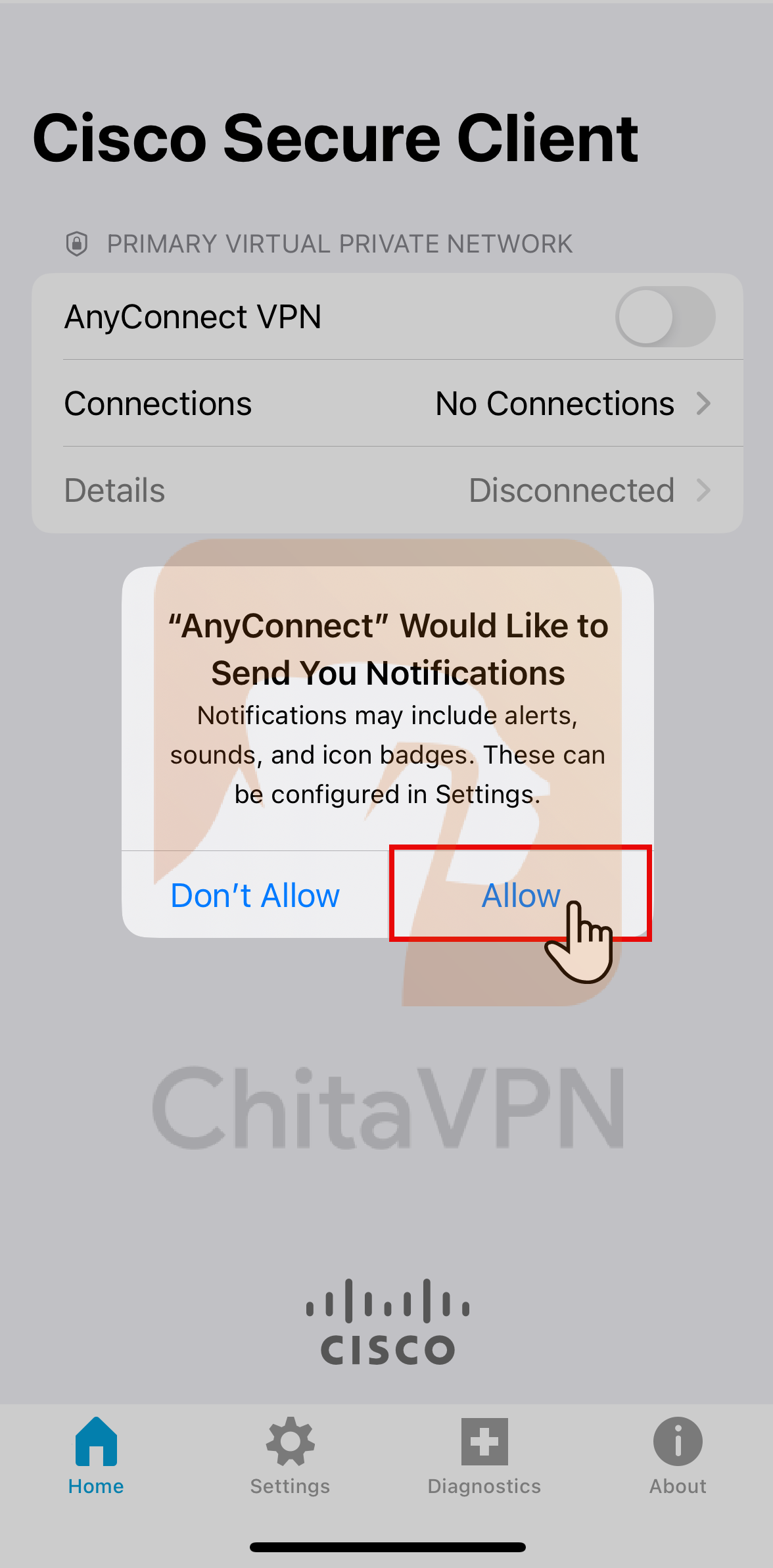
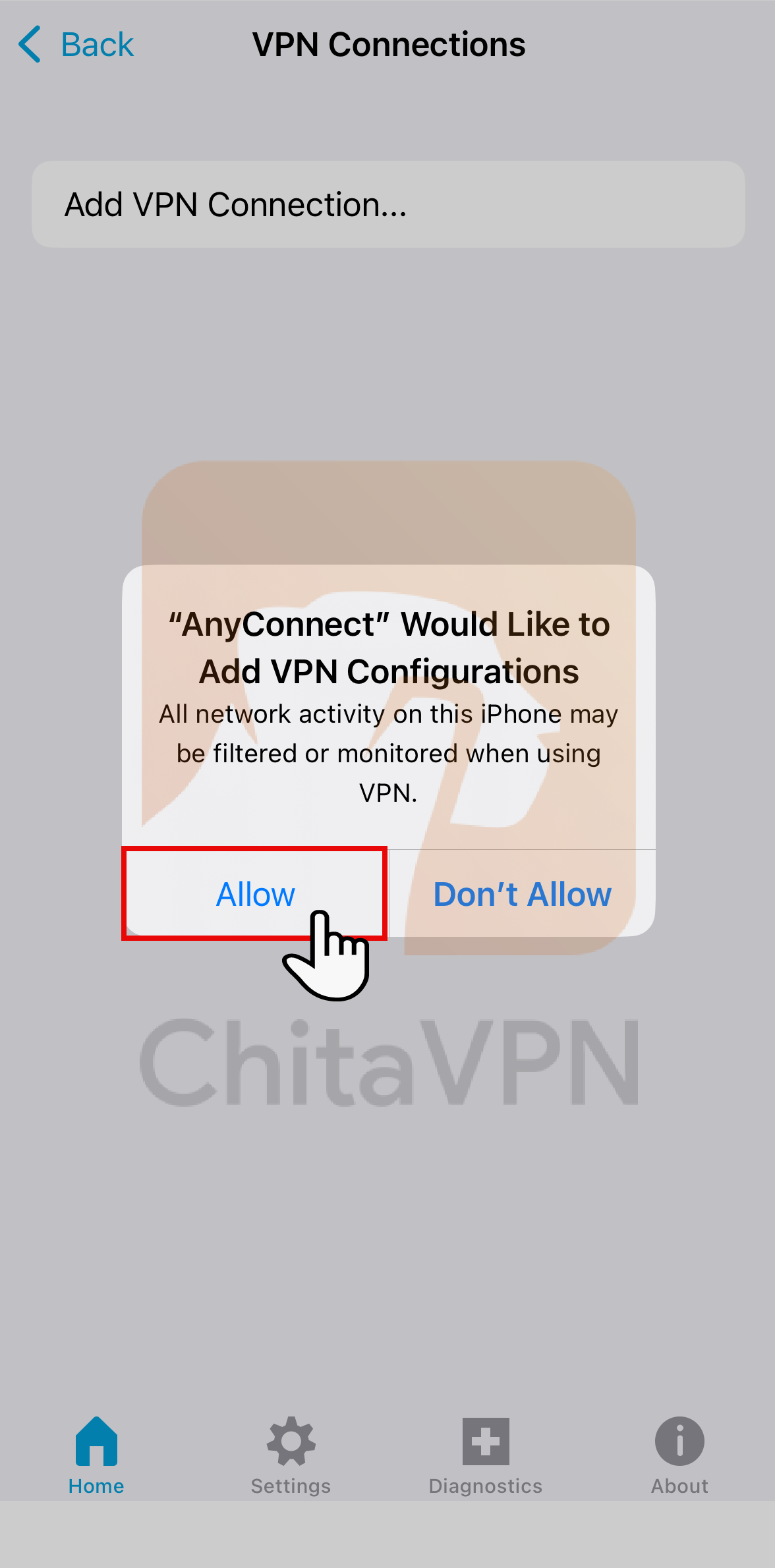
2. When the app opens, Click on the "Allow" button to grant permission to add the VPN connection.
Add VPN Profile and Connect
To connect to Cisco AnyConnect, you need an active ChitaVPN subscription.
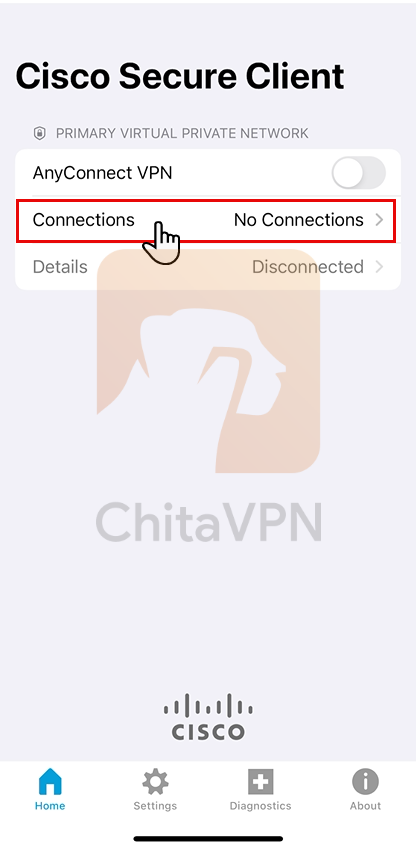
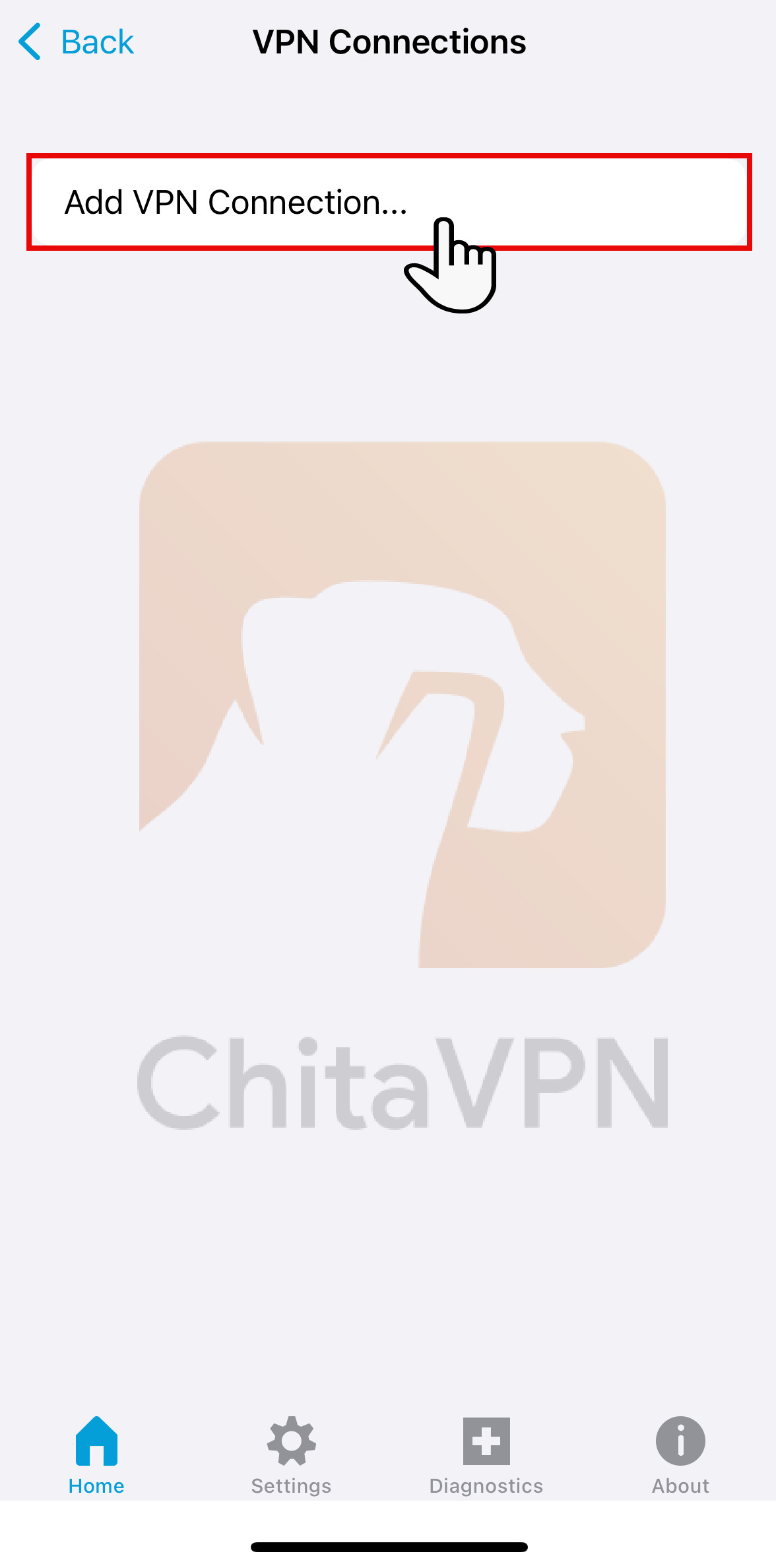
1. Click on the "Connections" section, then click "Add VPN Connection" to add your VPN connection.
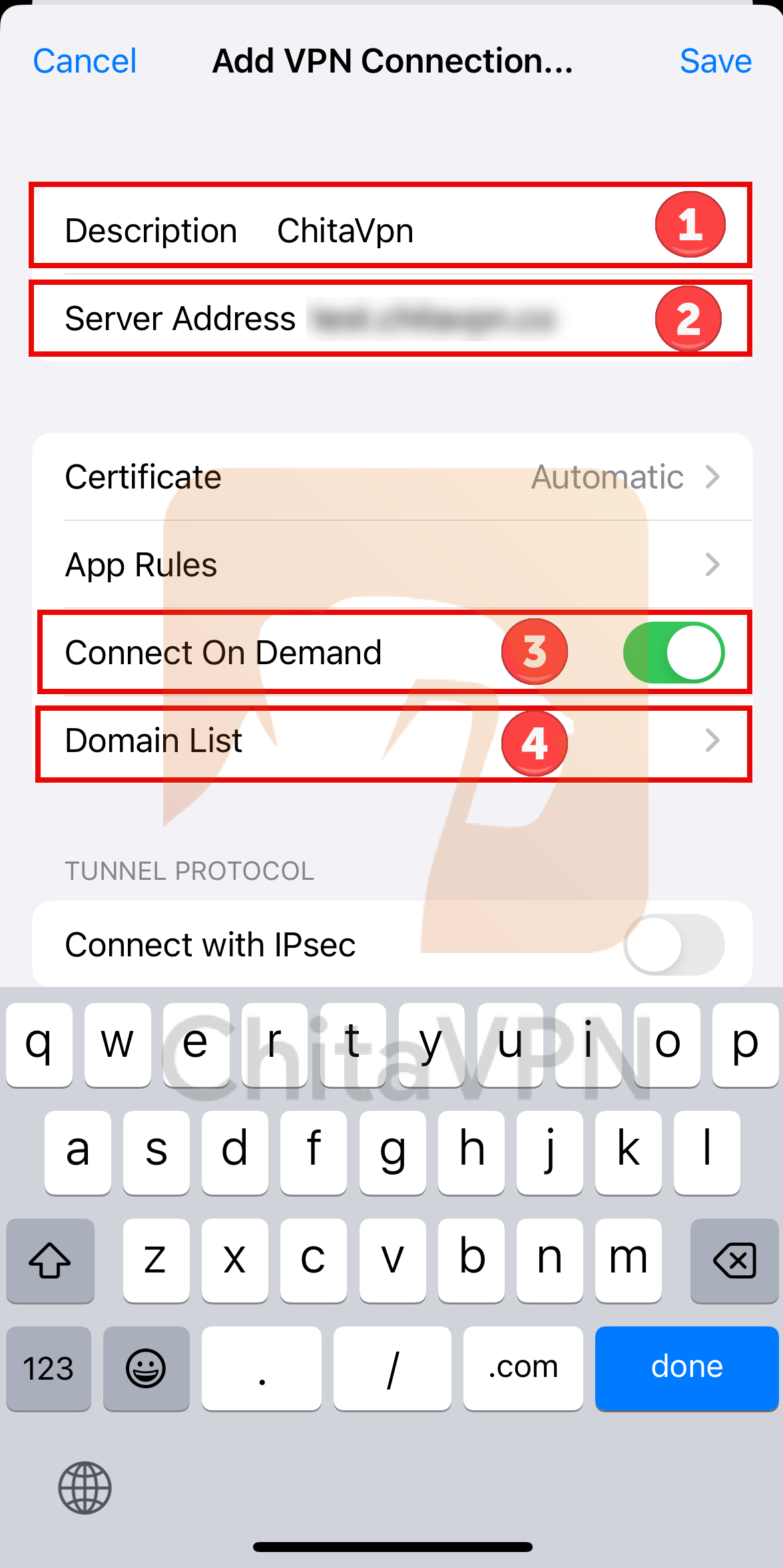
2. Enter a name for your VPN connection, then input the ChitaVPN server address. After that, click on the "Connect on Demand" option and select the "demand list" to add server address again.
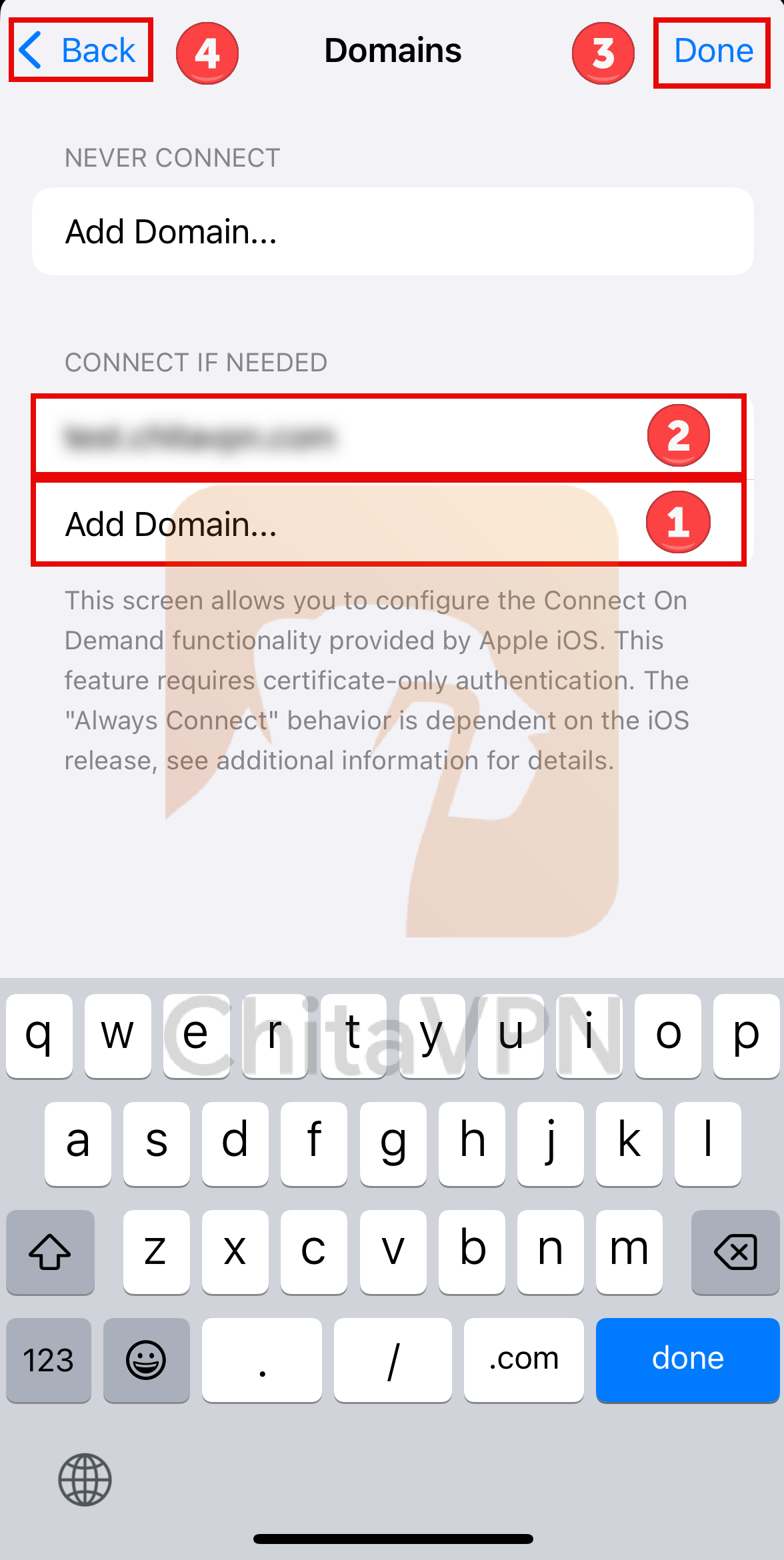
3. Click on "Add Domain" and enter the ChitaVPN server address. Once entered, click the "Done" button, then press "Back" to "Save" and return .
4. Click on "Allow" to grant permission for the new connection to be established and then press "Back" to return.
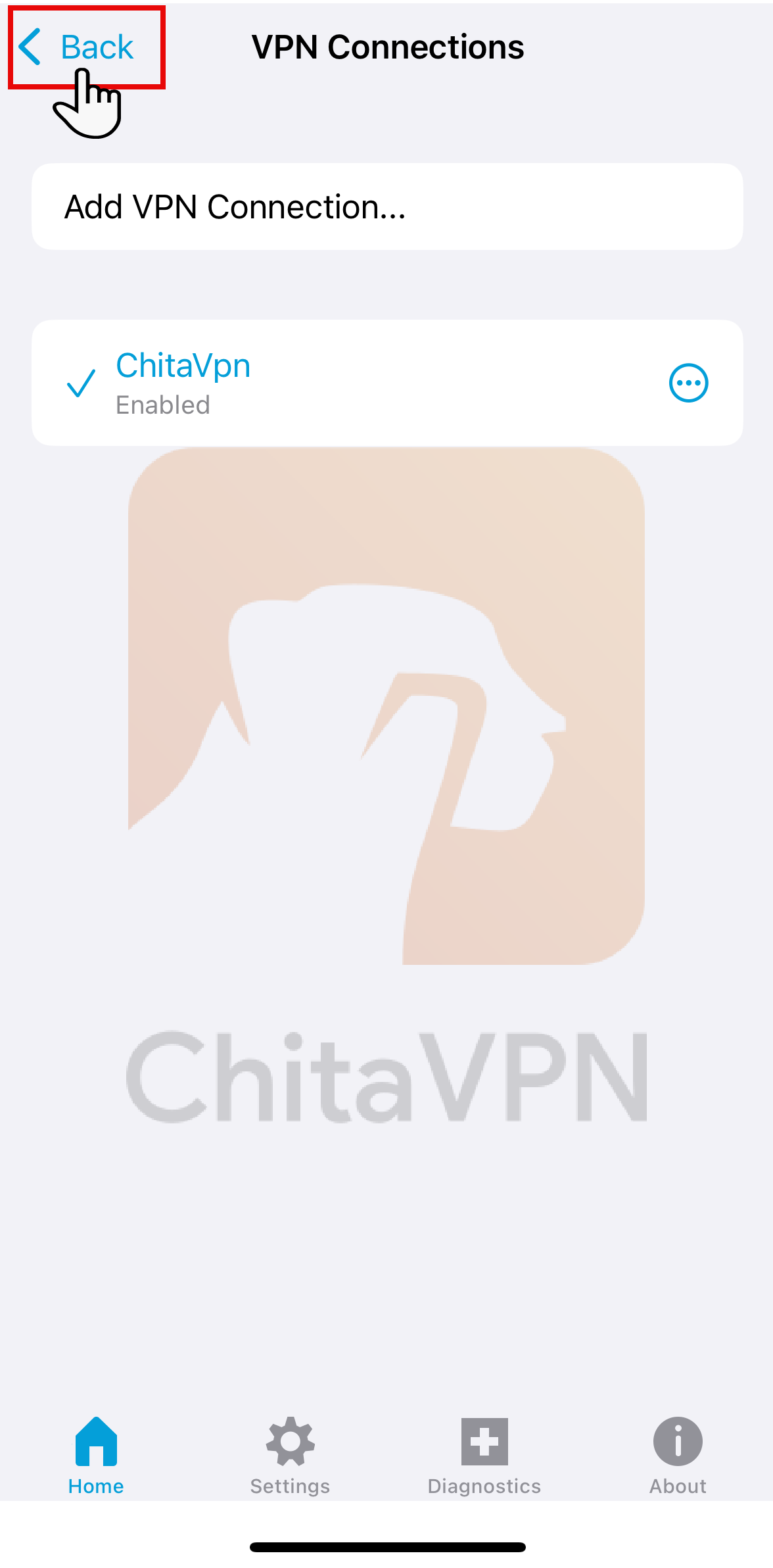
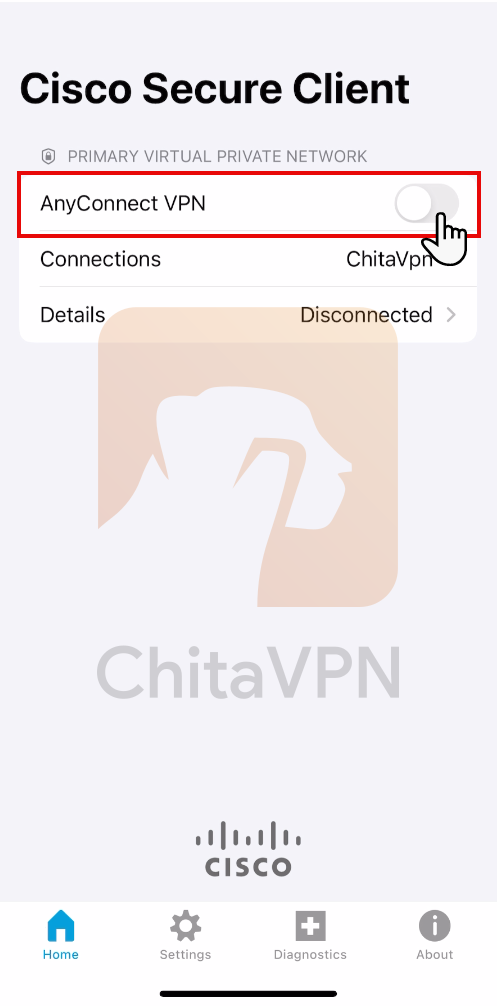
5. Click on the "AnyConnect VPN button" to turn the VPN connection on.
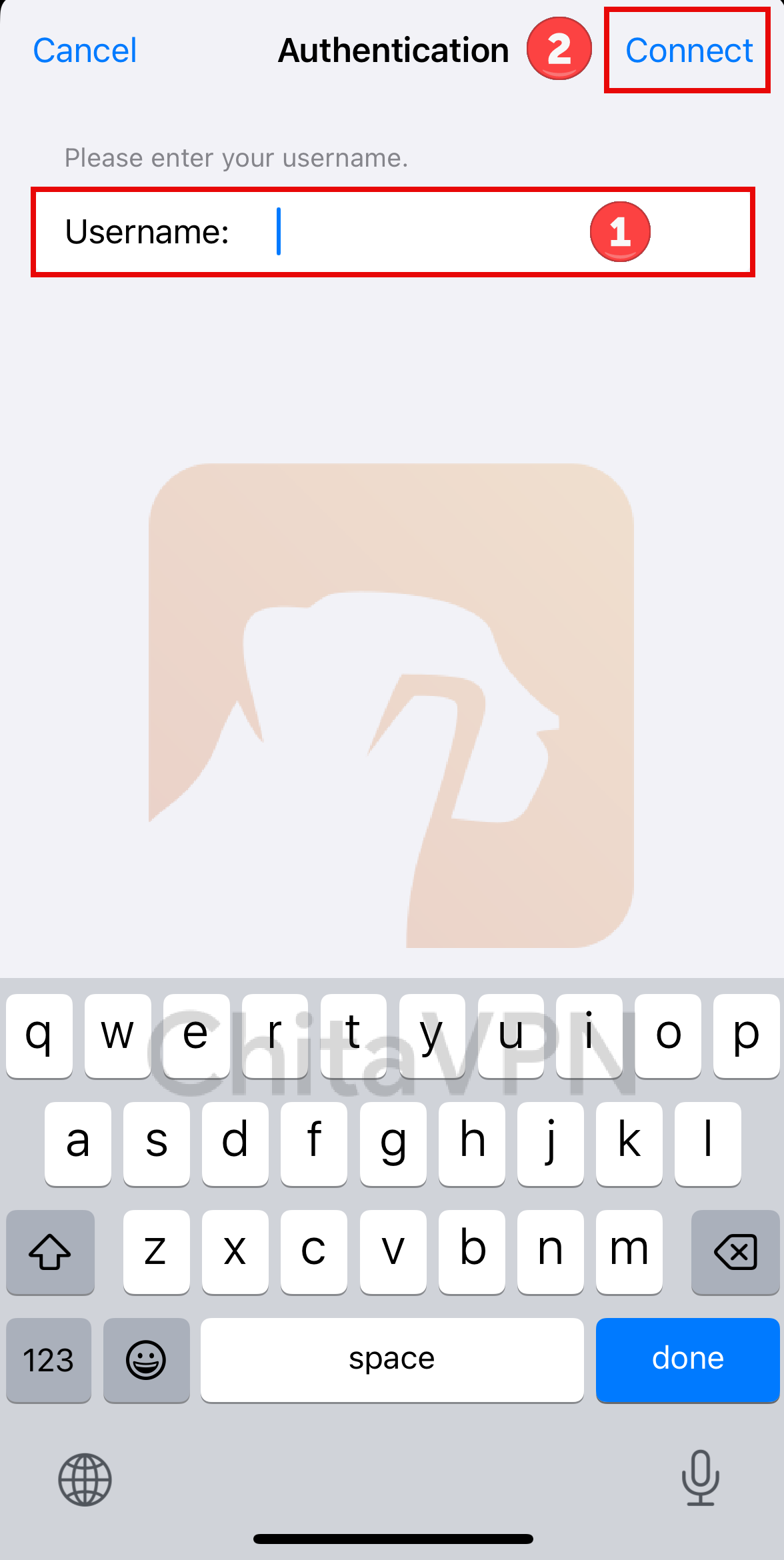
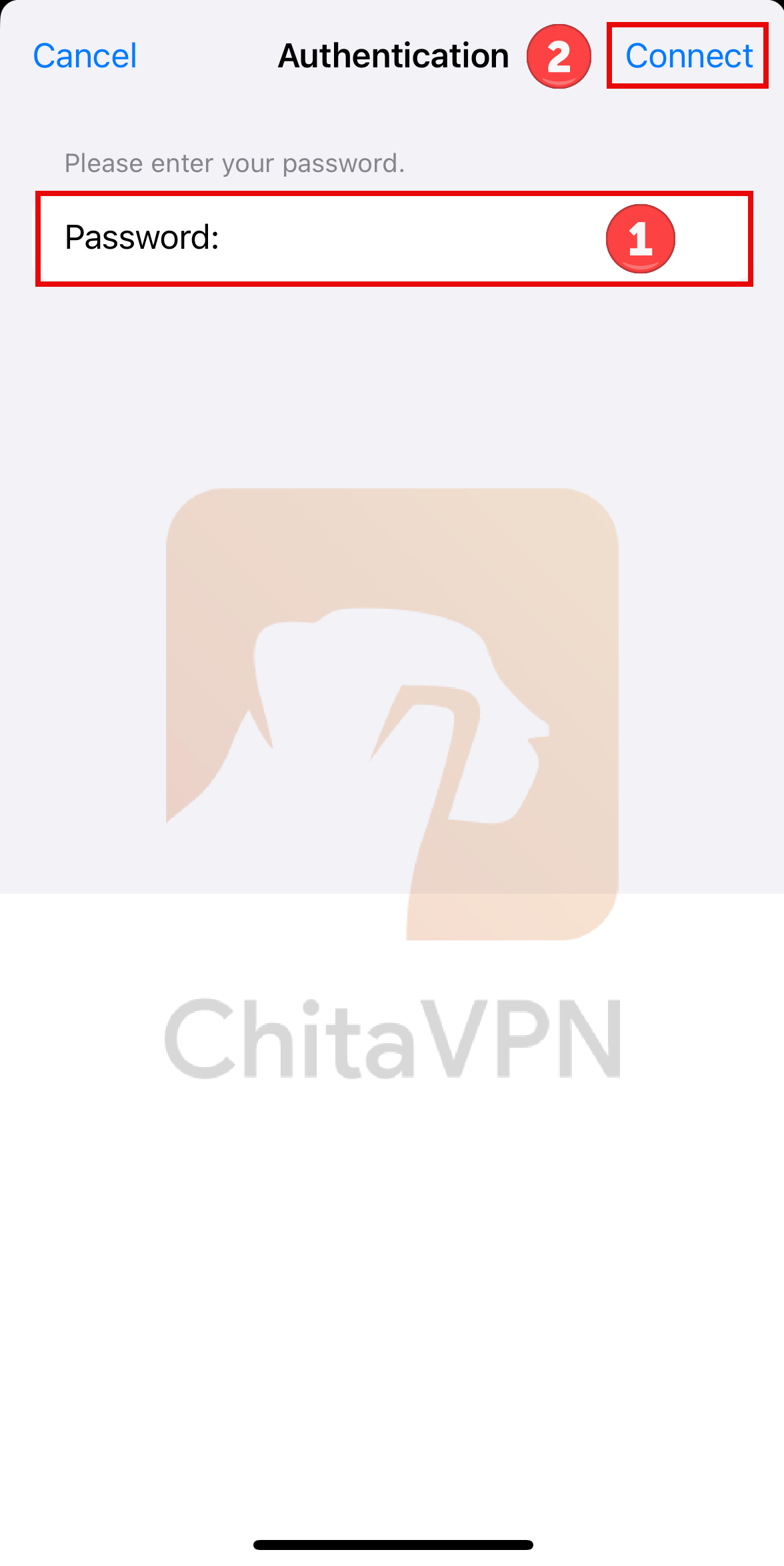
6. First, enter your Username and click "Connect." Then, enter your Password and click "Connect" again to establish the connection.
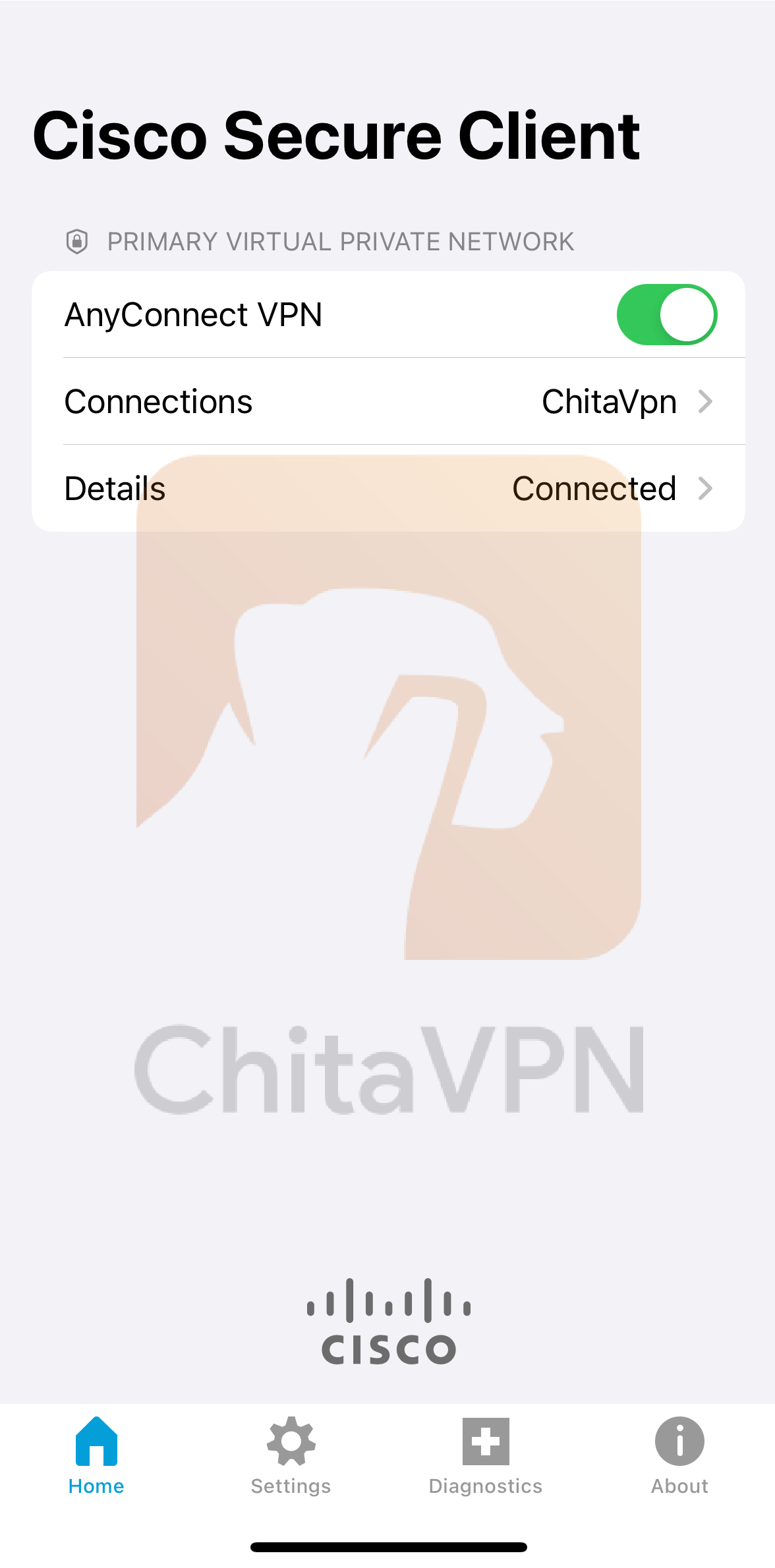
7. When you see this screen, it means you are successfully "Connected" to the ChitaVPN servers.
Now that you've successfully set up Cisco AnyConnect for secure remote access, you're ready to enjoy a seamless and safe connection.
For a fast, reliable, and secure VPN experience, try ChitaVPN today – the perfect solution to protect your online privacy and enhance your network security!
