
In this guide, we’ll show you how to installing Cisco AnyConnect, connecting to ChitaVPN, and ensuring a secure browsing experience.
Download and Install the App
To get started with Cisco AnyConnect on your windows, follow these steps:
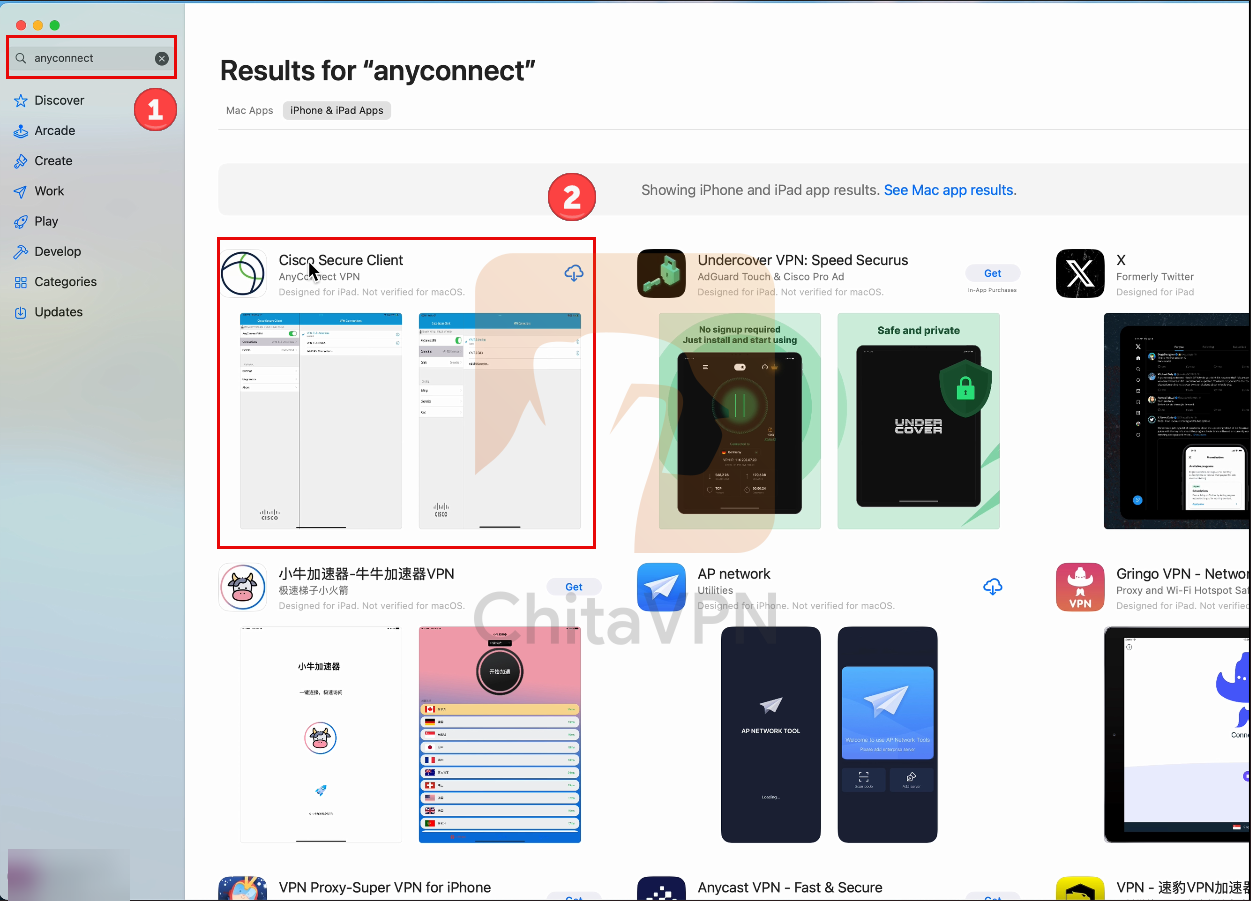
1. First, open the App Store on your Mac by clicking on the App Store icon.

2. Now, search for the Cisco AnyConnect app, open the Cisco AnyConnect section, and click "Download" to begin the installation process.
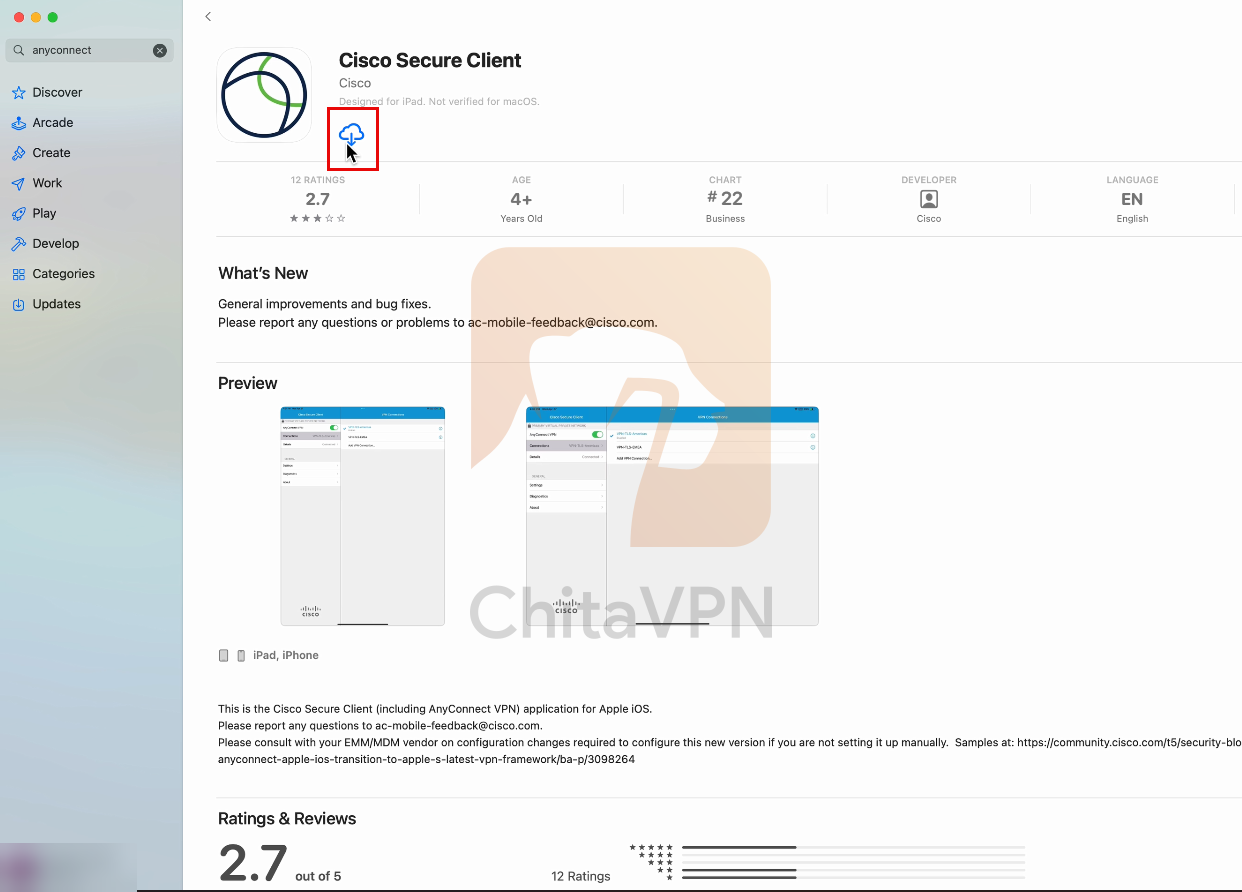
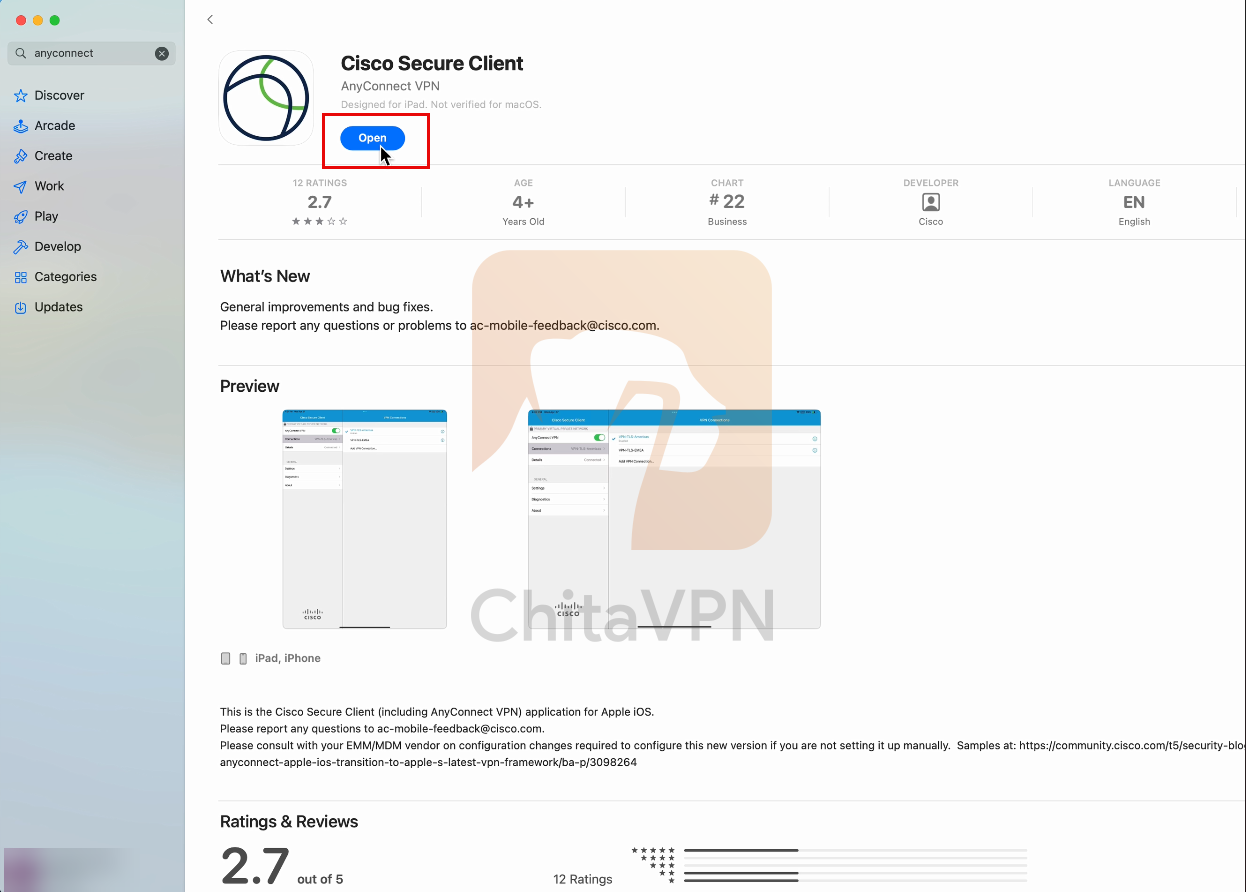
3. Once the download is complete, click the "Open" button to begin setting up your Cisco AnyConnect VPN profile.
Add VPN Profile and Connect
To connect to Cisco AnyConnect, you need a ChitaVPN subscription. Sign up now!
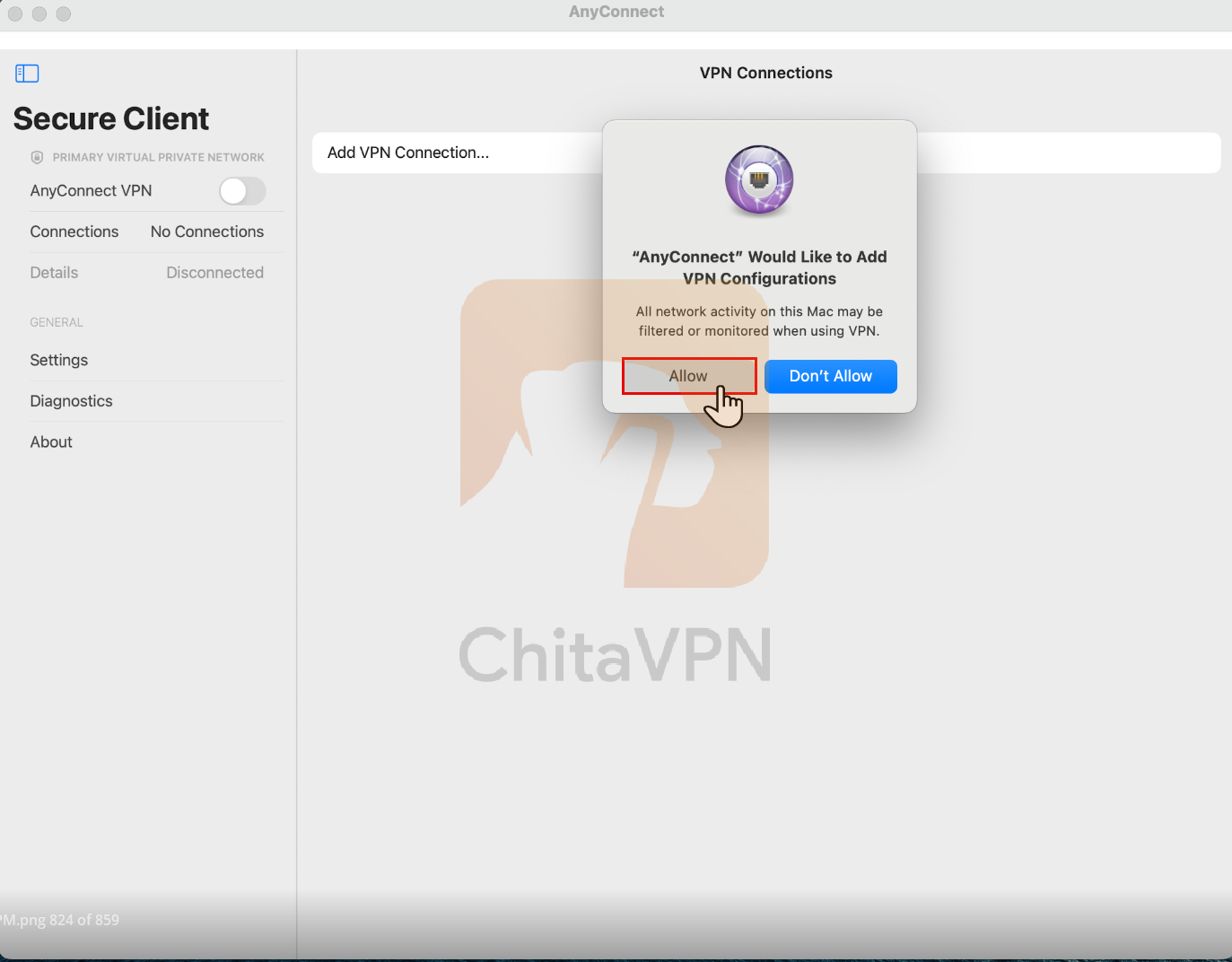
1. When the app opens, click on the "Connections" section, then click "Add VPN Connection" to proceed. Click on the "Allow" button to grant permission to add the VPN connection.
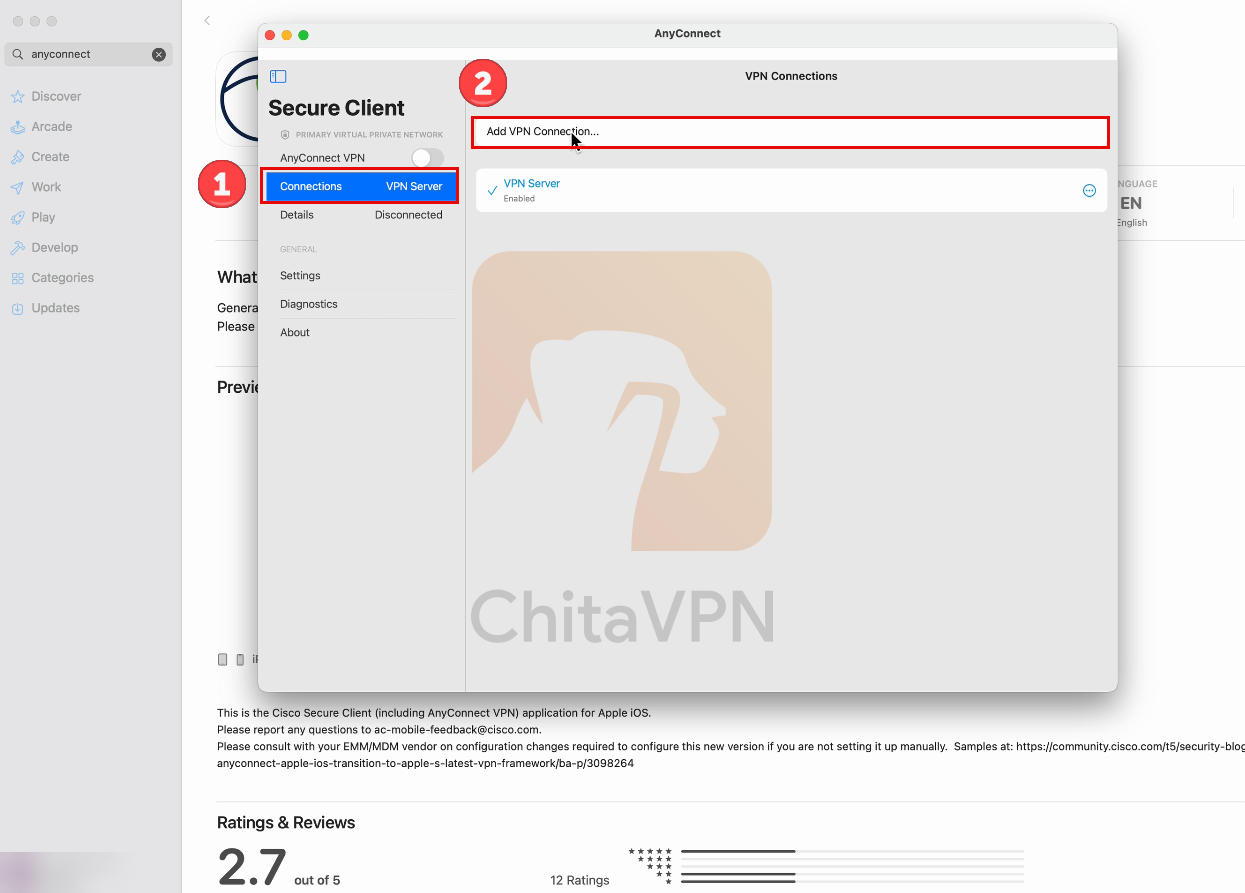
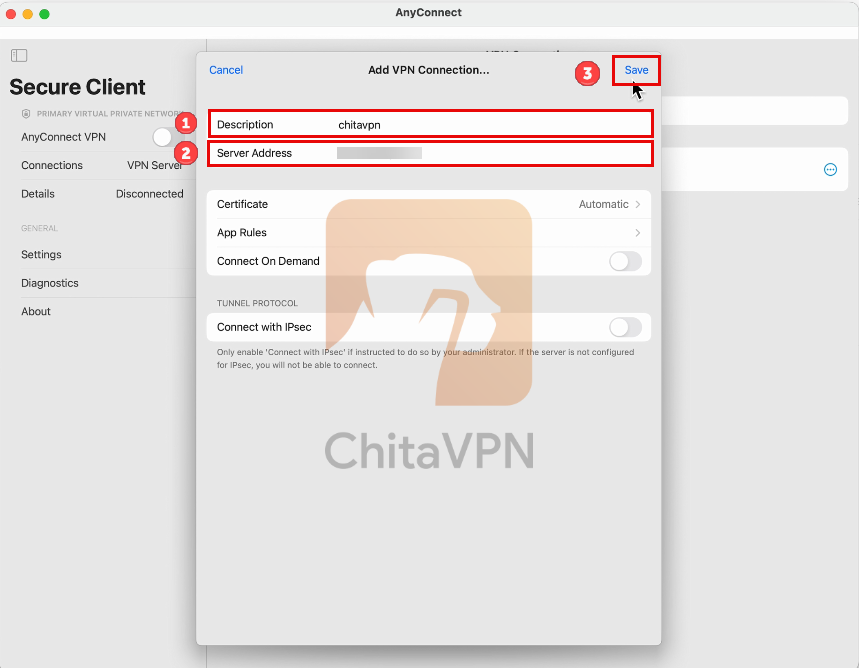
2. Enter a name for your VPN profile, add the ChitaVPN server address, and click "Save" to add the connection.
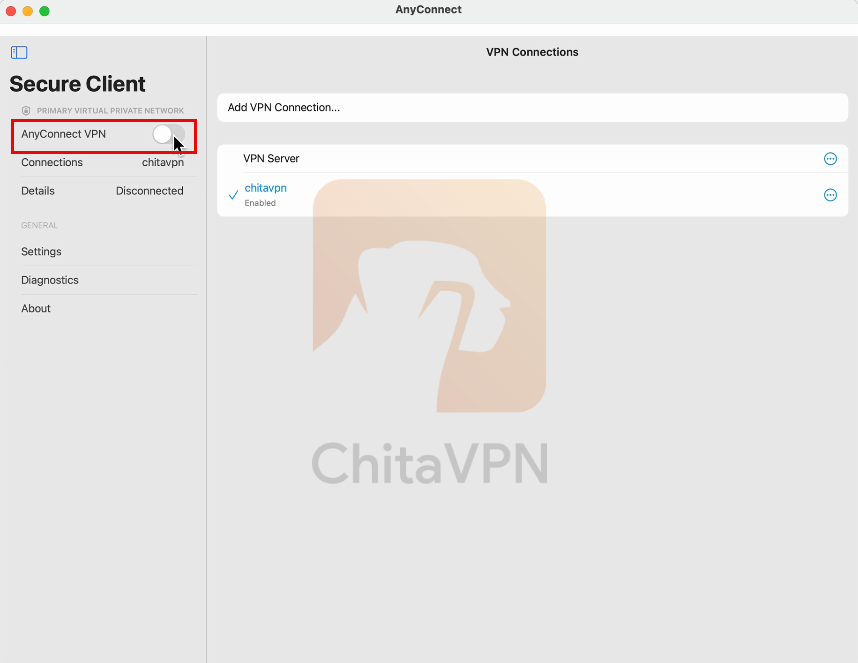
3. Click on the AnyConnect VPN button to turn the VPN connection on.
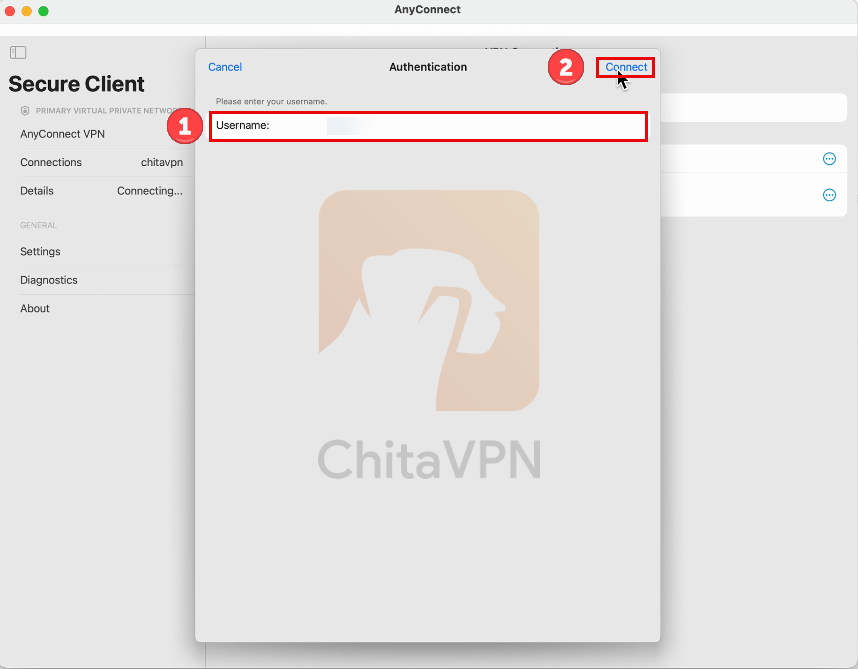
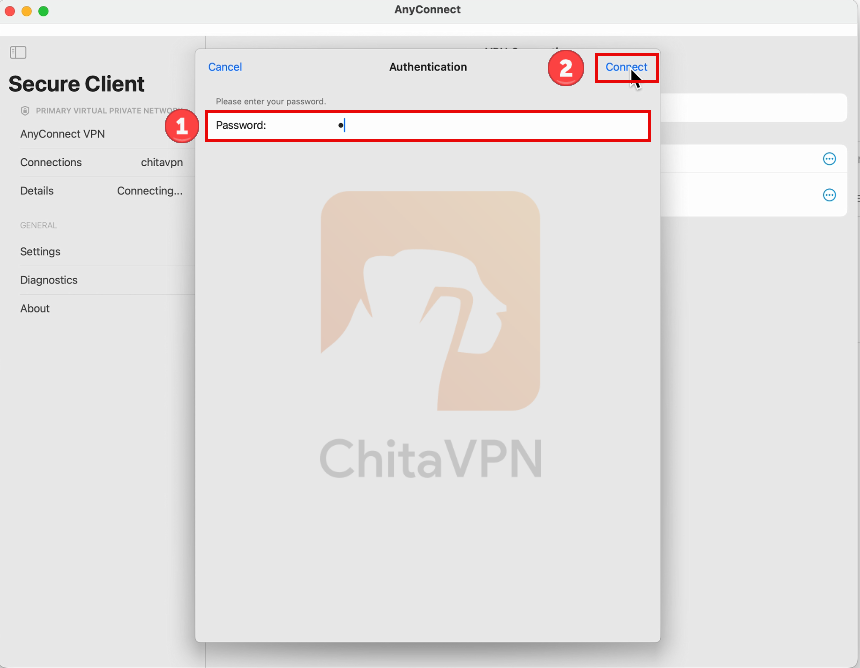
4. First, enter your Username and click "Connect." Then, enter your Password and click "Connect" again to establish the connection.
5. When you see this screen, it means you are successfully "Connected" to the ChitaVPN servers.
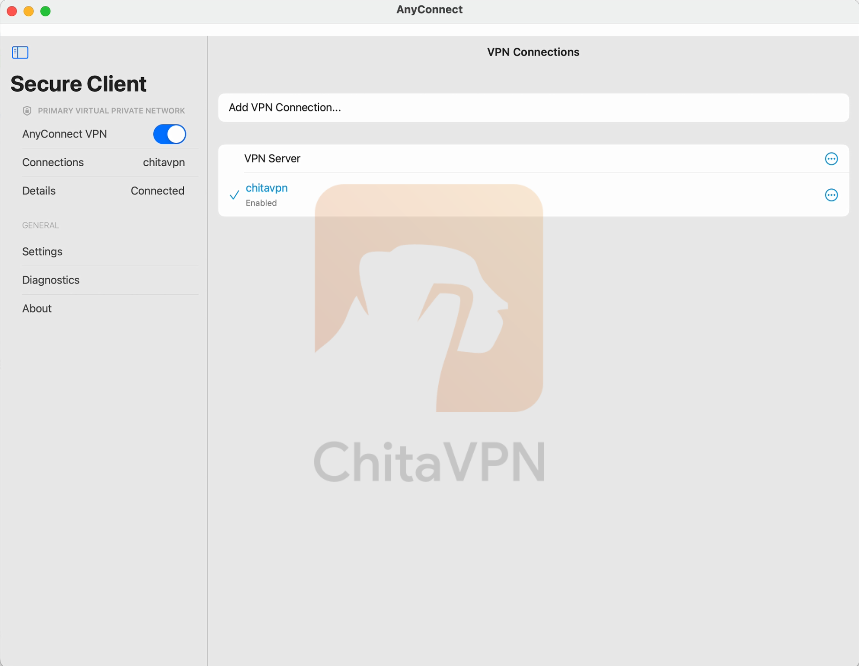
Now you're all set up with Cisco AnyConnect on your Mac!
For more helpful tutorials and to explore our secure VPN services, sign up for ChitaVPN today. Stay protected, stay connected!
