
In this guide, we’ll show you how to install and configure OpenVPN GUI on Windows, ensuring that you can connect to your VPN quickly and securely.
Download and Install the App
To get started with OpenVPN GUI on your Windows, follow these steps:
1. Visit the official OpenVPN website and download the version that matches your system requirements, ensuring compatibility with your operating system.
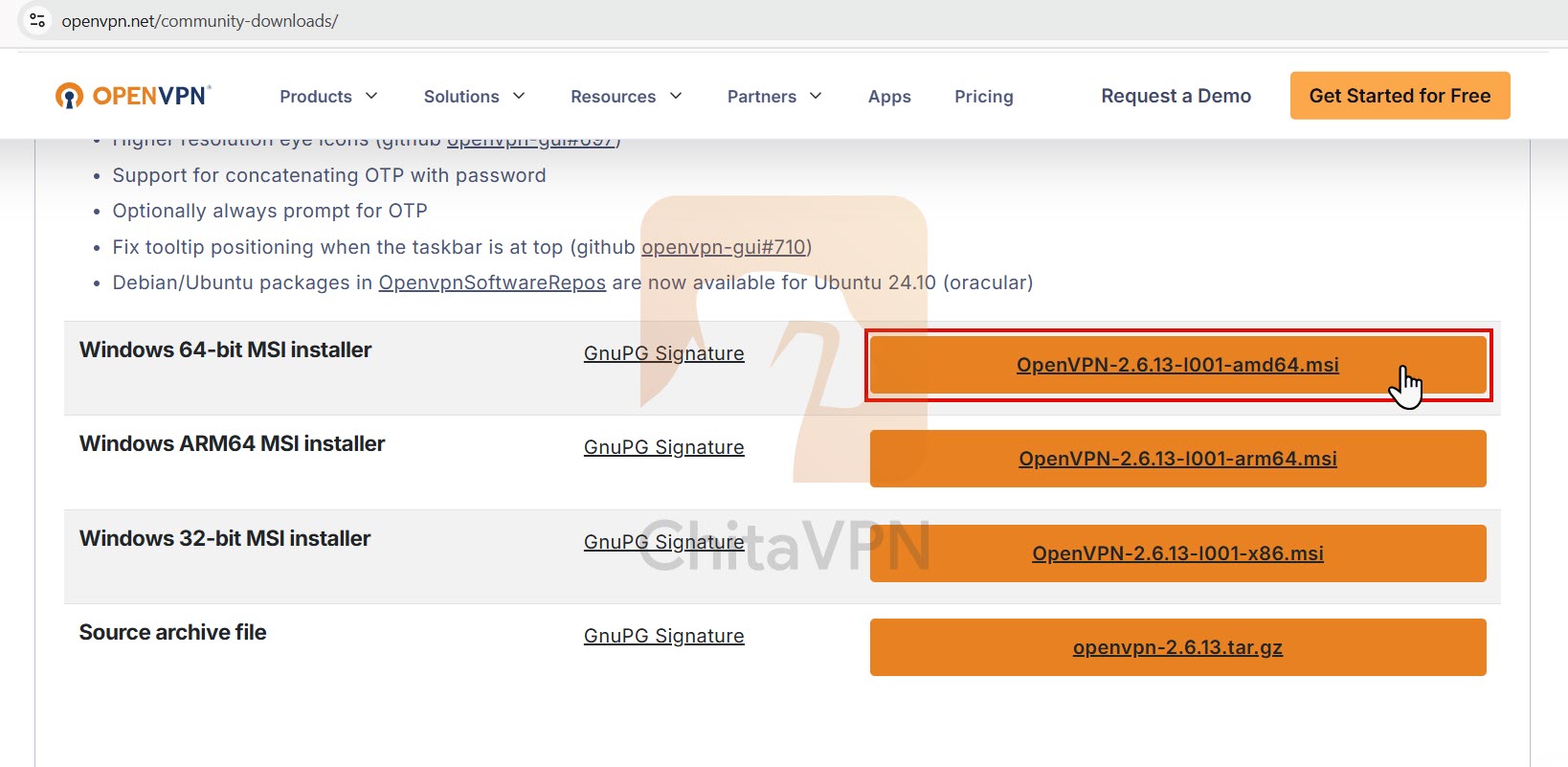
2. Double-Click on the .exe file to launch the OpenVPN installer, then follow the prompts to complete the installation.
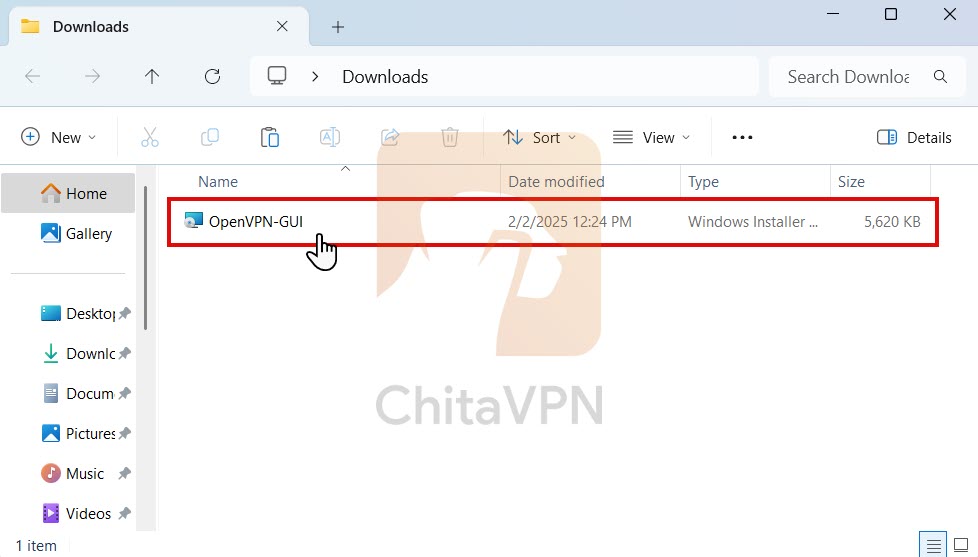
3. Click on the 'Install Now' button to begin the installation process.
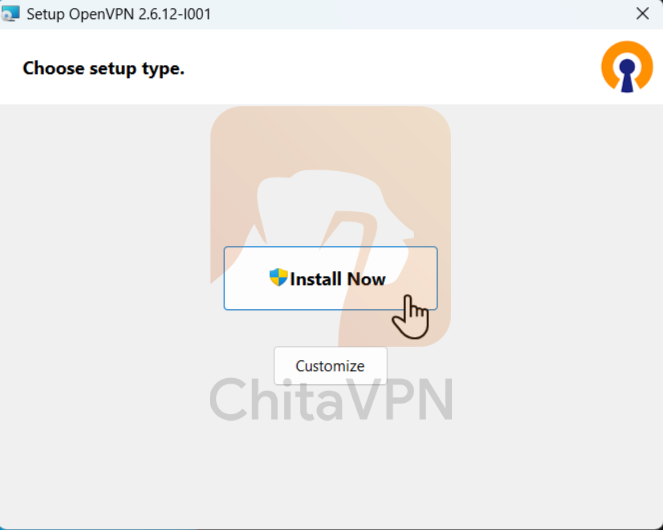
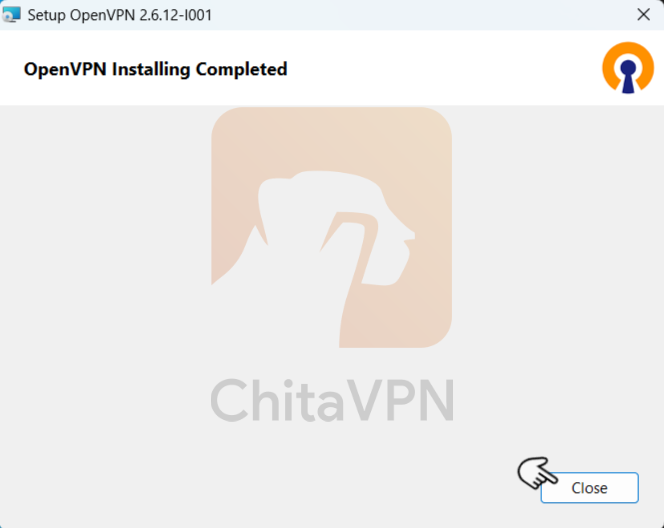
4. Once the installation is complete, click on the "Close" button and close the OpenVPN installation window.
Add VPN Configuration File and Connect
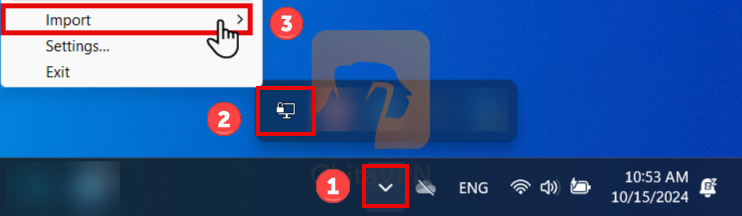
1. Click 'Hidden Icons' in the system tray, right-click the OpenVPN GUI icon, and select 'Import' to add your VPN configuration.
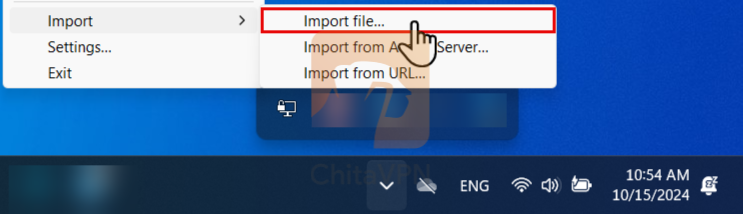
2. Click on 'Import File' to select and add your VPN configuration file to OpenVPN GUI.
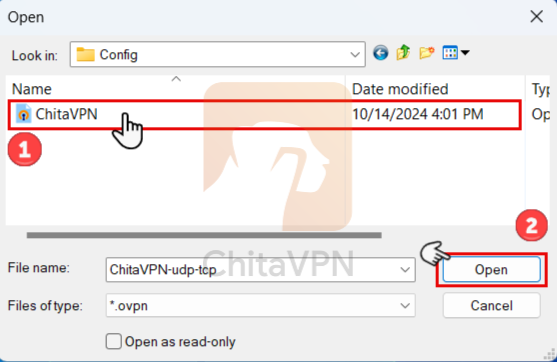
3. To Upload VPN profile, you need to Select the ChitaVPN configuration file from the window that appears and Click the "Open" button to import the selected file.
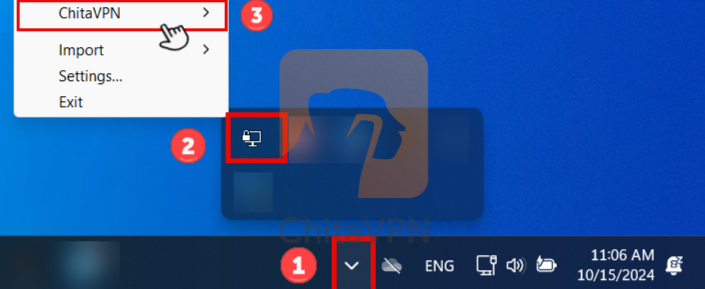
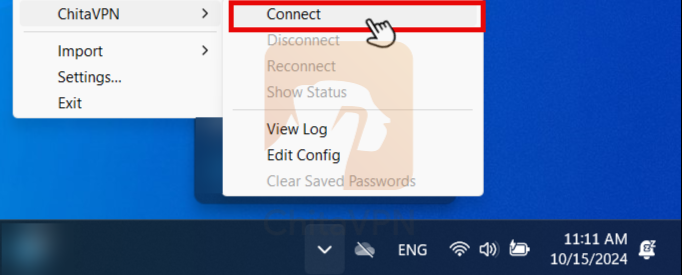
4. Click 'Hidden Icons' in the system tray, right-click the OpenVPN GUI icon, and select the added VPN profile (ChitaVPN) to connect.
5. Click on 'Connect' to establish a secure connection with your selected VPN profile.
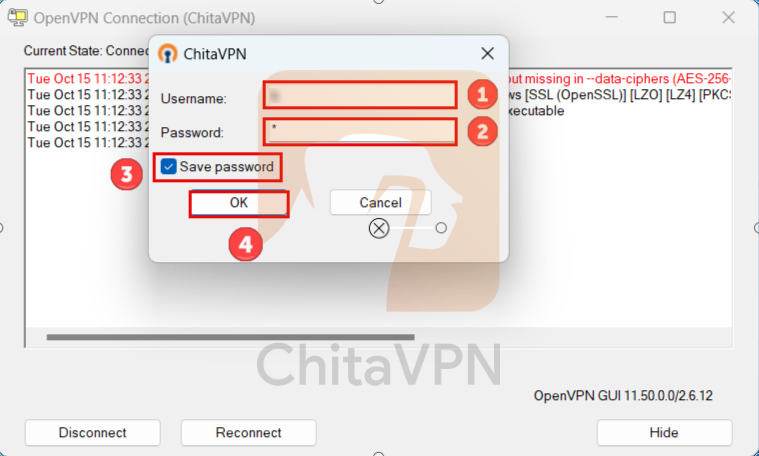
6. In this section, Enter your username, password, Press the save password option and Click the "OK" button to connect.
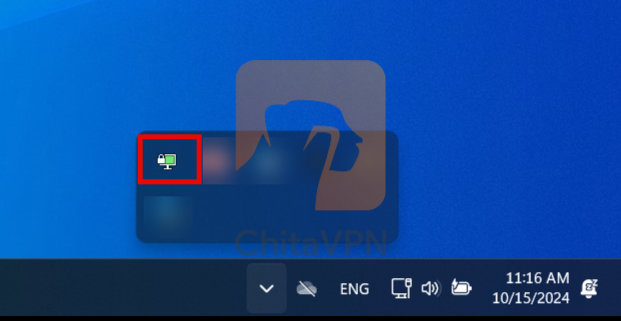
7. When the OpenVPN GUI icon turn green it means that, you are connected to ChitaVPN servers.
You're All Set!
You've successfully set up OpenVPN with ChitaVPN and are now ready to experience a secure and seamless online experience. With ChitaVPN, you’re not just protecting your privacy – you’re unlocking a world of freedom to browse, stream, and connect without limits. Happy browsing!
If you don’t have a subscription yet, sign up here for private, reliable browsing worldwide.
