
In this guide, we will show you how to configure the IKEv2/IPSec protocol on your device, ensuring a secure and reliable VPN connection.
Add the IKEv2/IPSec Connection and Connect
To get started with IKEv2/IPSec on your iOS device, follow these steps:
1. Click on settings icon or press Win+i to open your "Settings" and select the "Network & Internet" and "VPN" tab from the menu.
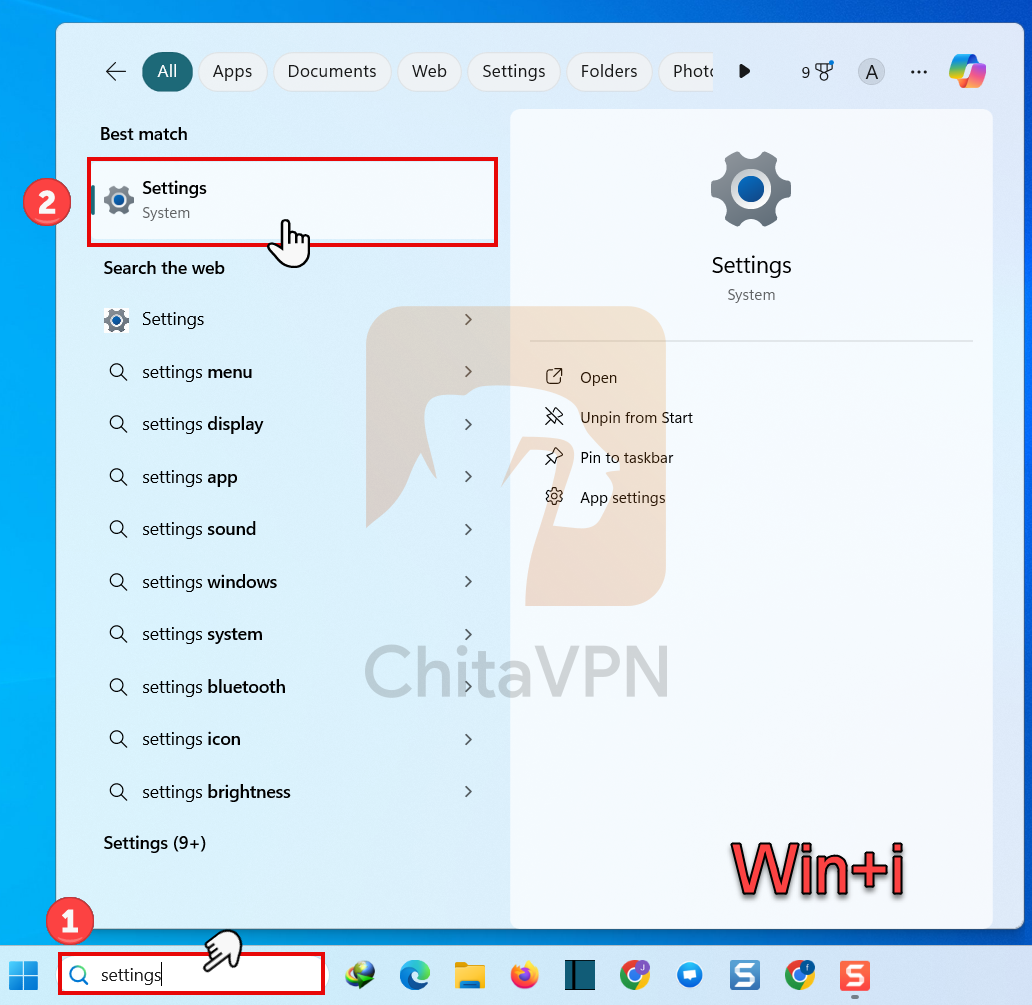
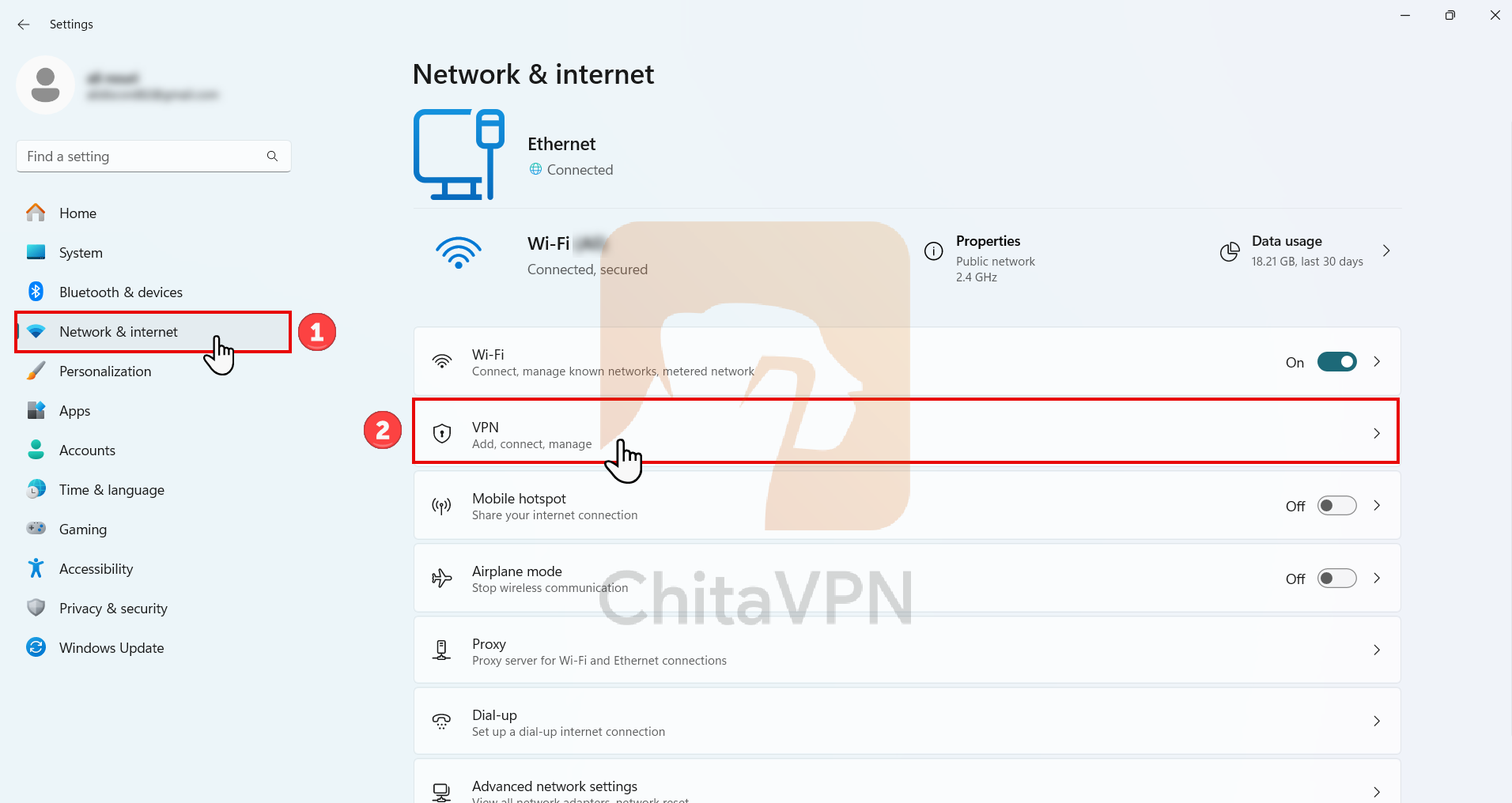
2. Click on the "Add VPN" button to create ikev2 connection.
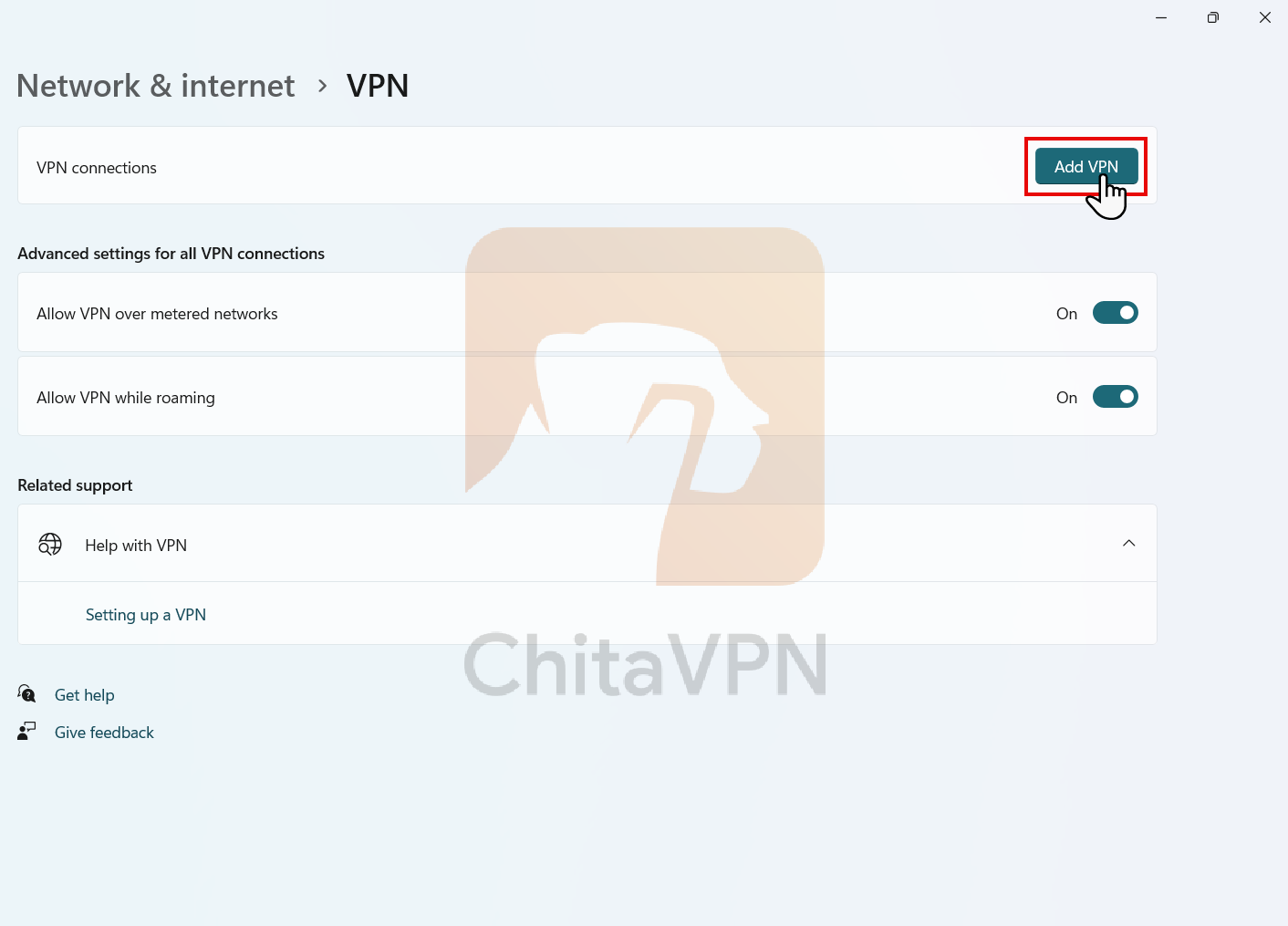
3. First, enter a name for your connection. Then, in the "Server Address" field, enter the ChitaVPN server address. For the VPN type, choose IKEv2. Under "Type of Sign-In Info," select "Username and Password," and enter your username and password. Finally, click "Save" to store the configuration.
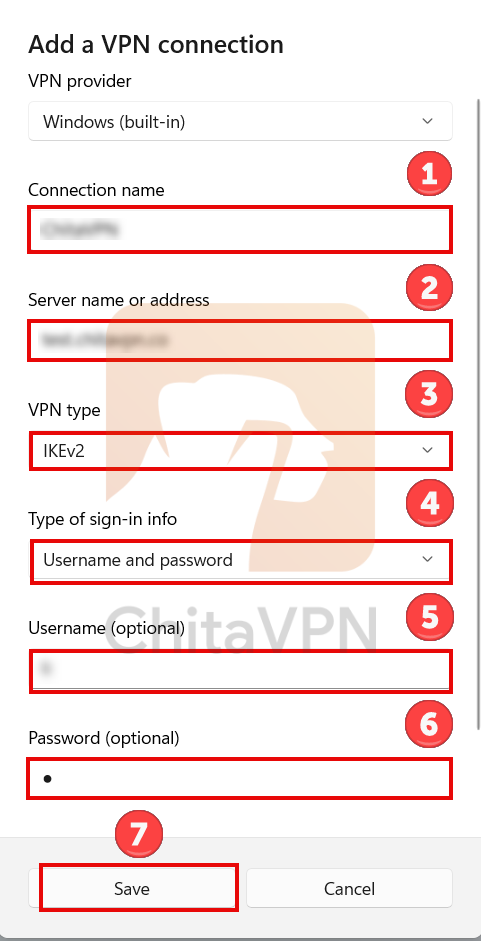
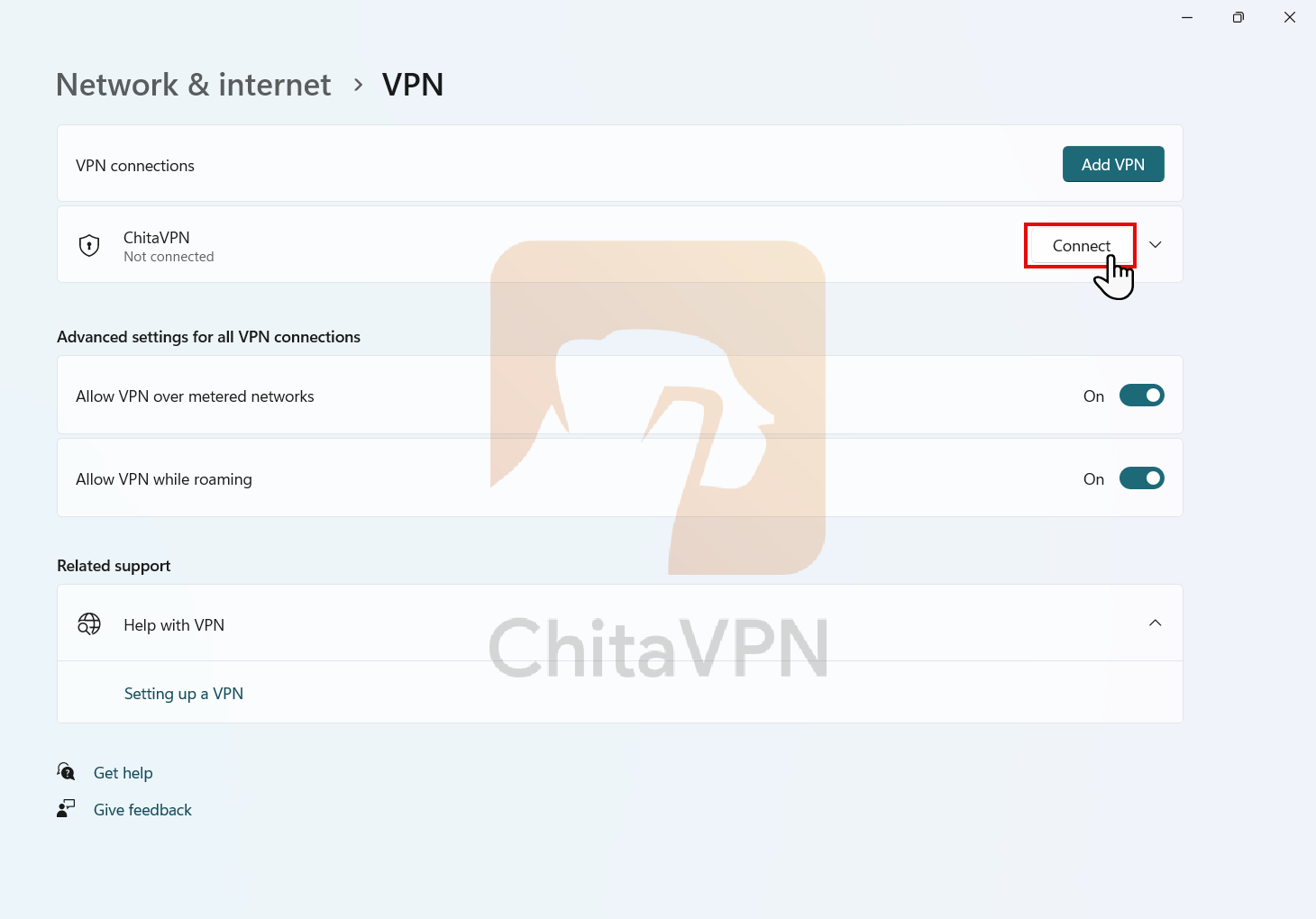
4. Click on the "Connect" button to connect to the servers.
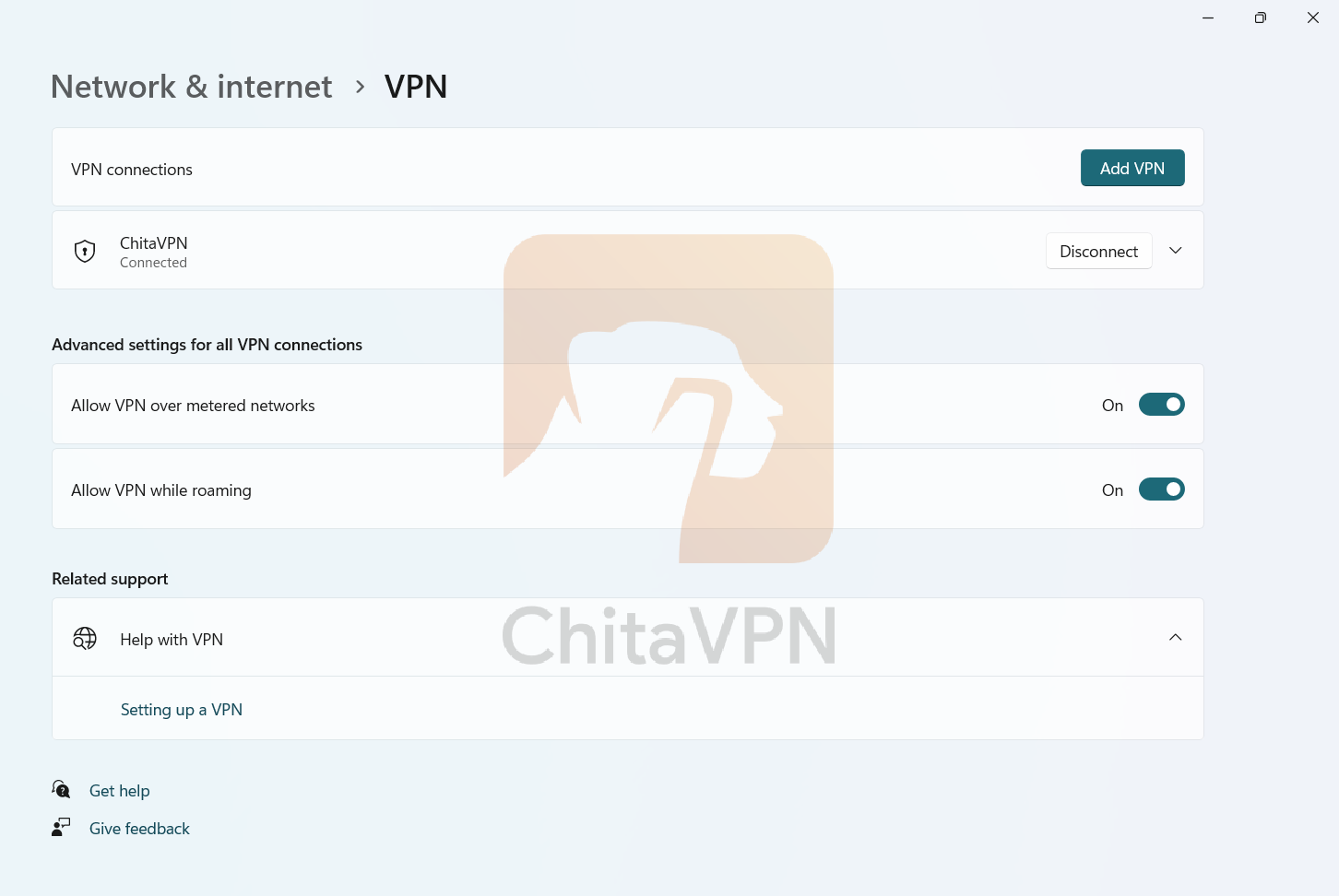
5. When you see this connection status on your screen, it means that you are connected to the ChitaVPN servers.
You're All Set!
Congratulations, you’ve successfully added your configuration and connected to your VPN using the IKEv2/IPSec!
Visit our website to learn more about our plans, and start securing your online presence with ease. Your privacy matter ? let us protect it!
