
In this guide, we will show you how to set up and use V2RayN with ChitaVPN for fast, secure, and private browsing.
Download and Install the App
To get started with Proxy protocol with V2RayN on your Windows, follow these steps:
1. Download the V2rayN setup file from the ChitaVPN Download App page, then double-click on the downloaded file to extract it.
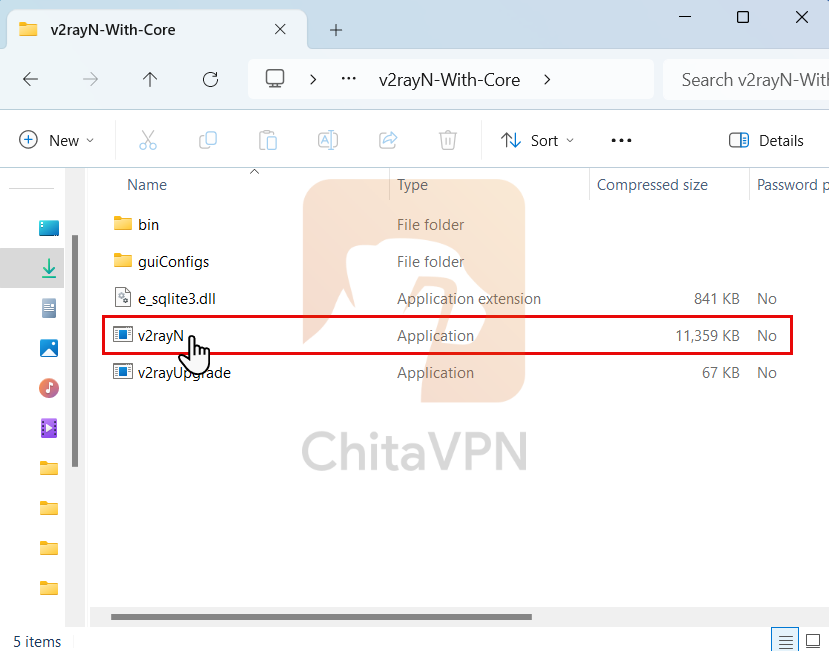
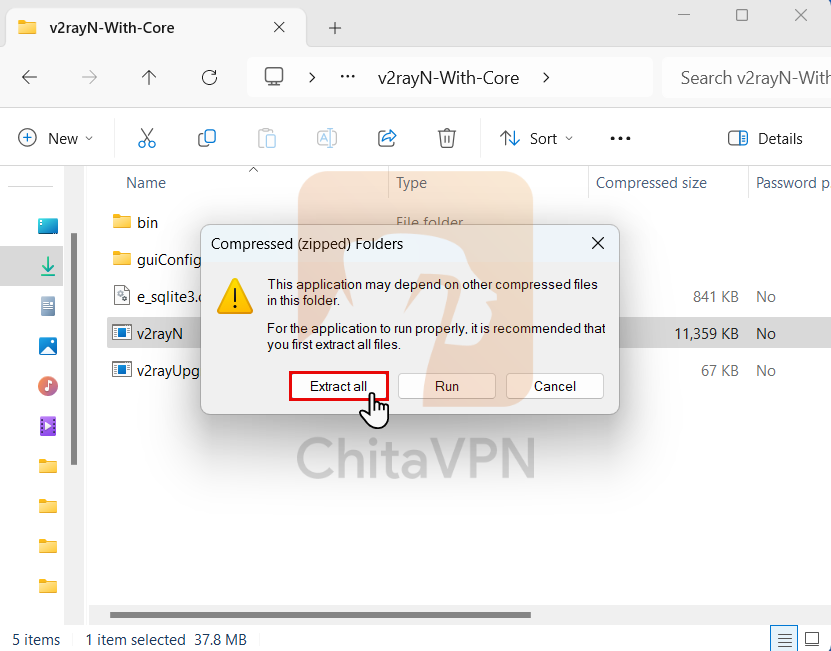
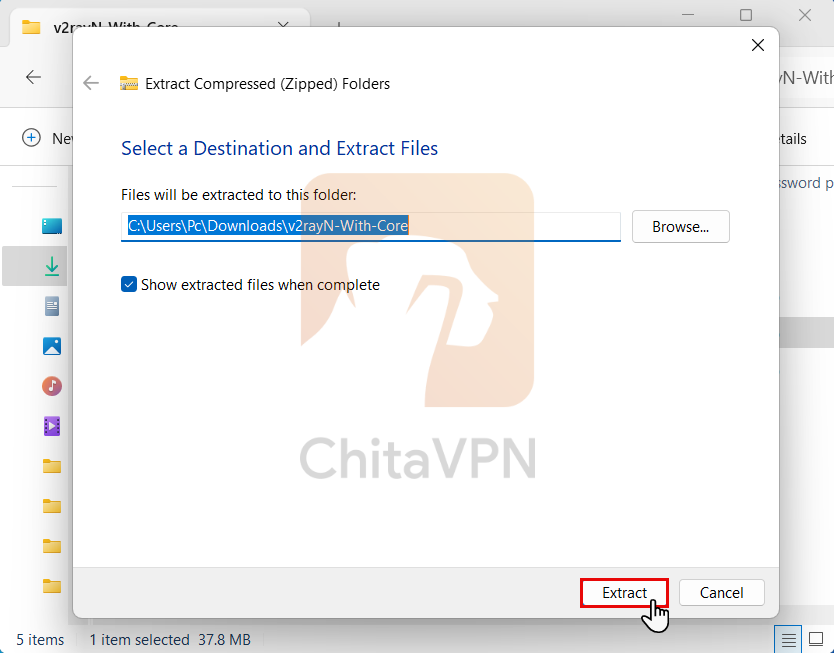
2. Click on the "Extract All" button, then click the "Extract" button to begin the extraction process. Wait for the process to complete before proceeding to the next step.
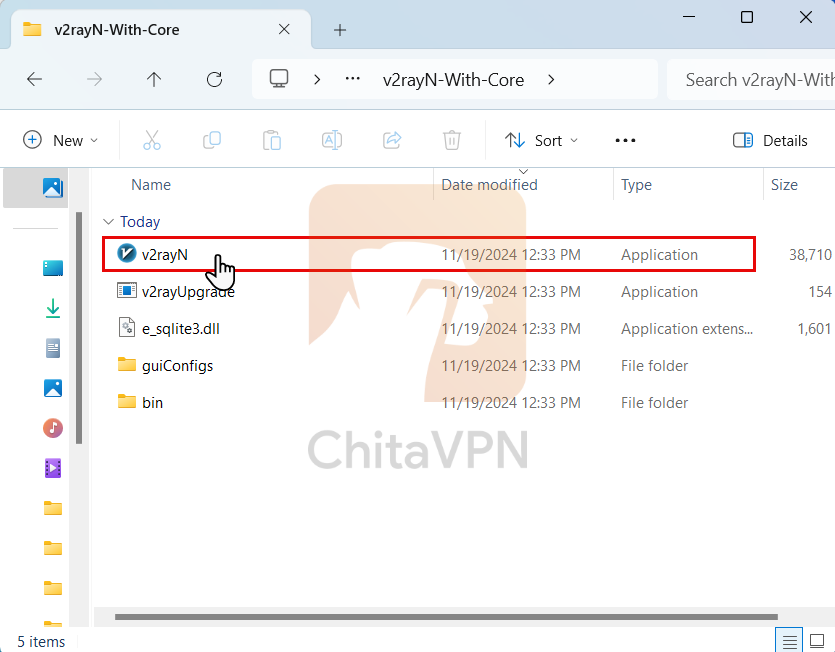
3. Once the extraction is complete, double-click on the extracted file to launch the app and begin the configuration process.
Add VPN Configuration and Connect
To connect to V2RayN, you need a ChitaVPN subscription. Sign up now!
1. After launching the app, click on the "Servers" tab, then select the "Add HTTPS Server" option to proceed with adding a new server.
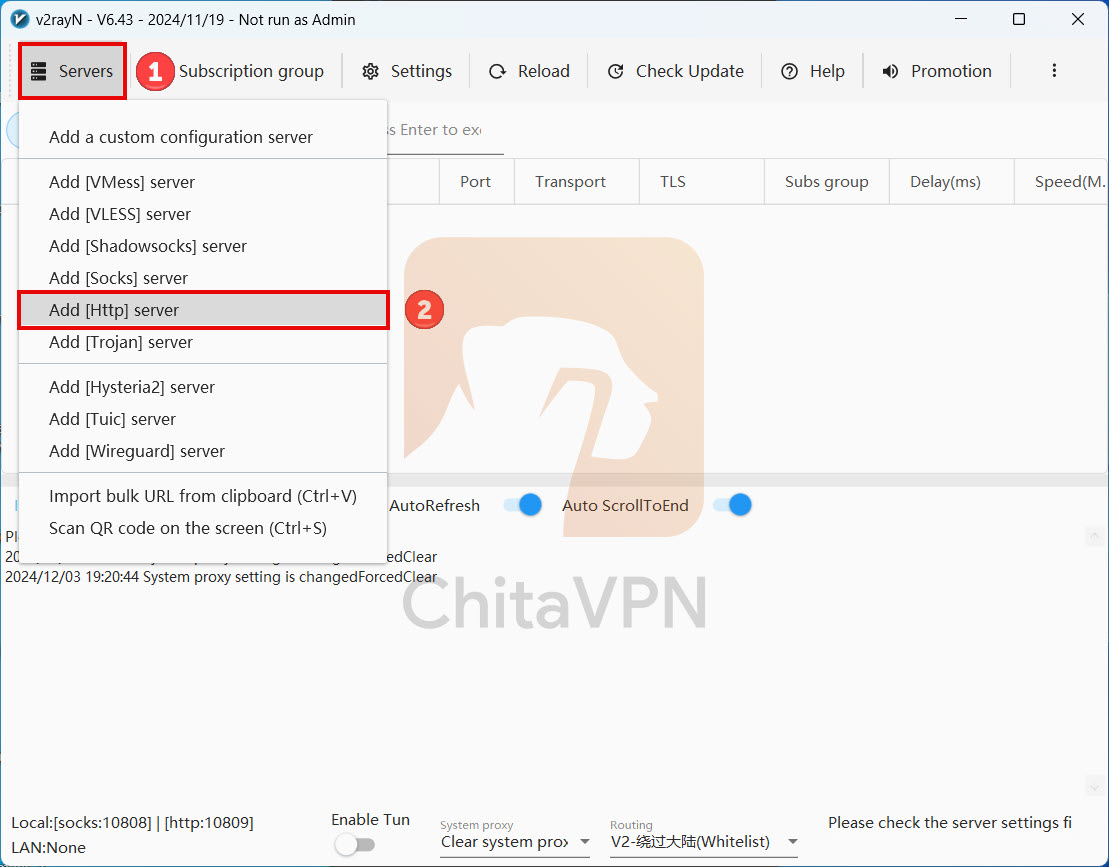
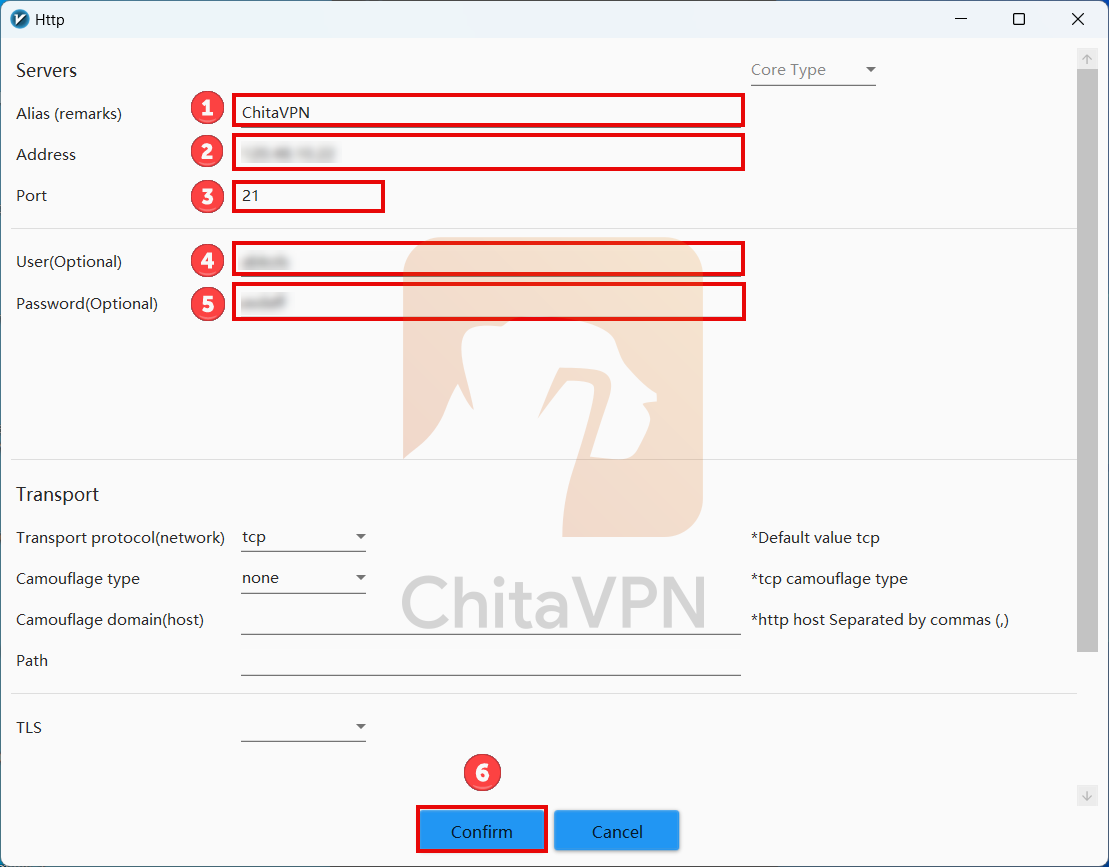
2. To add your connection, enter a name for your connection in the designated field. Next, input the ChitaVPN server address and the port number. Then, enter your username and password. Finally, click the "Confirm" button to establish the connection.
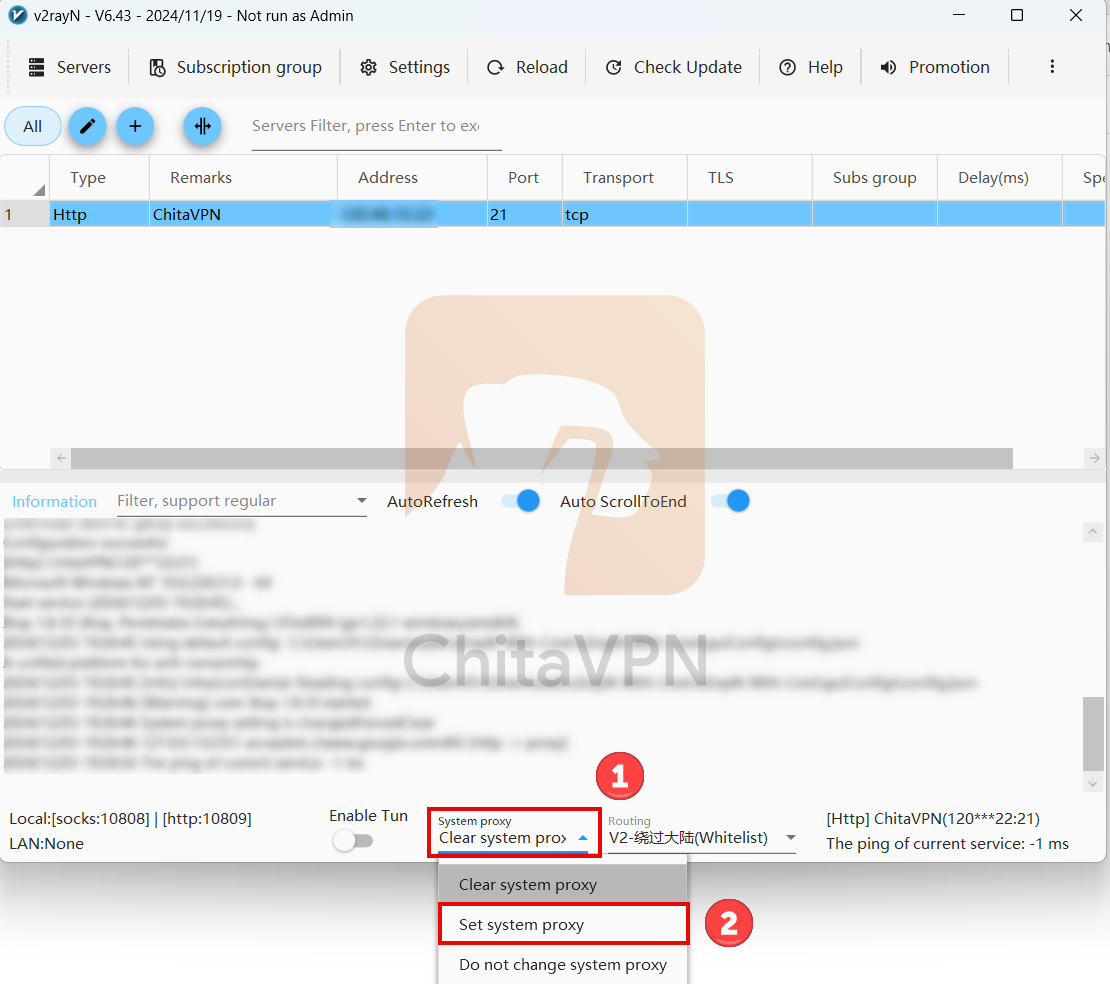
3. Click on the "System Proxy" option and select "Set System Proxy" to Connect.
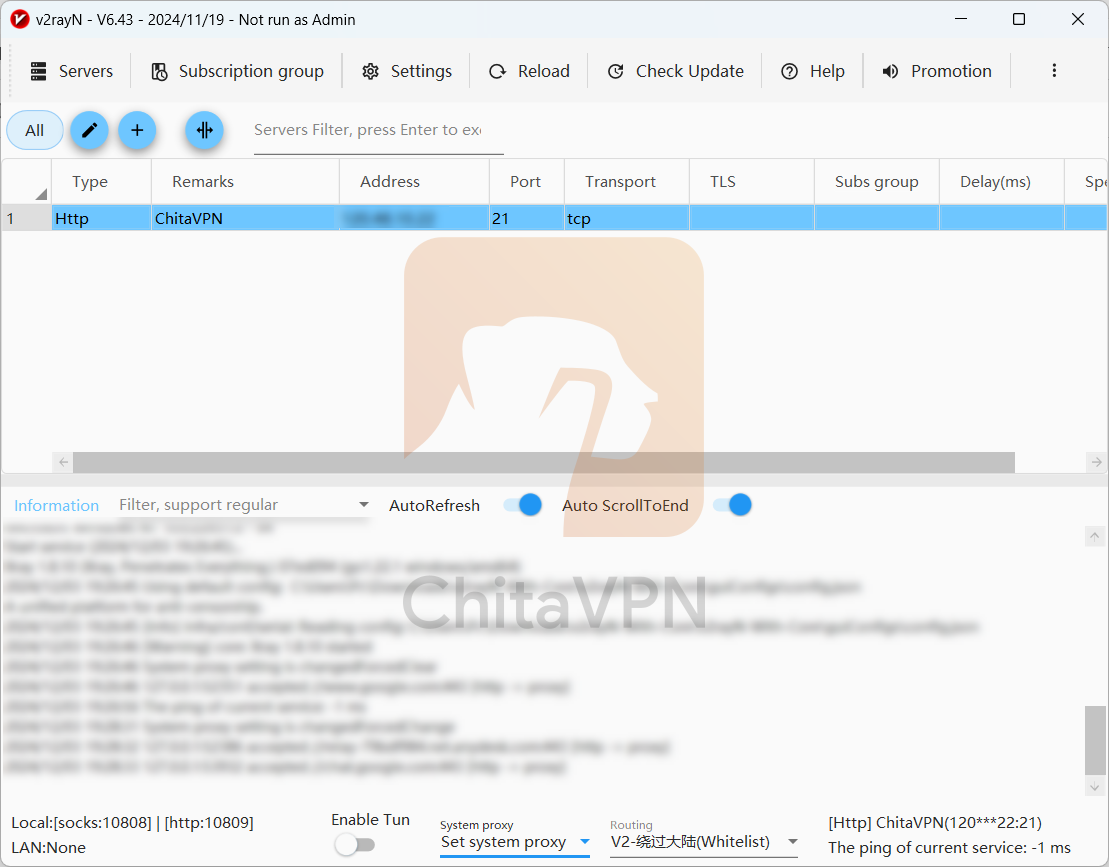
4. When you see this screen, it means you are successfully "Connected" to the ChitaVPN servers.
You're all set!
enjoy secure and private browsing with ChitaVPN and V2RayN. Start exploring the internet with freedom and peace of mind today!
