
We’re here to help you easily install and configure OpenConnect on your Android device.
Download and Install the App
Follow these steps to get started:
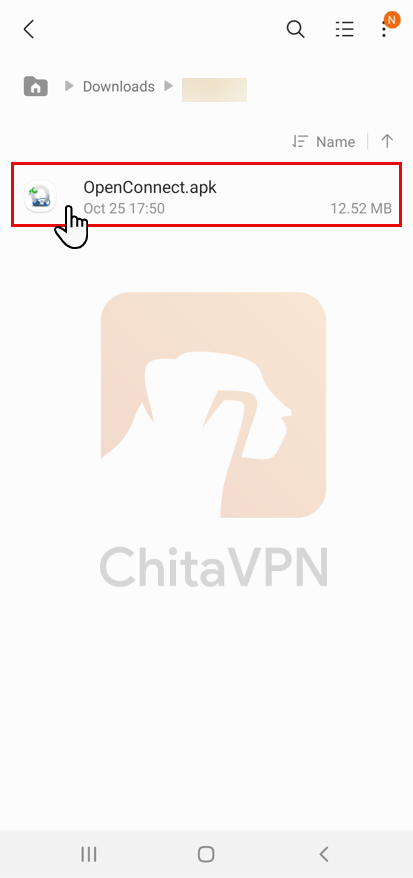
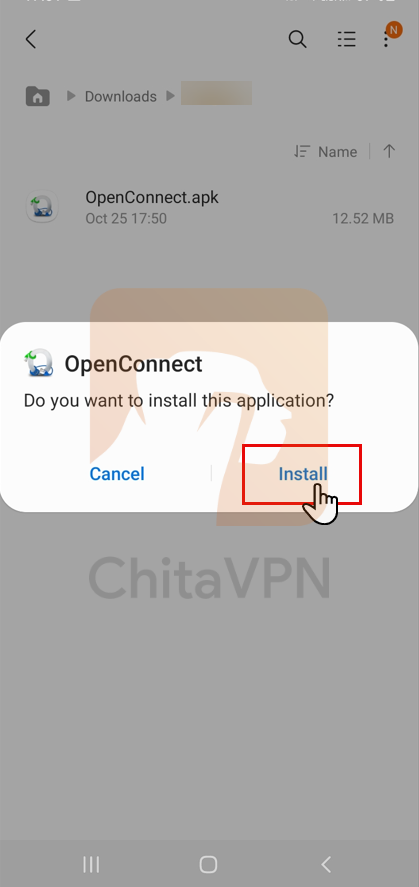
1. Download the OpenConnect App for Your Mobile Device from ChitaVPN's Download App Panel. after that, click on the setup file, select "Install," and wait for the installation to complete.
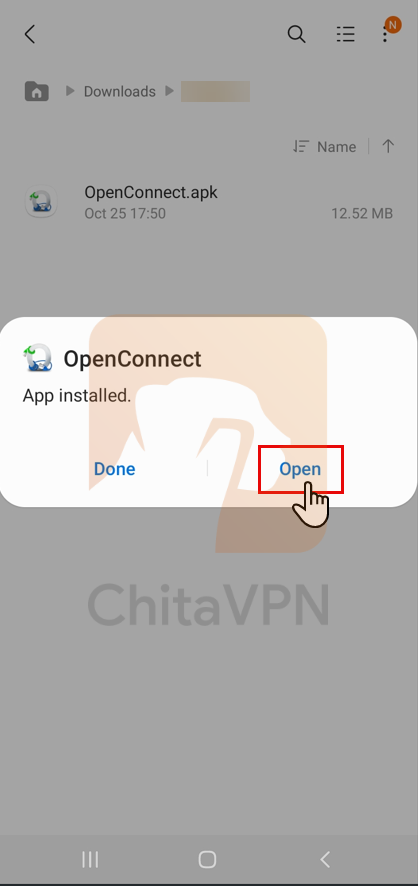
2. When the installation is complete, click "Open" to launch the app and start using it.
Add VPN Profile and Connect
To connect to OpenConnect, you need a ChitaVPN subscription. Sign up now !
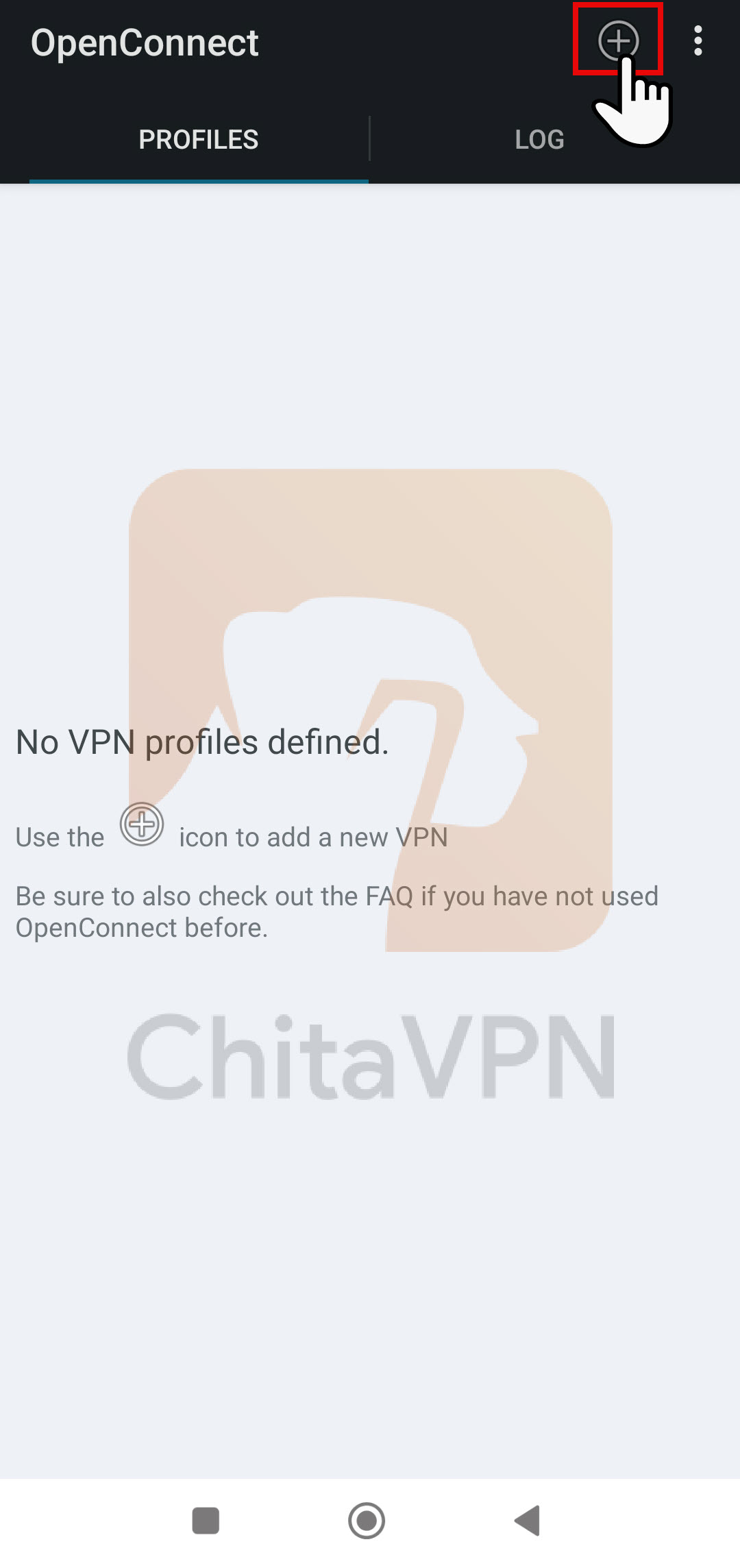
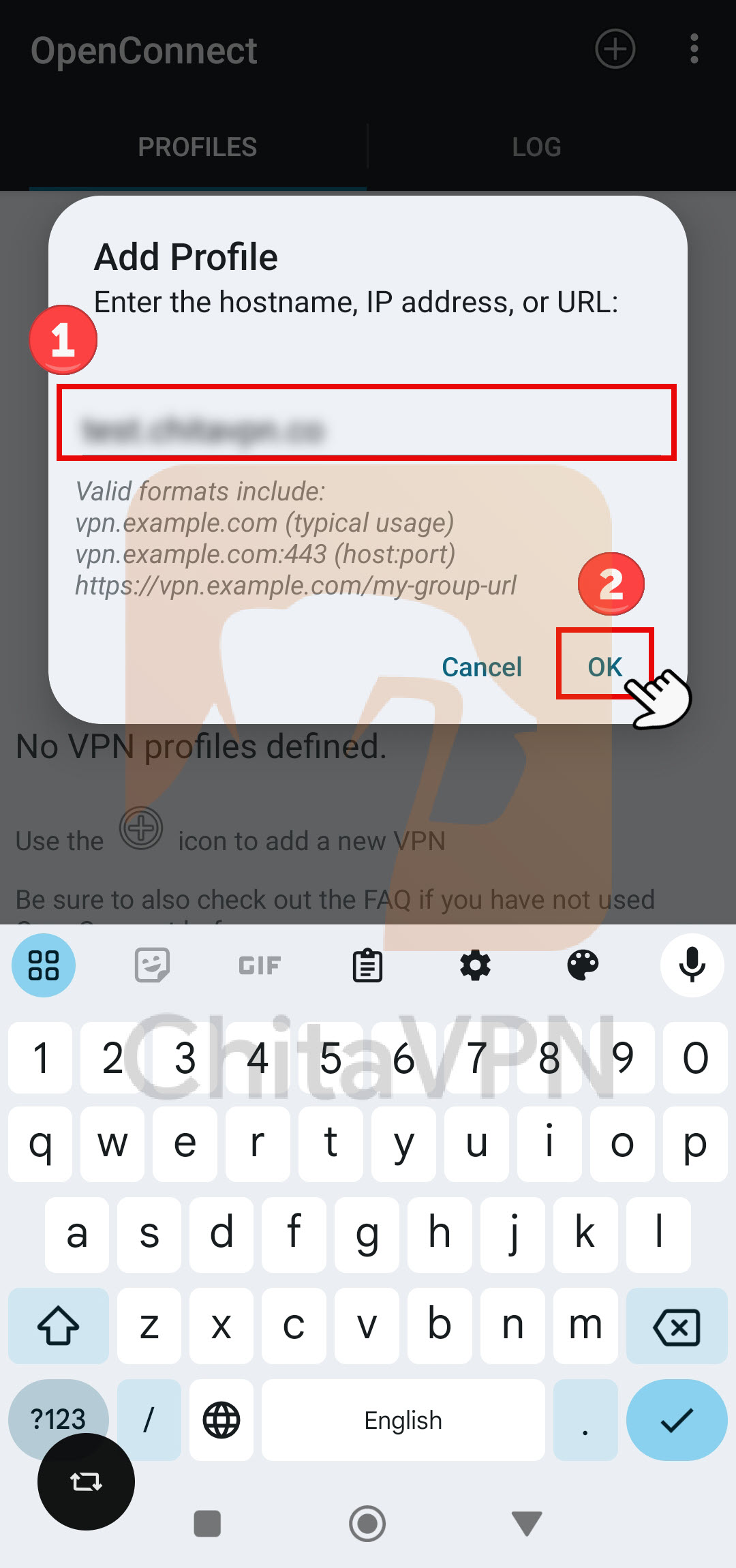
1. Click on the "plus icon" or " (+) " in the top right corner to add a VPN connection.
2. Enter the ChitaVPN server address and click the "OK" button.
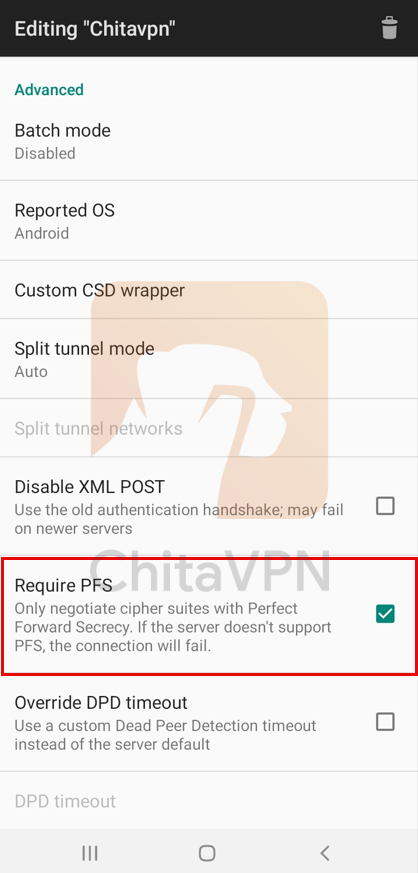
3. After adding the ChitaVPN server address, turn on the "Required PFS" (Perfect Forward Secrecy).
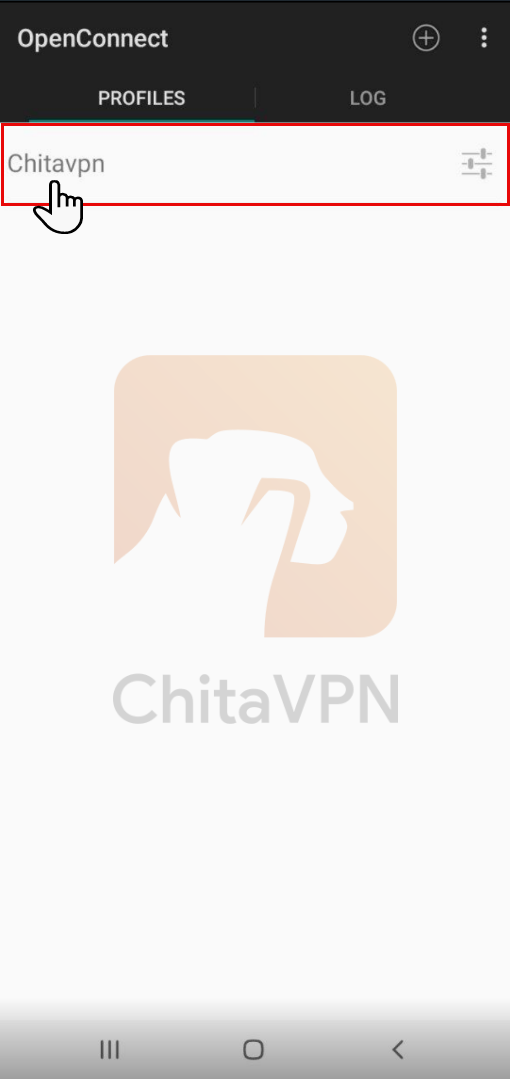
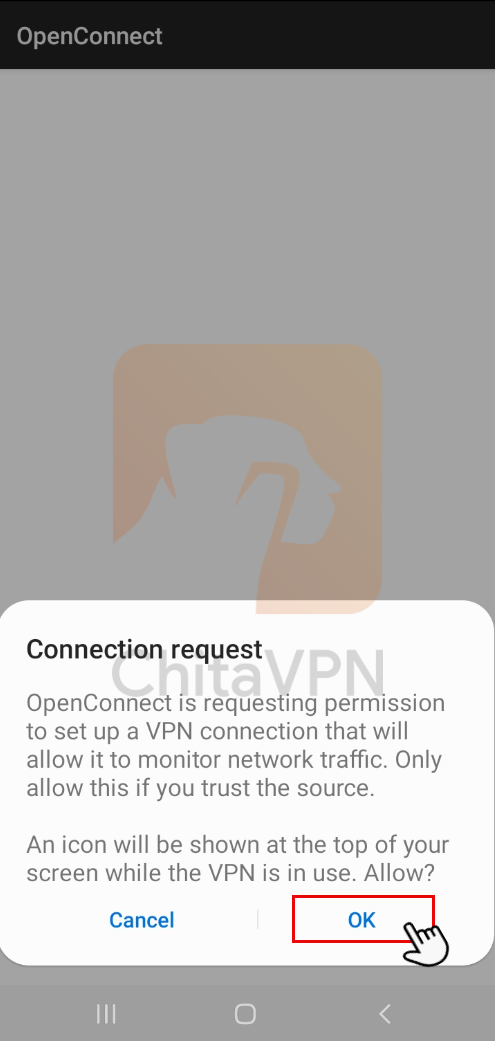
4. Select the added ChitaVPN connection and click "OK" to confirm the connection request.
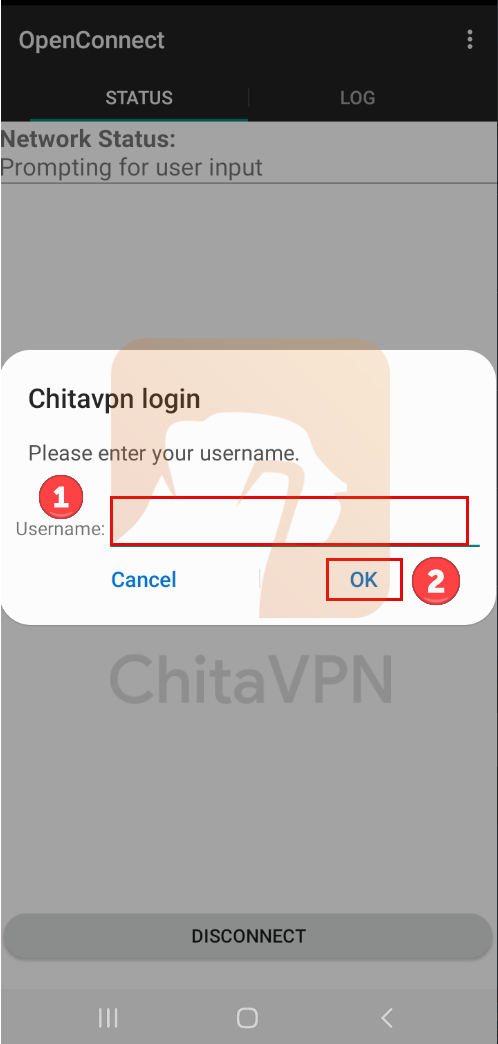
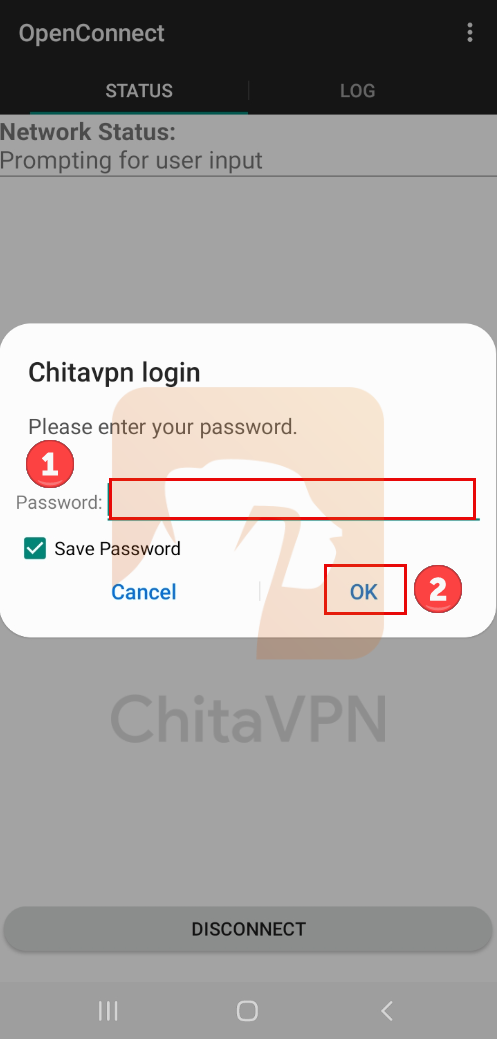
5. In the final step, enter your "username" and click the "OK" button, then enter your "password" and click "OK" again.
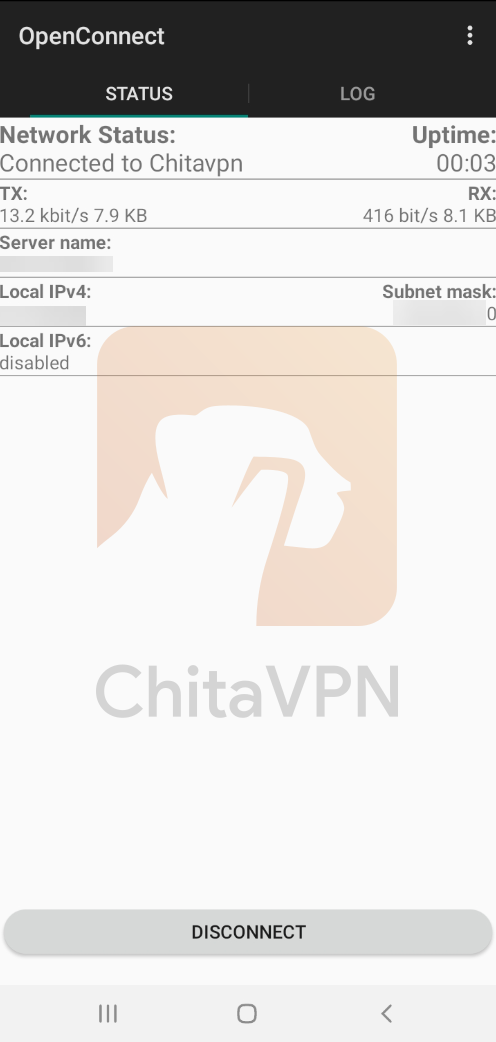
6. When you see this connection status on your screen, it means that you are connected to the ChitaVPN servers.
Stay Secure with ChitaVPN and OpenConnect
You’re all set! Enjoy a safe and seamless connection with ChitaVPN and Cisco AnyConnect, keeping your data secure wherever you go.
