
In this guide, we’ll install the official OpenVPN Connect app, enable a Kill Switch, and import your ChitaVPN config.
Download and Install the App
To get started with OpenVPN Connect on your Mac, follow these steps:
1. To Download the app you need to Visit the official OpenVPN Connect website and click on the Download OpenVPN Connect button.
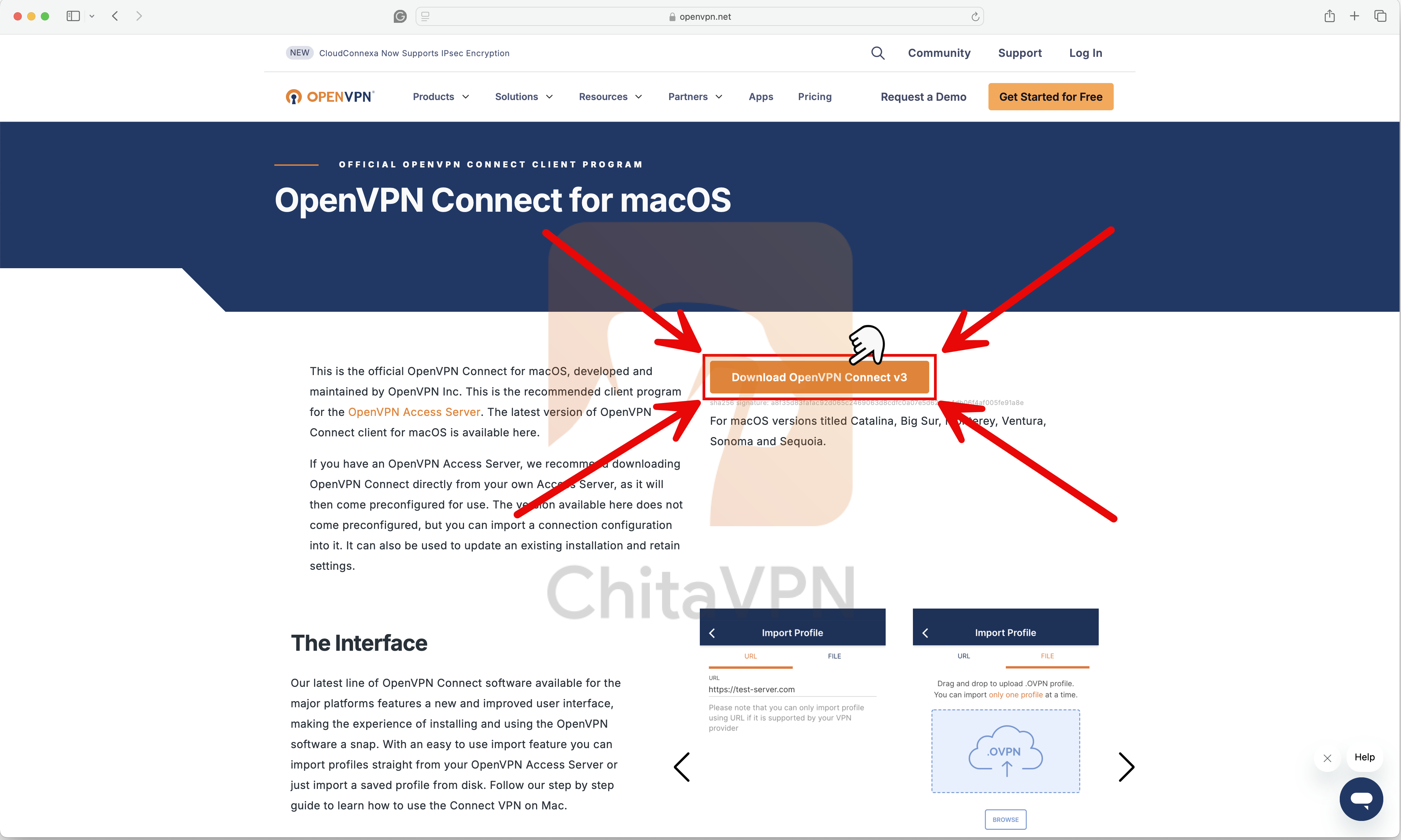
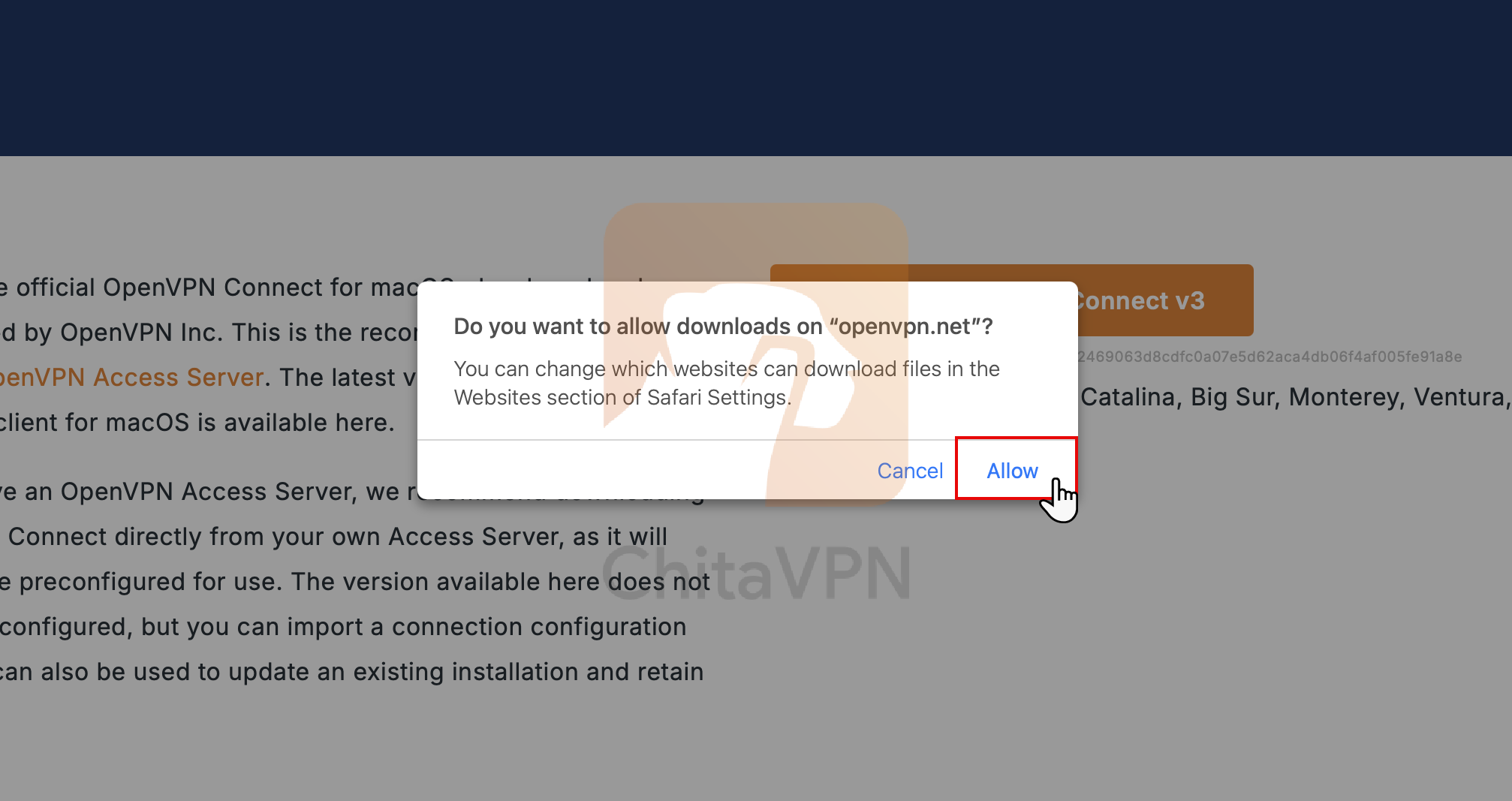
2. Click "Allow" to start downloading the OpenVPN Connect file for your Mac.
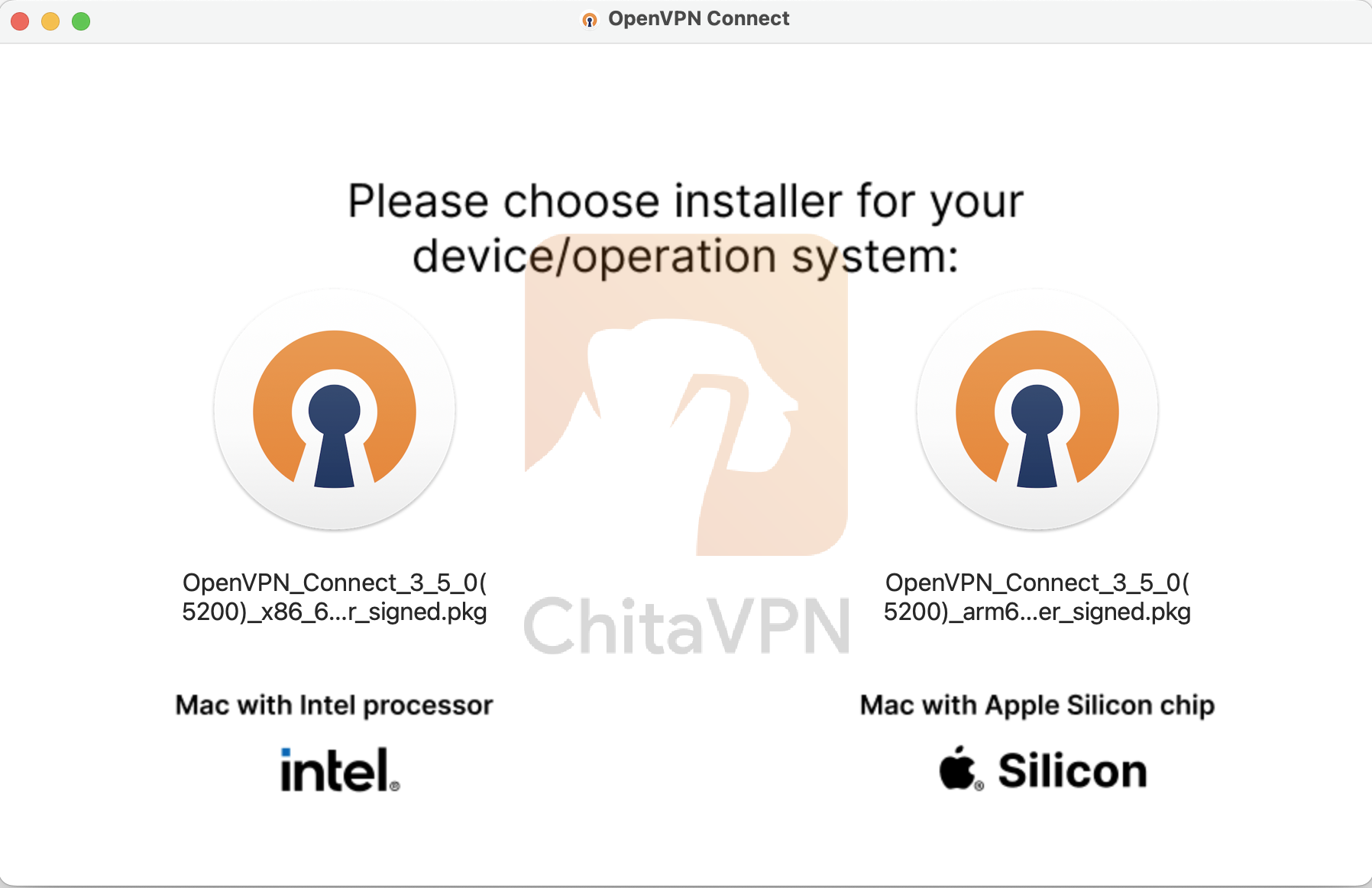
3. Once the Download is complete, open the Downloaded OpenVPN Connect installer file to begin the installation process.

4. Select the installer that corresponds to your macOS version to proceed with the installation.
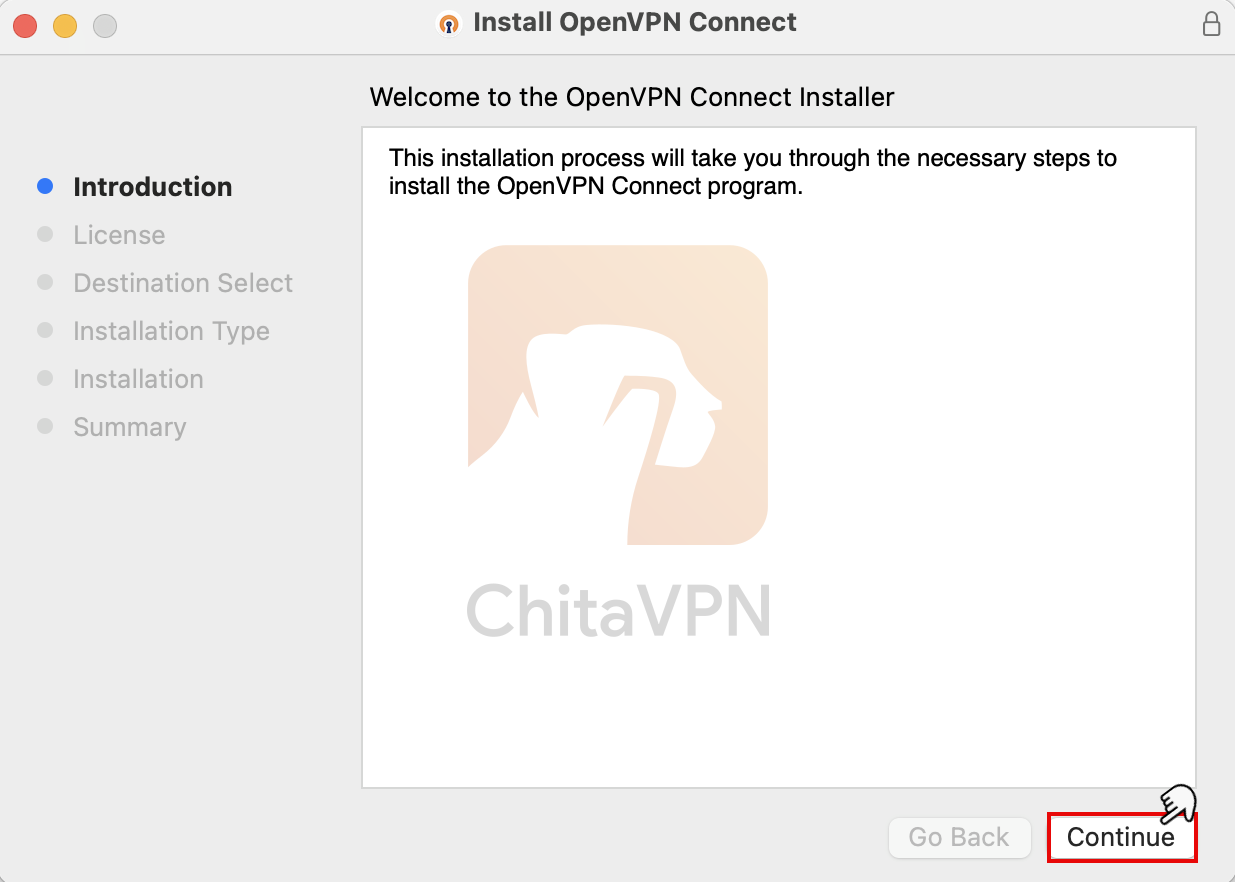
5. Click on the "Continue" button to proceed with the installation.
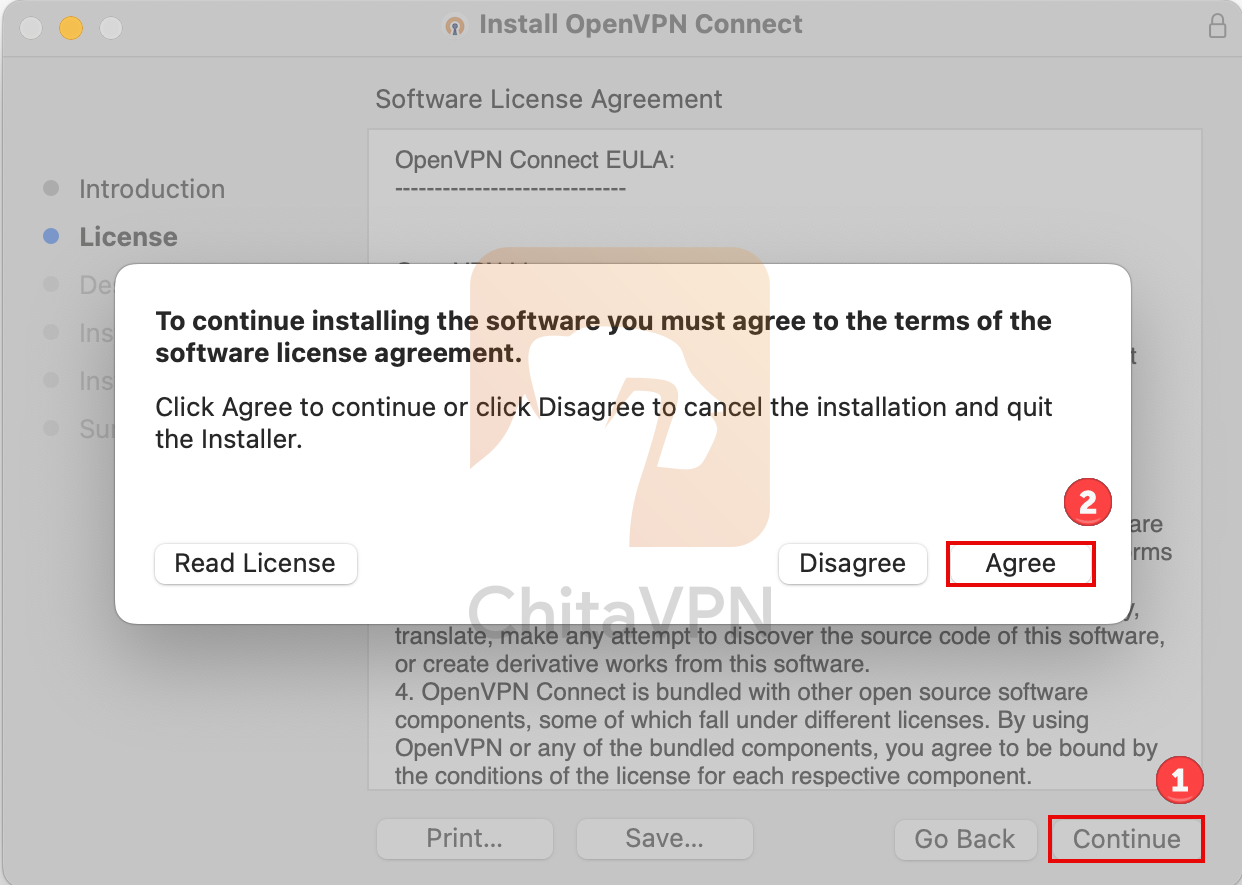
6. Click on the "Continue" and "Agree" button to accept the terms and continue with the installation.
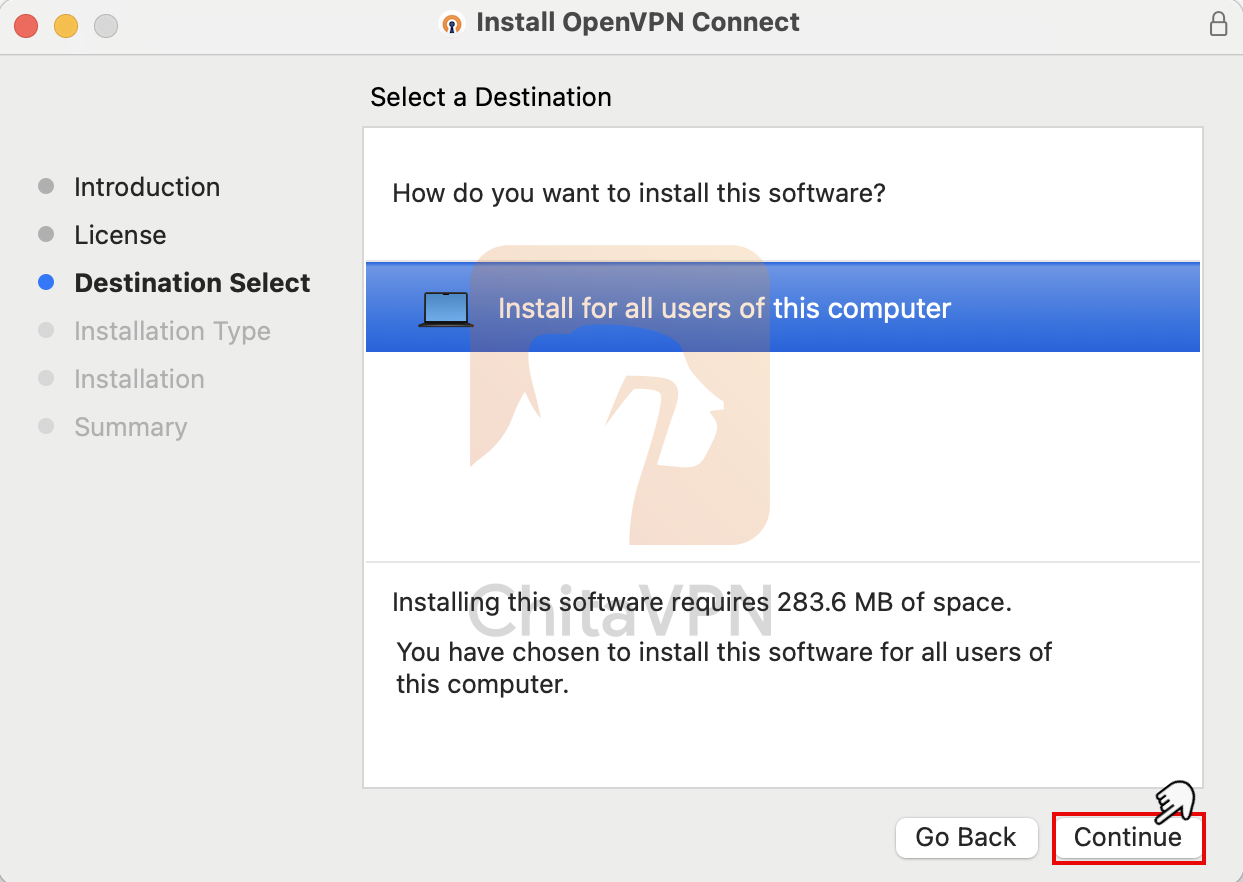
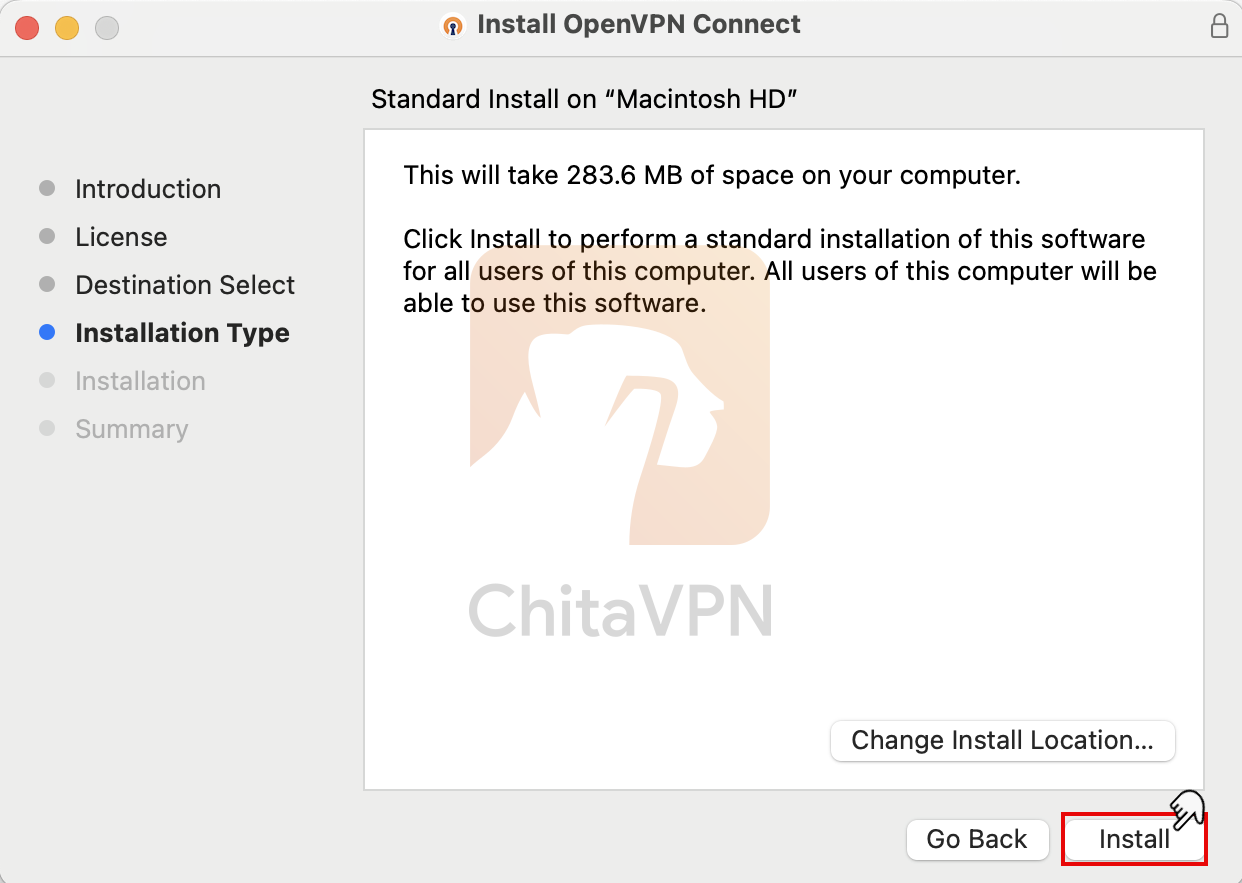
7. Click on the "Continue" and then Click on "Install" and wait for the installation process to complete.
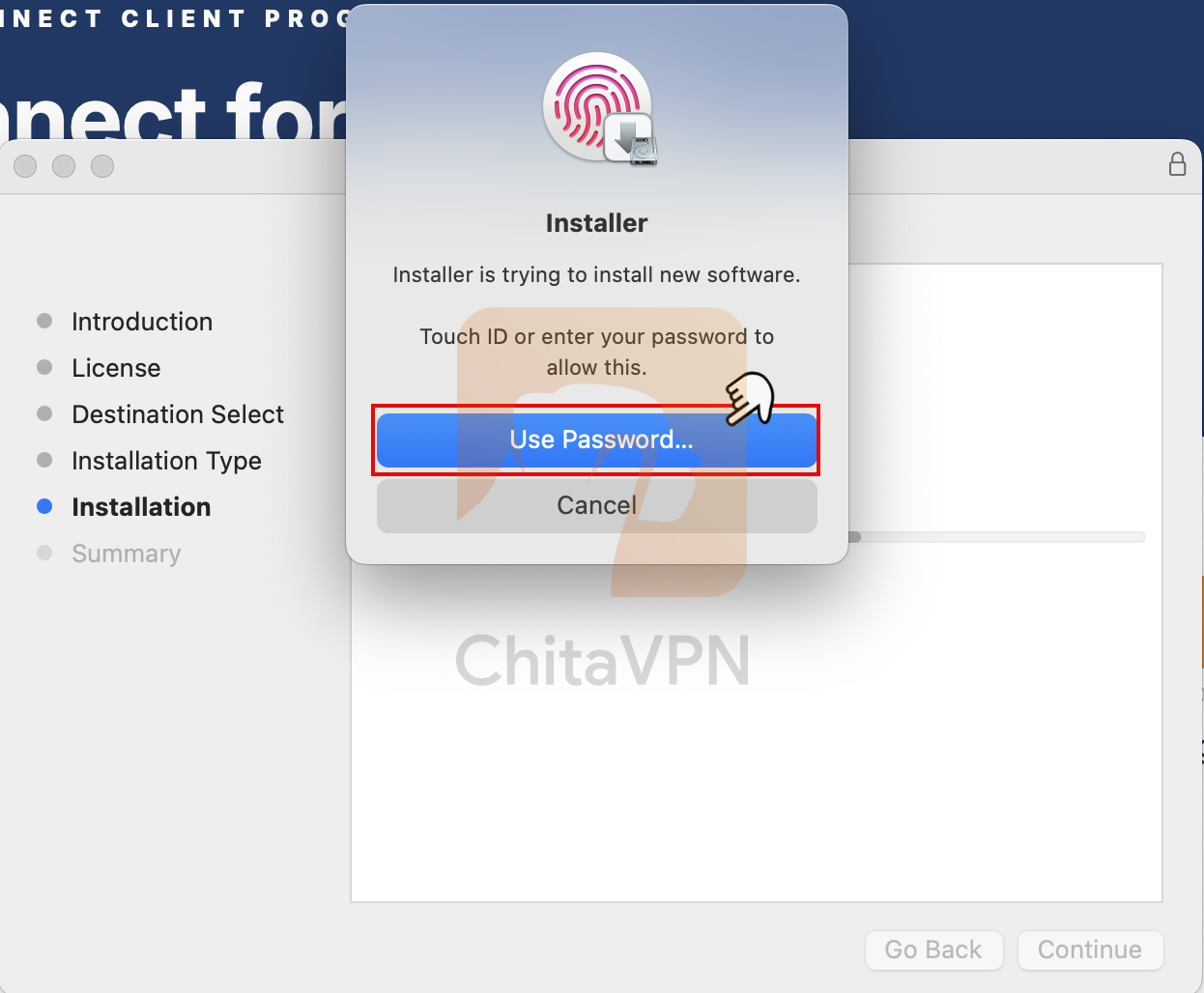
8. Enter your Mac’s password or use Touch ID to authorize and complete the installation of the app.
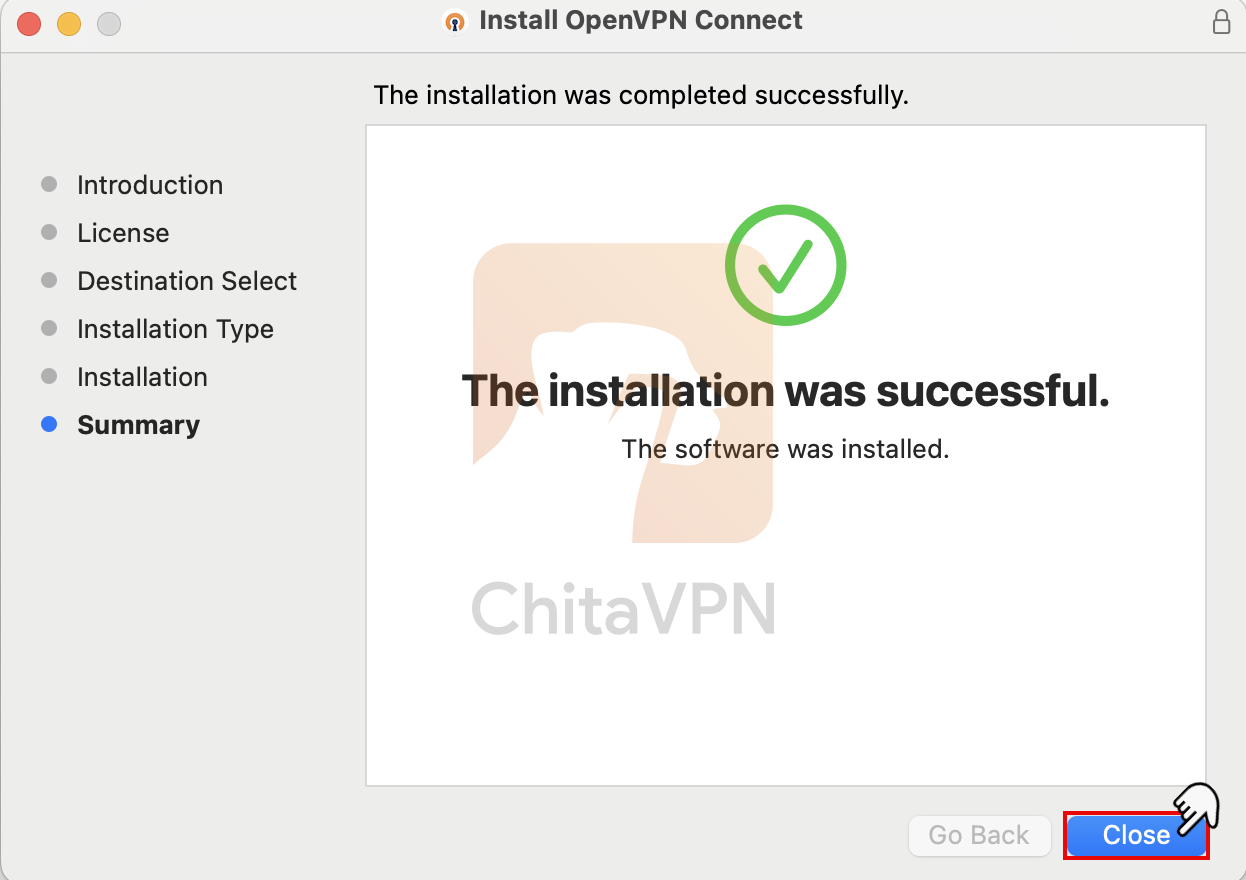
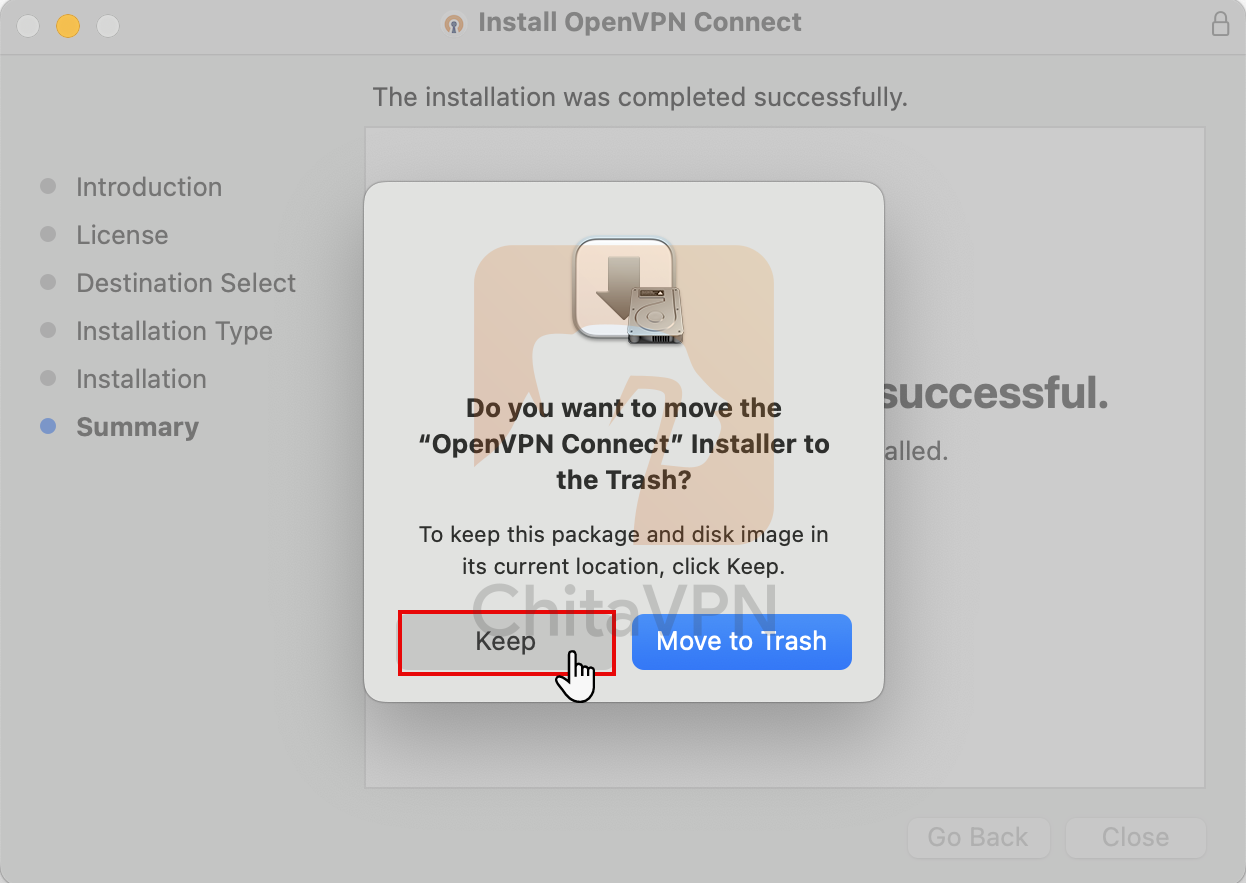
9. Once the installation is complete, click on the "Close" button and then Click on the "Keep" button to save the OpenVPN installer on your Mac.
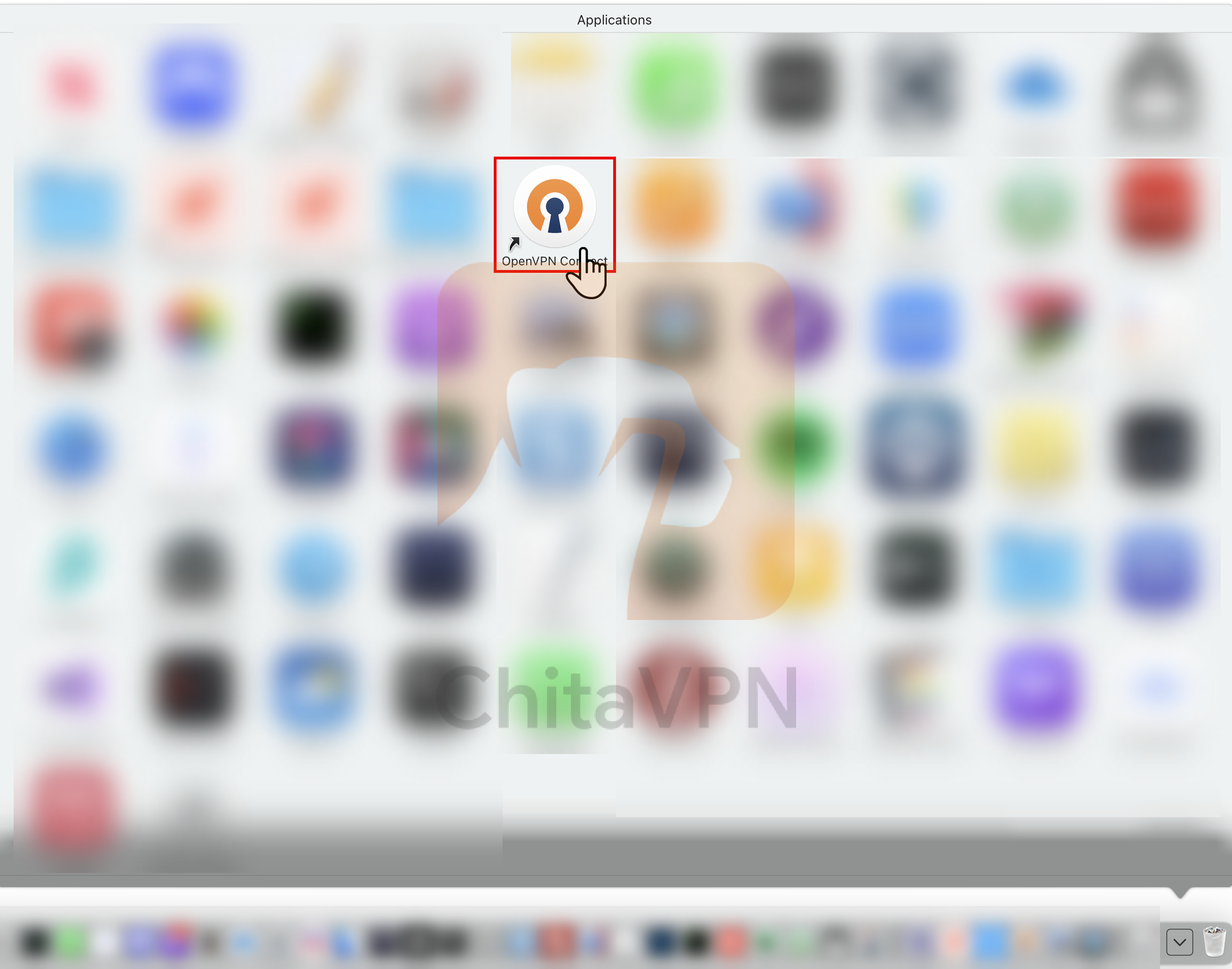
10. Once the installation is complete, go ahead and open the OpenVPN Connect app.
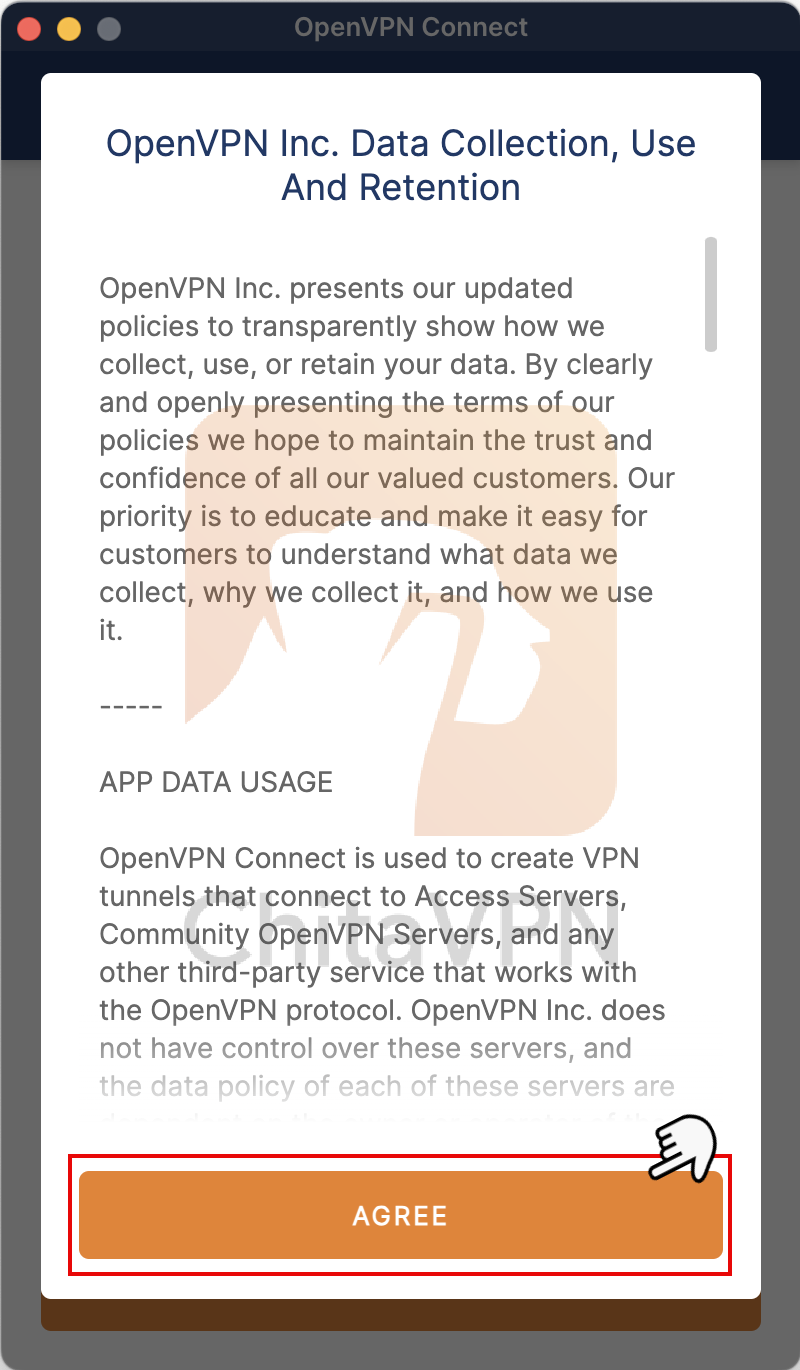
11. When you open the app, you must Agree to the app’s permissions to proceed with the setup.
Import VPN Configuration and Connect
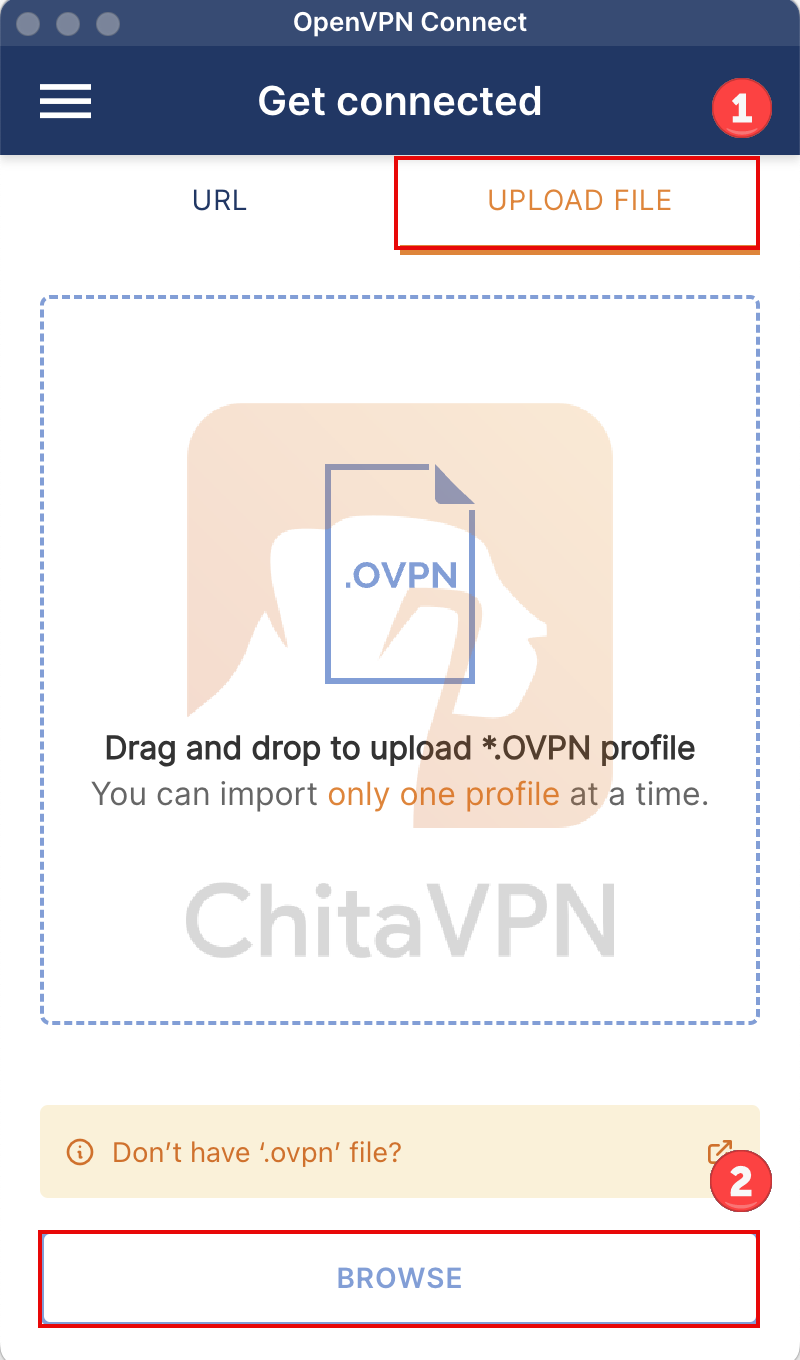
1. Select the "Upload File" option and then, click on the "Browse" button to find the specific config file you want to import.
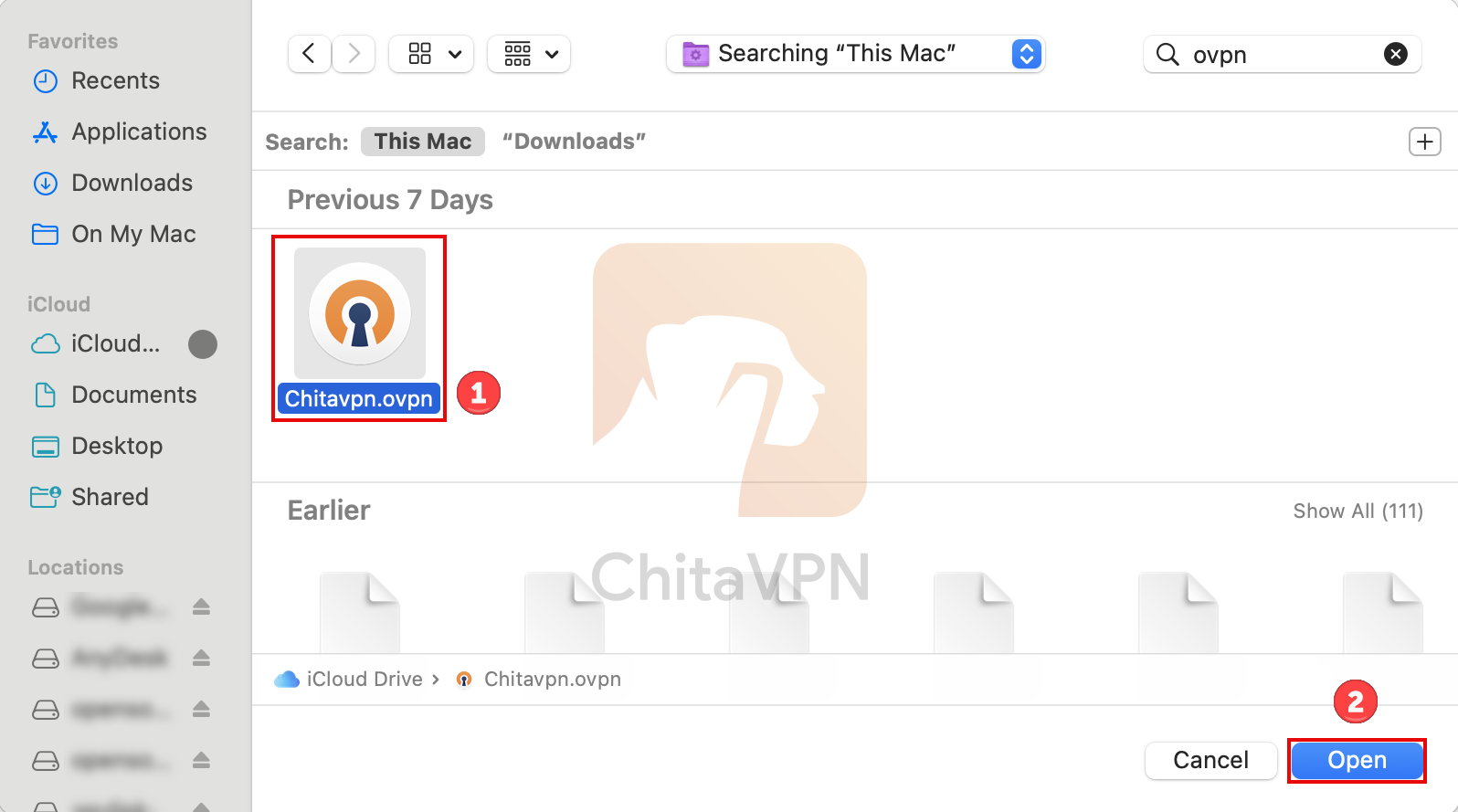
2. Select the ChitaVPN .ovpn file from the window that appears and Click the "Open" button to import the selected file.
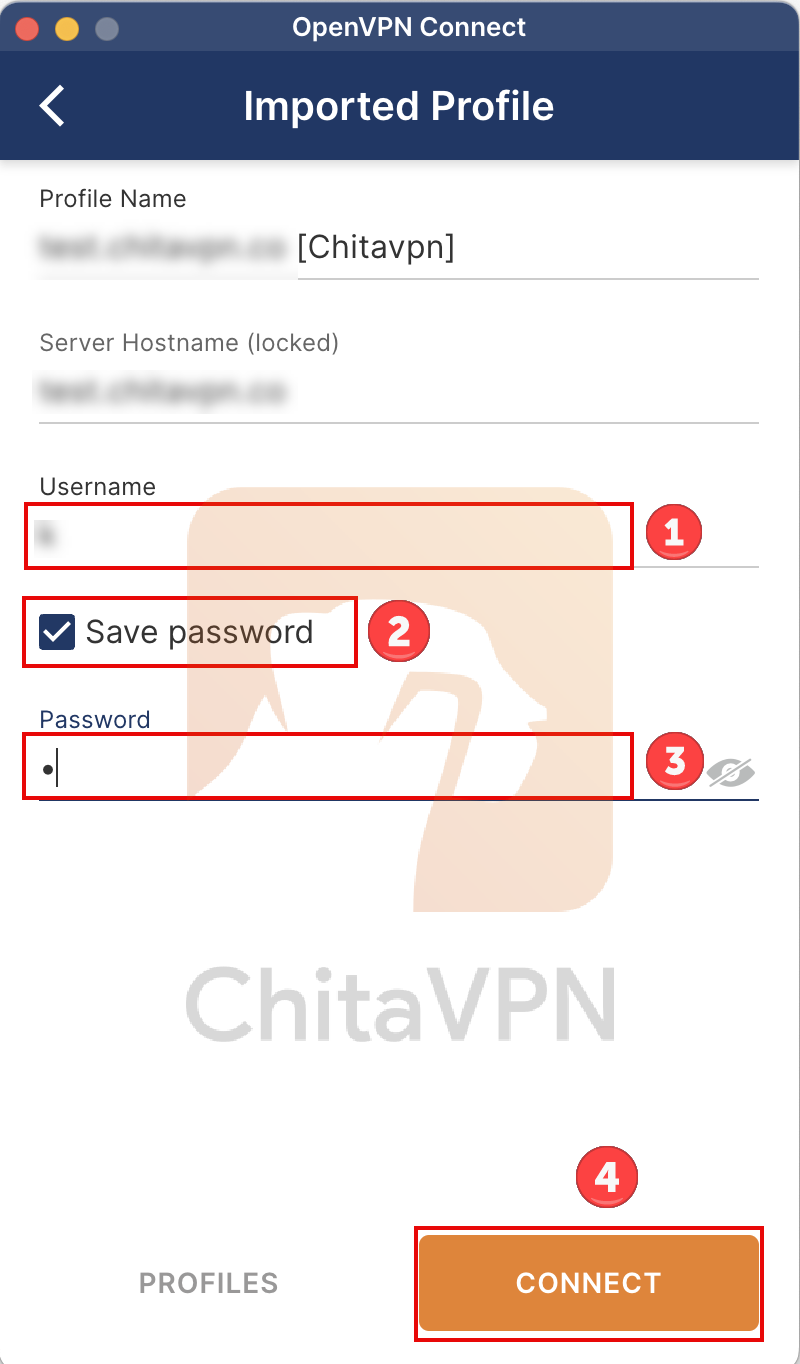
3. In this part Enter your Username, Password, choose the save password option and click on the Connect button.
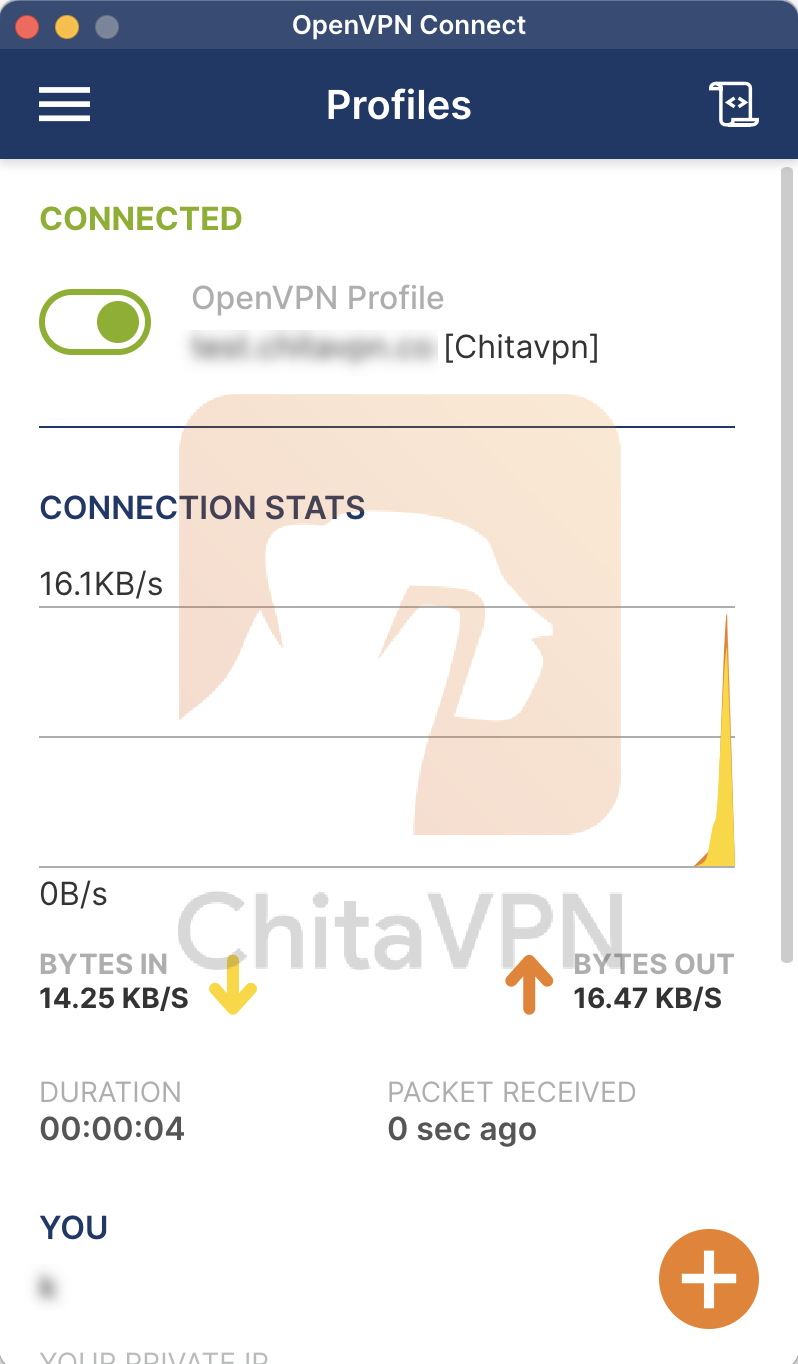
4. When you see this connection status on your screen, it means that you are connected to the ChitaVPN servers.
Turn on Seamless Tunnel / Unblock IPv6
These settings can be adjusted to suit specific needs or preferences for the VPN connection.
1. Tap the menu icon (three lines) in the top-left and go to Settings.
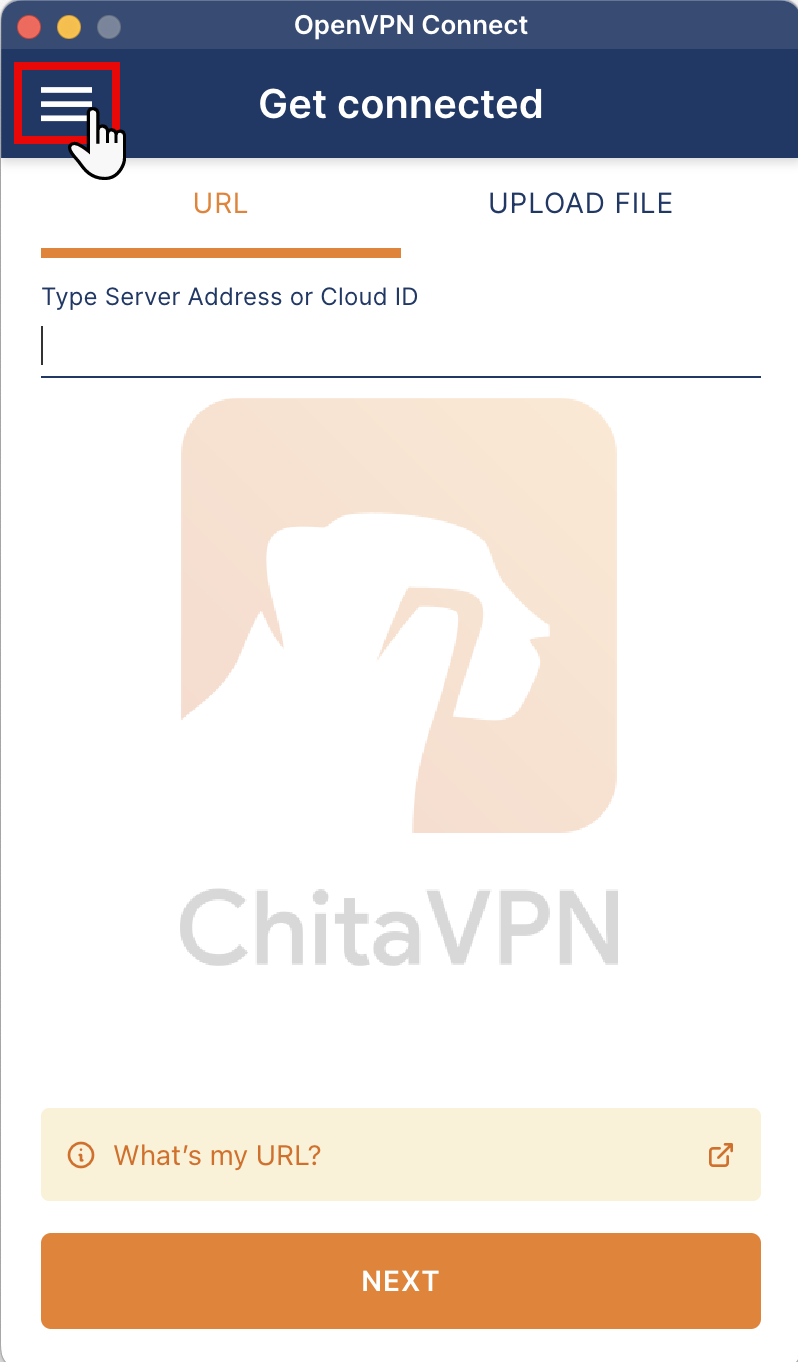
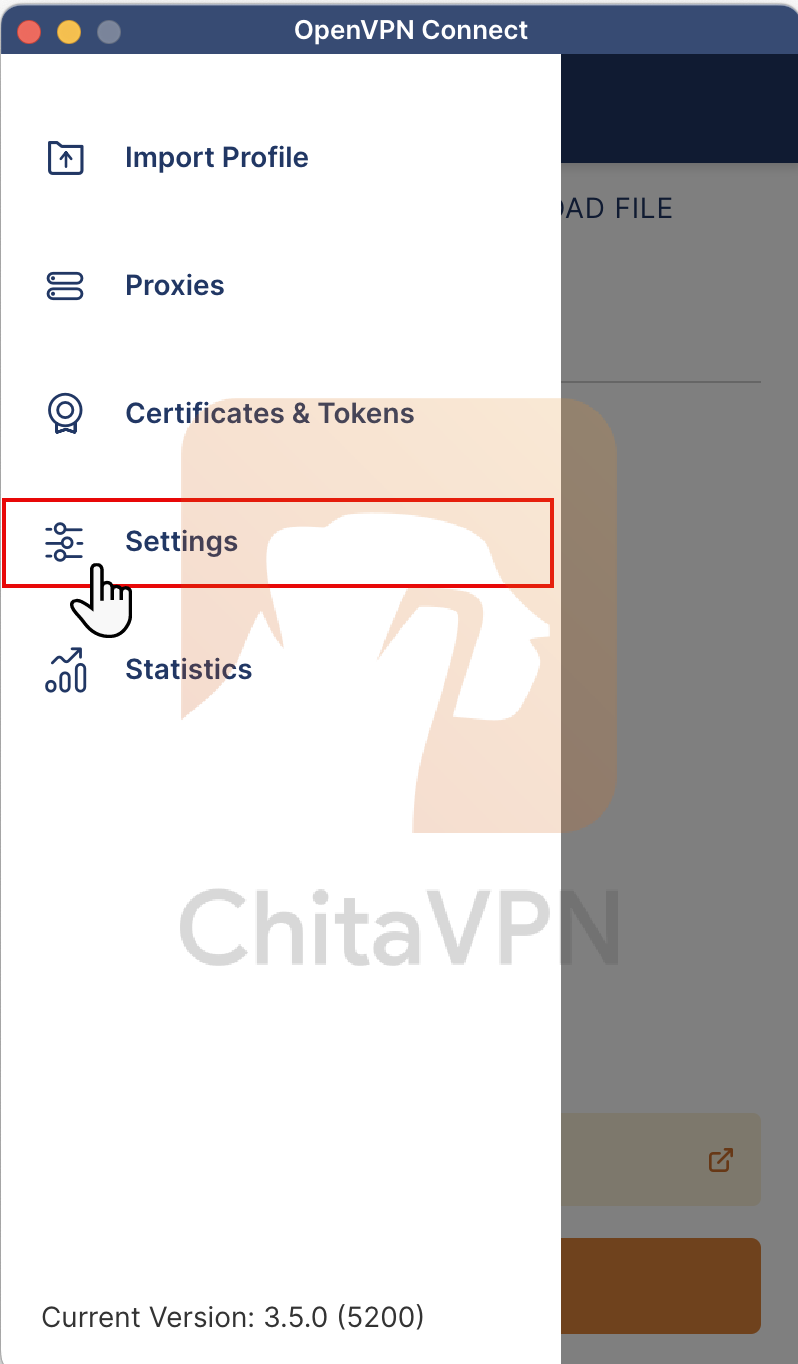
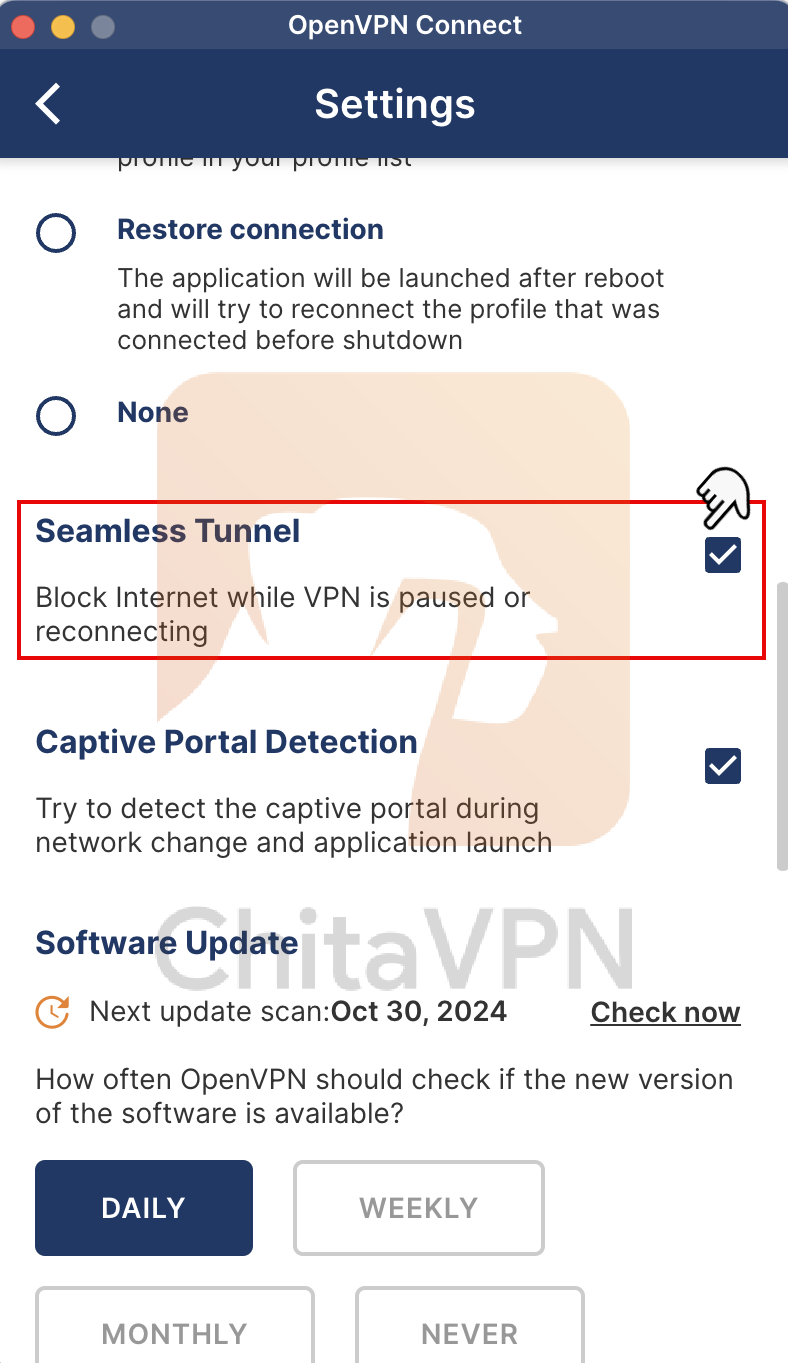
2. Enable the 'Seamless Tunnel' option to ensure your VPN connection stays active even when switching between networks.
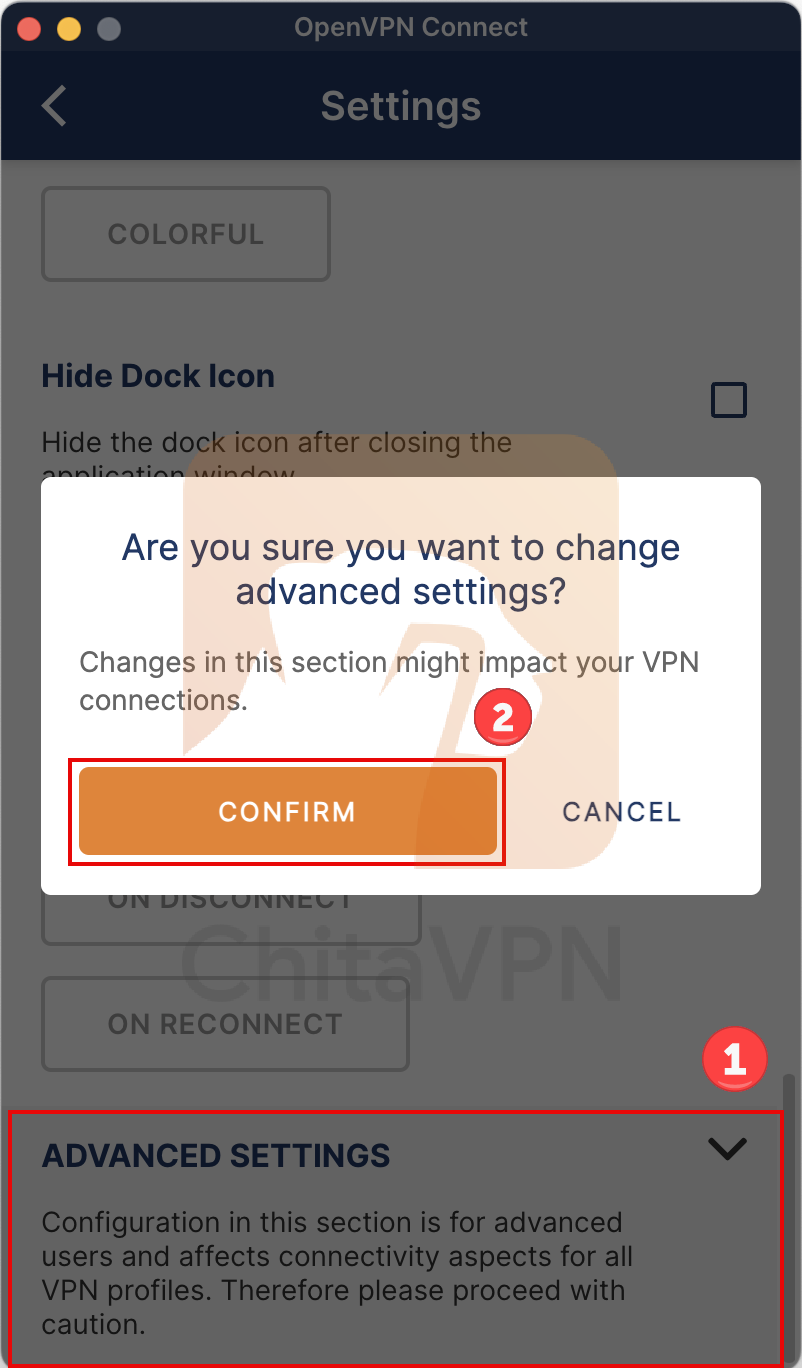
3. Click on "Advanced Settings" at the bottom of the screen and Click the "Confirm" button to proceed.
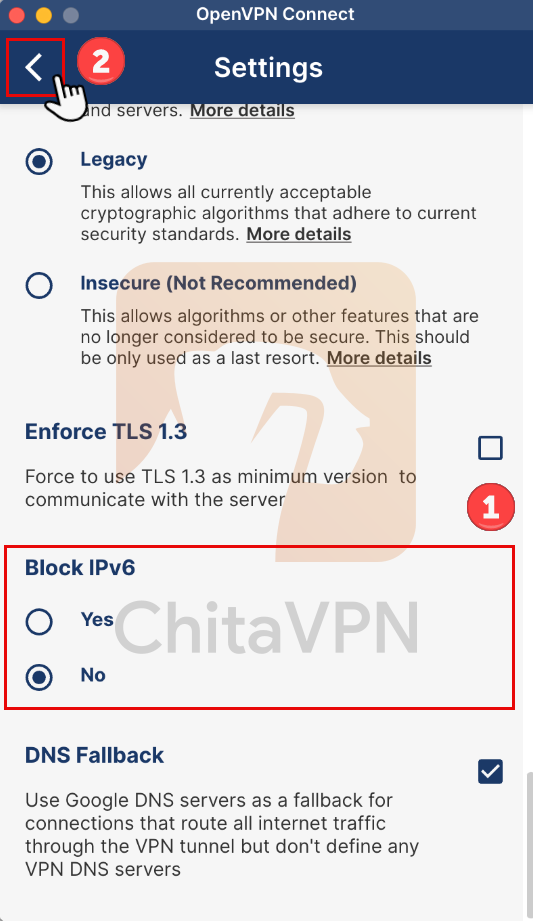
4. Select "NO" to Block IPv6, Then "Tap the back arrow" to return.
You're all set!
You've successfully set up OpenVPN with ChitaVPN and are now ready to experience a secure and seamless online experience. With ChitaVPN, you’re not just protecting your privacy – you’re unlocking a world of freedom to browse, stream, and connect without limits.
